
Overview
Tasks
Every event gets real Tasks. Assign work, set due dates, track what's blocking the dinner, and see everything due across your events in one place.
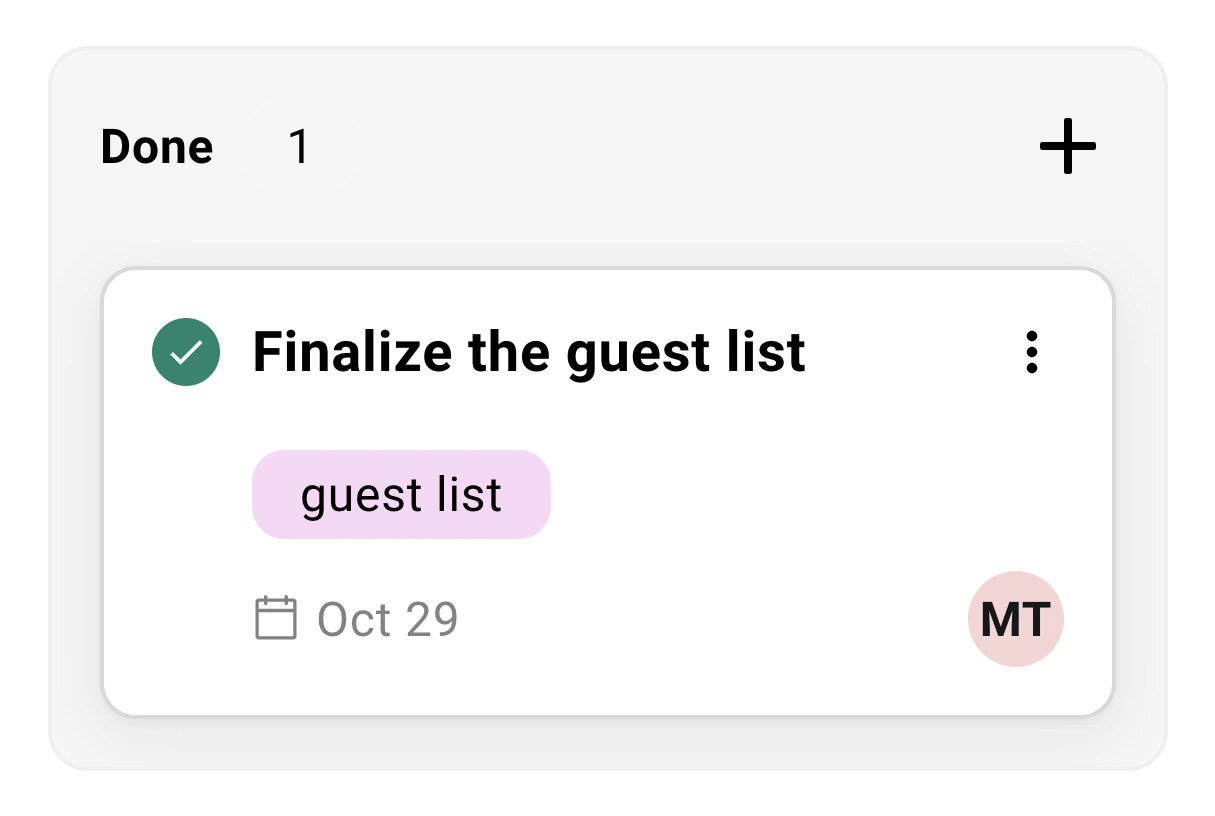
The work of running an event never lived where the event does.
It lived in your head, a side spreadsheet, and three Slack threads. Who’s building the landing page? Did anyone confirm the caterer? Tasks puts that work inside the event itself, with owners and a due date on every line.
A workspace in every event
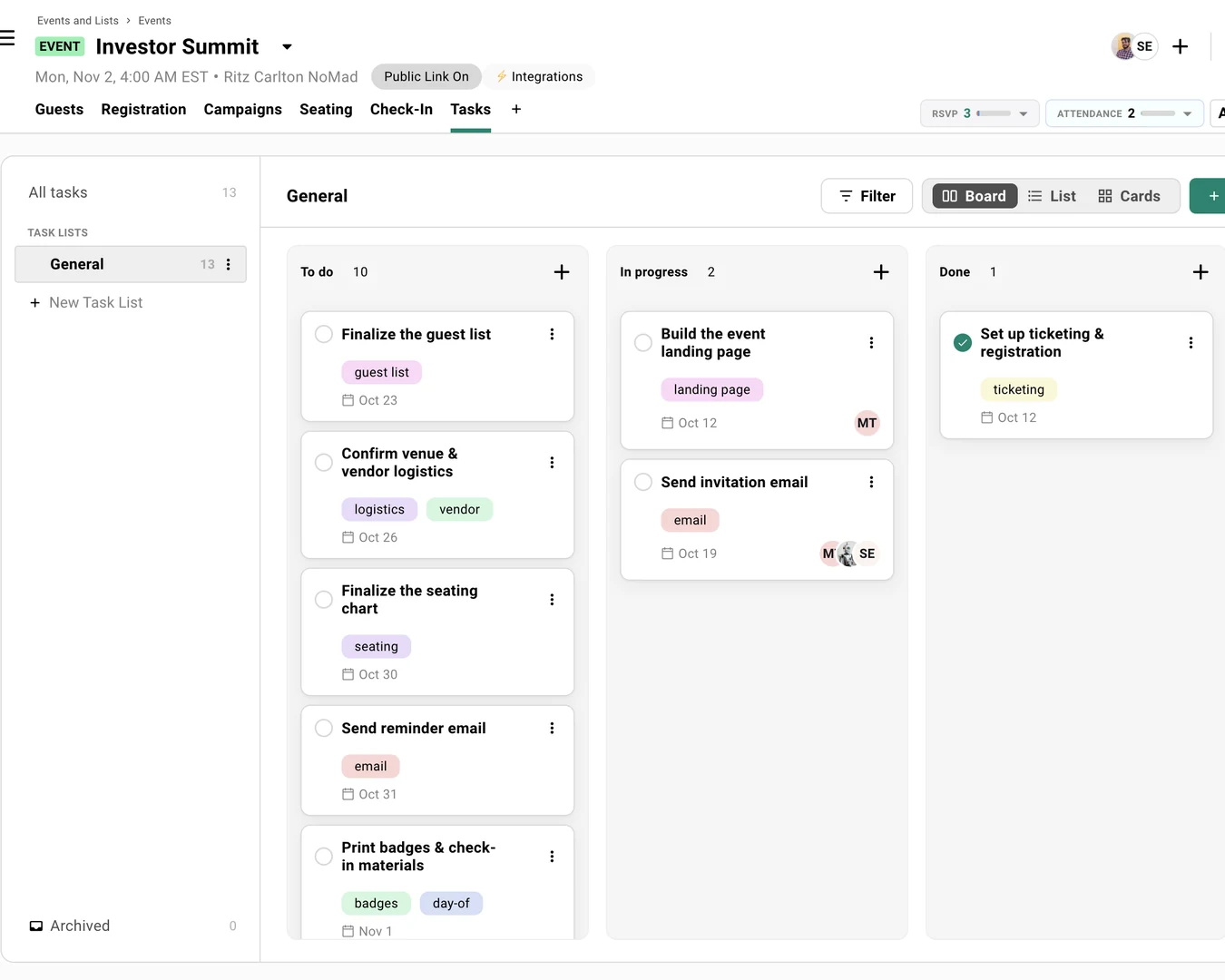
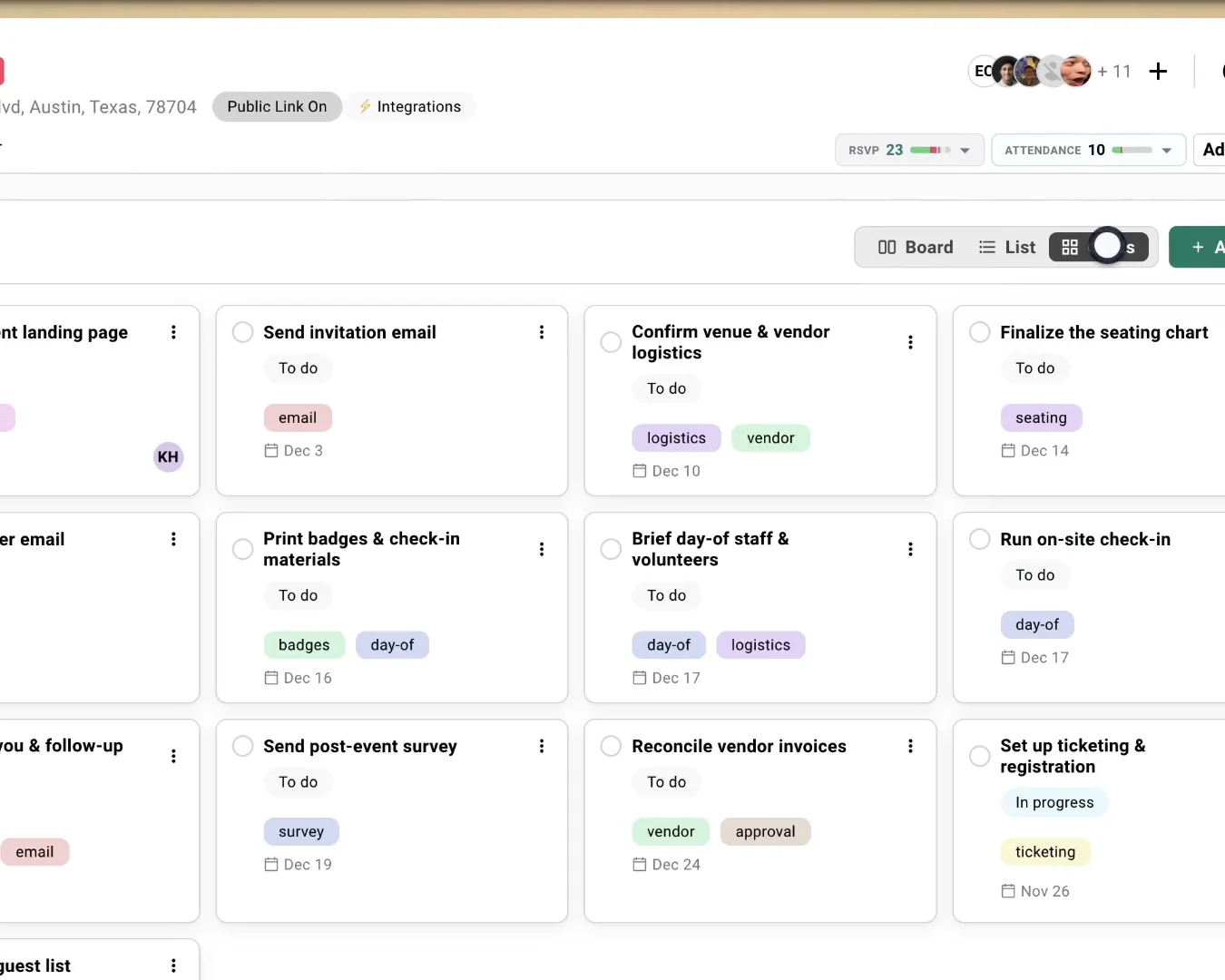
Open the Tasks tab on any event. Track work as a board, a list, or cards. Assign it, date it, and see what’s blocked.
One view across every event
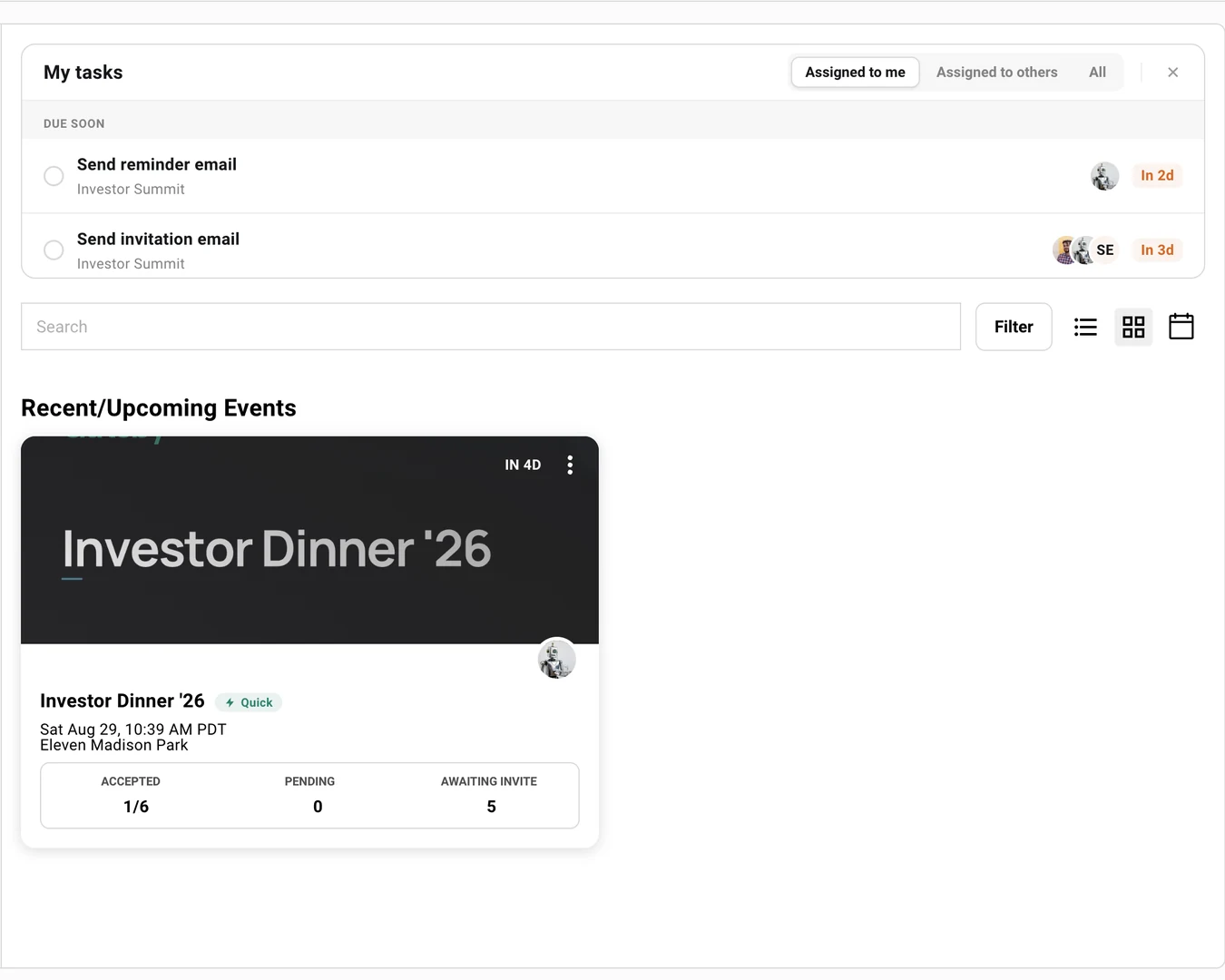
My Tasks pulls everything assigned to you onto the Events page, sorted by what’s overdue and what’s due soon.
Board, List, and Cards
Section titled “Board, List, and Cards”The same tasks, three ways to look at them. Drag a card from To do to In progress to Done, or work down a checklist. Gatsby remembers the view you picked.
Switching Views
Use the Board / List / Cards toggle at the top right of the Tasks tab.
Board
Kanban columns by status. Drag a task between columns to move it, or use the Move to menu. Best for seeing where everything stands at a glance.
List
Compact rows sorted however you need. Best for working through tasks quickly and scanning dates.
Cards
A grid of larger cards with more detail visible per task. Best for a roomy overview.
Your choice of view is saved per person, so your teammate’s layout never changes yours.
Filter by tag
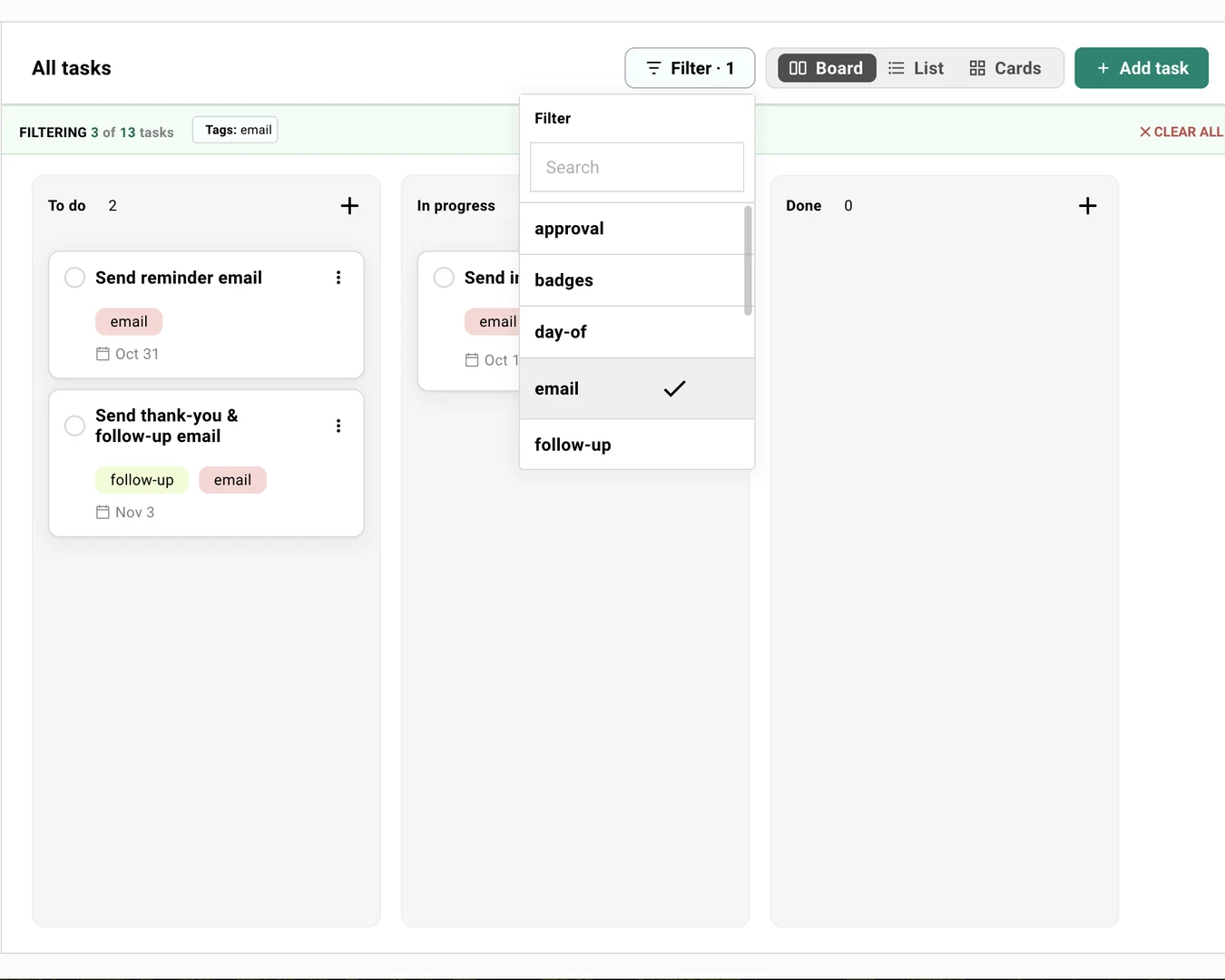
Section titled “Filter by tag”A busy event runs to dozens of tasks across several lists. Filter narrows the board to the tags you care about — everything tagged email, or just the day-of run sheet — so you can work one thread at a time.
Filtering is your view alone. It never changes what a teammate sees, and it never touches the tasks themselves.
Using the Filter
Click Filter in the header, next to the view toggle, and pick the tags you want. The trigger shows a count once a filter is on.
The picker only lists tags that are actually on tasks in the list you’re looking at, so every option returns at least one task. Untagged appears when something in view has no tags at all.
Pick more than one tag and you get every task carrying any of them. Tags widen the result rather than narrowing it, so adding a second tag shows you more, not less.
A green FILTERING bar appears above the tasks with your tags as labels and a count — FILTERING 3 of 13 tasks. CLEAR ALL on that bar removes the filter. Column and group counts follow the filtered set, while the task-list rail on the left keeps showing true totals.
The filter is temporary. It survives switching between Board, List, and Cards, and it clears when you switch task lists, leave the Tasks tab, or refresh.
What’s on a task
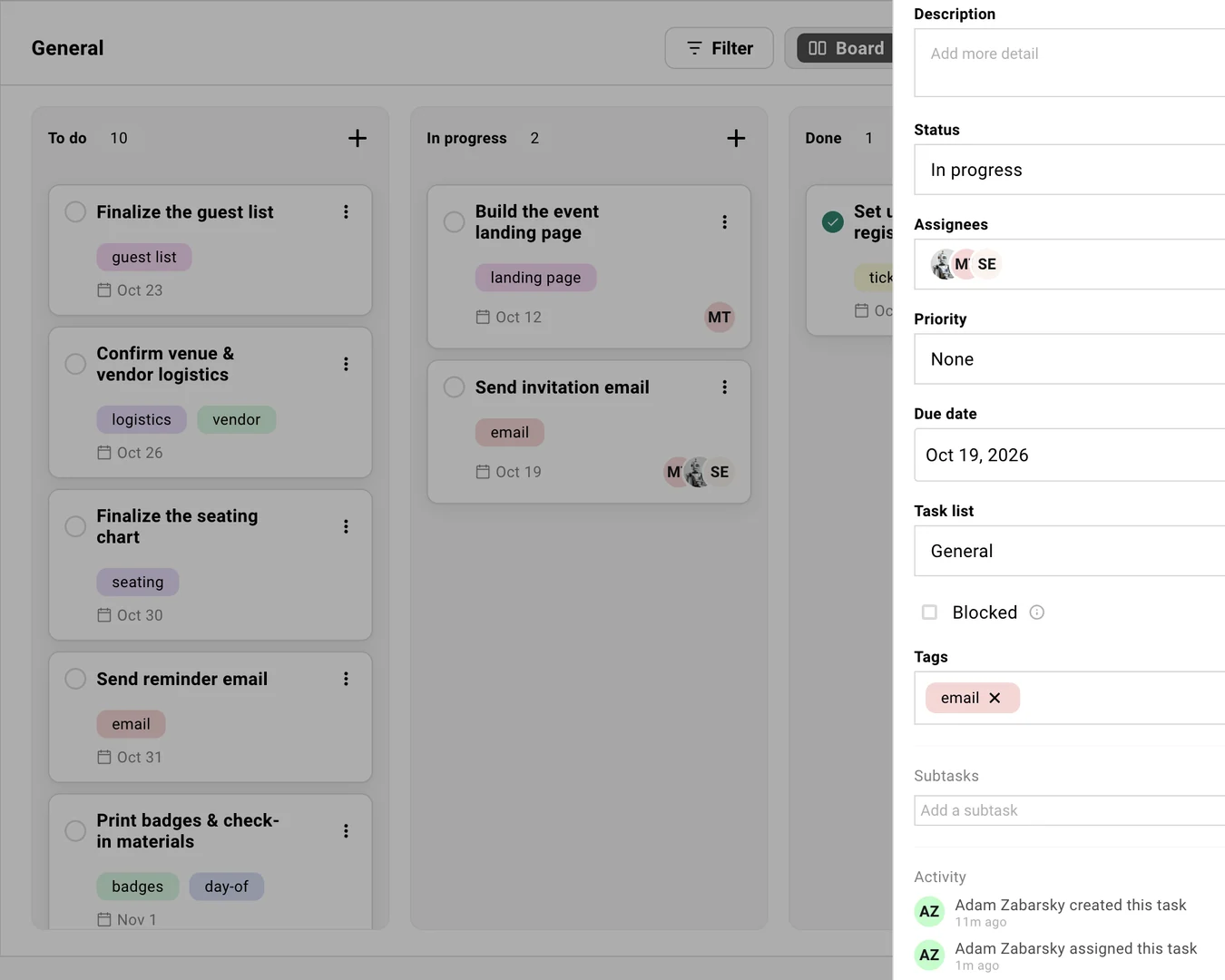
Section titled “What’s on a task”Click any task to open its panel. Set who’s on it, the due date, and the priority. Add a description and subtasks. Mark it Blocked when it’s waiting on someone else. Every change is logged.
Task Fields
| Field | What it does |
|---|---|
| Assignees | Everyone responsible. Add one person or several. The task shows up in each assignee’s My Tasks. |
| Due date | When it’s due. Drives Overdue and Due Soon. You can’t set a date in the past. |
| Priority | High, Medium, or Low. Shows as a colored dot. |
| Status | To do, In progress, Done. Matches the board columns. |
| Task list | Which list the task belongs to. |
| Tags | Curated labels like landing page, email, or logistics. You can filter the view by them. |
| Blocked | Flags a task that can’t move until something else clears. |
| Subtasks | A checklist inside the task for the smaller steps. |
Assigning More Than One Person
Work rarely belongs to exactly one person. A task can have as many assignees as you need — open the Assignees field and check off everyone who’s on it. The field reads Unassigned until you add someone.
One assignee shows as a photo and a name. Add more and they collapse into overlapping circles — three on a task card, then a grey +2 standing in for the rest. Hover any circle to see whose it is; open the task to see everyone.
Everyone assigned gets the task in their own My Tasks, and the in-app notification when it’s assigned or comes due. Nobody is the single owner — a task assigned to you and a teammate sits on both of your lists.
Profile Photos on Assignees
Assignees show their profile photo wherever they appear — task cards, the list and cards views, the task panel, and My Tasks. If someone hasn’t added a photo, they show their initials on a colored circle instead, and the color stays the same for that person everywhere.
Photos come from the profile picture on the person’s Gatsby account. Ask them to update it in their account settings if it’s wrong or missing.
The Activity Feed
Every task keeps a running log: who created it, who assigned it, when the status changed, when it was completed. The panel saves as you type, so the feed is the record of what happened and when.
One thing to know: the log records a task being assigned to someone new. Taking an assignee back off doesn’t add its own entry.
Complete, Archive, or Delete
Three different actions, and they mean different things.
Complete
Check the task off. It moves to Done and stays on the board.
Archive
Clear a finished task out of the way without losing it. Archived tasks live in the Archived view and can be brought back.
Delete
Remove a task for good. Use this for tasks created by mistake, not for finished work.
Lists and starter tasks
Section titled “Lists and starter tasks”You can create as many task lists inside an event as you need. Keep the catering punch list separate from the day-of run sheet, or split the work by stage like Pre-event and Follow-up. An All tasks view pulls every list together when you want the full picture.
You don’t have to start from a blank board. When you create an event, Gatsby offers a starter checklist of the tasks most events need, so the standard work is in place before you add anything of your own.
Use a separate task list per workstream once an event gets big: catering on one, comms on another. Each team works its own list while All tasks keeps the whole event in view.
Starting From the Checklist
When you create an event, a prompt offers Gatsby’s starter tasks: build the landing page, send the invitation, confirm the venue, print badges, run check-in, send the follow-up, and the rest of the usual arc.
Add them and adjust, or skip and build your own. If you skip, you can add the starter checklist later from an empty board.
Organizing Task Lists
-
Create a list and name it for a stage of your event.
-
Add tasks to it, or move existing tasks between lists.
-
Reorder lists to match your timeline.
If you delete a list, Gatsby asks what to do with its tasks before anything goes away.
My Tasks
Section titled “My Tasks”My Tasks sits at the top of your Events page. It groups your work into Overdue and Due Soon so the thing that needs you today is the thing you see first.
Filtering My Tasks
Switch between Assigned to me, Assigned to others, and All.
Assigned to me is your own to-do list across every event. Assigned to others shows what you’ve handed off, so you can check on it without opening each event. Dismiss the widget anytime; it’s per person and won’t change what your teammates see.
A task you share with someone counts as yours. If you’re one of several assignees it shows under Assigned to me, never under Assigned to others — so nothing you’re on can hide in the other tab. Assigned to others is only the work assigned to someone else that you’re not on.
Notifications
Gatsby notifies you in the app when a task is assigned to you and when one of yours is due or overdue.
You can turn task notifications off. Email and mobile push reminders aren’t part of this release yet.
Collaborators and Permissions
Admins and Team Members create, edit, and assign tasks on the events they can access.
External Collaborators see only the tasks assigned to them and can update their status. They don’t get the My Tasks view. If you want collaborators to edit task details, an admin can turn that on for your organization.
Common Questions
Section titled “Common Questions” I don't see Tasks on my events. How do I turn it on?
The Tasks tab is hidden by default. Open any event, click the + at the end of the tab bar, and turn on Tasks. The tab shows for that event, and you can hide it again the same way.
What happened to my old tasks?
Existing tasks were migrated to the new Tasks automatically. The new Tasks replaces the old spreadsheet-style tab.
If I delete a task list, do I lose the tasks in it?
Not without telling you. When you delete a list, Gatsby asks what to do with its tasks first. This is the fix for the old behavior where removing a view could take tasks with it.
Do I get email or text reminders for due tasks?
Today, reminders are in-app: you’re notified when a task is assigned to you and when one is due or overdue. Email digests and mobile push are on the roadmap.
Can I set a due date in the past?
No. Due dates have to be today or later, so Overdue always means a date you actually set has passed.
Can two people own the same task?
Yes. Add as many assignees as a task needs in the Assignees field. It lands in every assignee’s My Tasks, and each of them gets the in-app notification when it’s assigned or comes due.
Can I filter the board by tag?
Yes. Click Filter in the header of the Tasks tab and pick your tags. It works on Board, List, and Cards. Picking several tags shows every task that has any one of them.
The filter is temporary — it clears when you switch task lists, leave the Tasks tab, or refresh.
Why doesn't my teammate have a profile photo on their tasks?
They haven’t added one to their Gatsby account. Assignees without a photo show their initials on a colored circle instead. Ask them to add a profile picture in their account settings and it will appear everywhere in Tasks.
Can external collaborators see all our tasks?
No. External Collaborators see only the tasks assigned to them and can update status. Full task editing for collaborators is off unless an admin enables it for your organization.
Who can create and assign tasks?
Admins and Team Members, on any event they can access. A task can have several assignees, and it shows up in the My Tasks view of every one of them.