
Overview
Sending Event Invitations
Send event invitations and understand the complete workflow from campaign to registration to confirmation emails with calendar invites.
How Invitations Work in Gatsby
Section titled “How Invitations Work in Gatsby”Sending an invitation feels like a single action. But several pieces work together: your campaign email, the registration website, confirmation emails, and calendar invites.
An invitation is a campaign email that contains an RSVP link. When guests click and register, separate systems handle confirmation and calendar invites.
Campaign Email (that you send) → Contains an RSVP Link → that takes guests to a Registration Page → where they RSVP and get a Confirmation Email (automatic) → that includes the Calendar Invite.
What triggers each step
Each step in the workflow fires automatically once the previous one completes.
Campaign sends
When you click Send. You control the timing and recipients.
Registration happens
When the guest clicks your RSVP link and completes the survey form on your landing page.
Confirmation email fires
Gatsby sends this after registration. It includes event details and any message you configured.
Calendar invite attached
By default, the calendar invite is attached to the confirmation email. Guests add it to their calendar from there.
Before You Send
Section titled “Before You Send”Four things need to be ready. If any are missing, your invitation will have problems.
- Email integration connected. Send from a real person’s address, not a system one.
- Registration configured. Access model, capacity limits, deadline.
- Landing page built. Branding, event details, survey questions.
- Guest list populated. Guests need to exist before you can send to them.
The RSVP Link in Your Campaign
Section titled “The RSVP Link in Your Campaign”When you send guests an RSVP link, each recipient gets their own unique URL. Think of it like a magic link. Gatsby knows who clicked, pre-fills known information, and tracks their response. Guests confirm instead of typing.
One thing to know: these links are non-transferable. If someone forwards your invitation, the link still belongs to the original guest. It does not create a new registration.
Gatsby also supports public links for open registration where anyone with a URL can register themselves. Different use case, different setup.
Learn about link types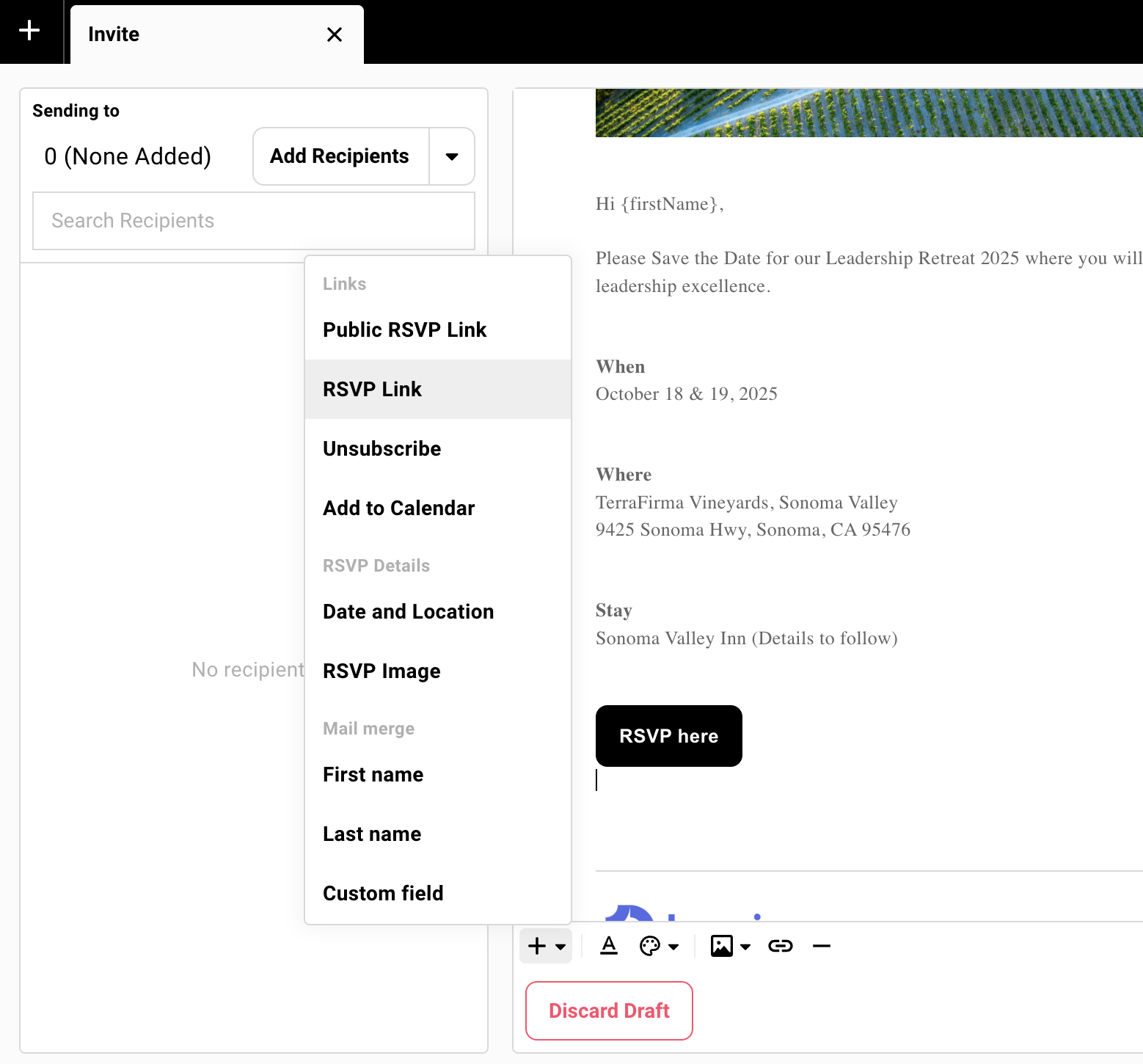
Creating and Sending Your Campaign
Section titled “Creating and Sending Your Campaign” Quick steps to send
-
Go to the Campaigns tab. Click New Campaign.
-
Choose Draft.
-
Add your campaign name (internal only), sender email, and subject line.
-
Write your invitation using the editor.
-
Insert the RSVP link using the + menu.
-
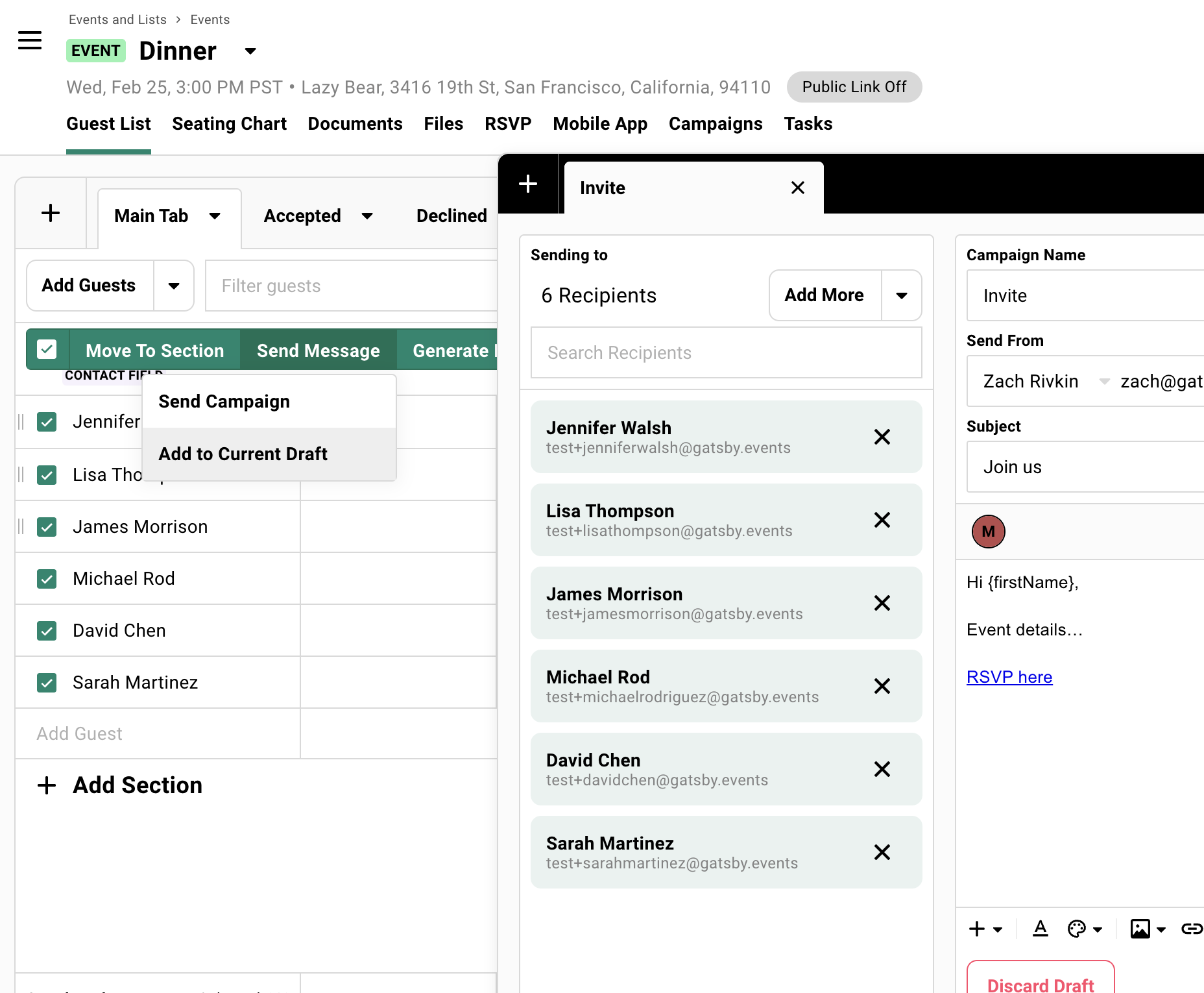
Select recipients from your guest list.
-
Send.
Writing invitations that get opened
Your invitation competes with every other email in your guest’s inbox. The ones that get opened look personal. The ones that get ignored look like marketing blasts.
- Send from a person, not a brand. “Sarah Miller” gets opened. “Events Team” gets filtered.
- Short subject, specific. “Dinner on March 12th” beats “You’re Invited to Our Exclusive Networking Event.”
- Keep the email brief. Your landing page carries the details. The email’s job is to get the click.
- Use merge fields. “Hi
{firstName}” is the minimum. - One clear RSVP link. Not buried in a paragraph.
For detailed campaign editing guidance, see Creating Campaigns.
Test Before You Go Live
Section titled “Test Before You Go Live”Your first email to guests needs to be right. The best way to know: invite yourself.
Add yourself as a guest and send the campaign to yourself only. Open the email, click the link, complete registration, check for the confirmation email and calendar invite.
How to test (step-by-step)
-
Add yourself as a guest to the event. Use your real email address.
-
Create your invitation campaign with an RSVP link.
-
Send the campaign to yourself only.
-
Open the email in your inbox. Click the RSVP link.
-
Complete registration on the landing page.
-
Check for the confirmation email and calendar invite.
-
Verify everything looks right: branding, information, timing.
What you are checking
Email arrives correctly
- Subject line displays as expected
- Formatting looks right
RSVP link works
- Takes you to your event’s landing page
Landing page displays properly
- Your branding appears
- Buttons work
- Survey questions show up
Registration completes
- Status updates in your guest list
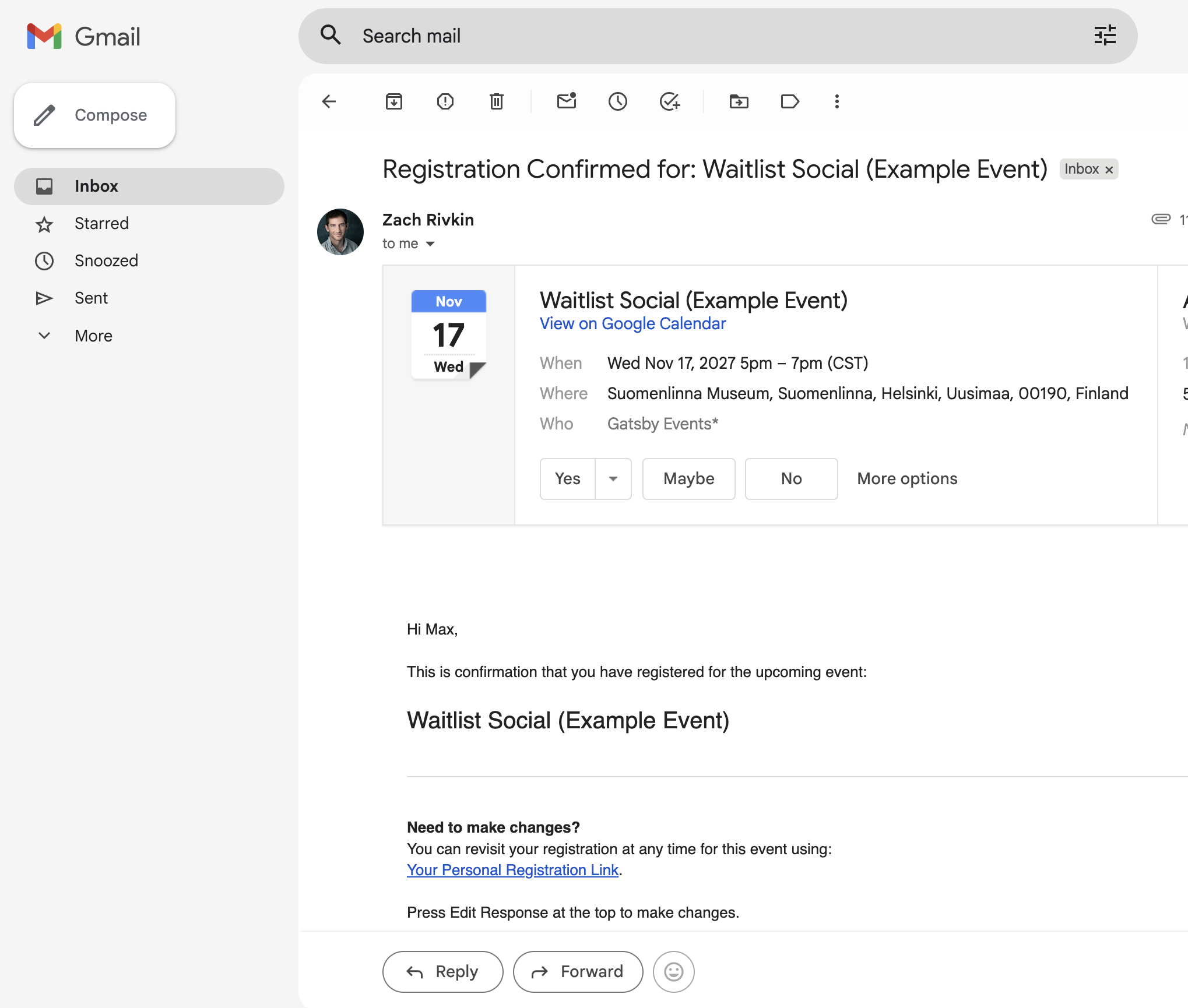
Confirmation email sends
- Arrives in your inbox
- Calendar invite is attached
- Event details are correct (date, time, location, description)
After testing, you can remove yourself and any other team members you used as tests guests from the guest list.
After You Send
Section titled “After You Send”Responses show up on your guest list as they come in. You will see RSVP statuses change as guests visit your landing page and either accept or decline.
When you are ready to nudge people who have not responded, duplicate your campaign and filter recipients to “Invited” and “Visited” RSVP status only. This skips anyone who already answered.
Common Questions
Section titled “Common Questions” Why did my guests not get a calendar invite?
Calendar invites attach to confirmation emails. Confirmation emails send after registration. If guests have not registered, they will not have calendar invites.
Check:
- Did the guest actually complete registration? (Look at their RSVP status)
- Is the calendar invite attached to the Confirmation email? (RSVP » Email Settings)
Can I send different invitations to different groups?
Yes. Create separate campaigns for each group. Use Guest List sections or filters to target specific segments by tag, custom field, or RSVP status.
Learn about email recipients What if I need to add more guests after sending?
Add the new guests to your guest list. Open your original campaign and use “Not Sent To” tab to add only the new people. Or duplicate the campaign if you need to change the message.
What is the difference between an invitation campaign and a confirmation email?
Invitation campaigns are emails you write and send manually. Confirmation emails are automatic messages that Gatsby sends when someone registers.
Learn about confirmation emails