
Overview
Follow Up with Guests
Send reminder emails to guests who received invitations but have not responded. Use guest list views to filter by RSVP status and send targeted follow-ups that feel personal, not automated.
Why Follow-ups Require Your Judgment
Section titled “Why Follow-ups Require Your Judgment”You might expect a “send follow-up” button that automatically reminds everyone who has not responded. Gatsby does not work that way.
Every event is different. Your VIP dinner follow-up should read differently than your conference reminder. A one-click solution would strip that control away.
Gatsby gives you the building blocks:
- Guest list filters that identify who needs follow-up
- Saved views you can reuse across events
- Campaign tools that send personalized emails with unique RSVP links
You decide the timing, the message, and the approach. That flexibility is intentional.
Understanding RSVP Statuses
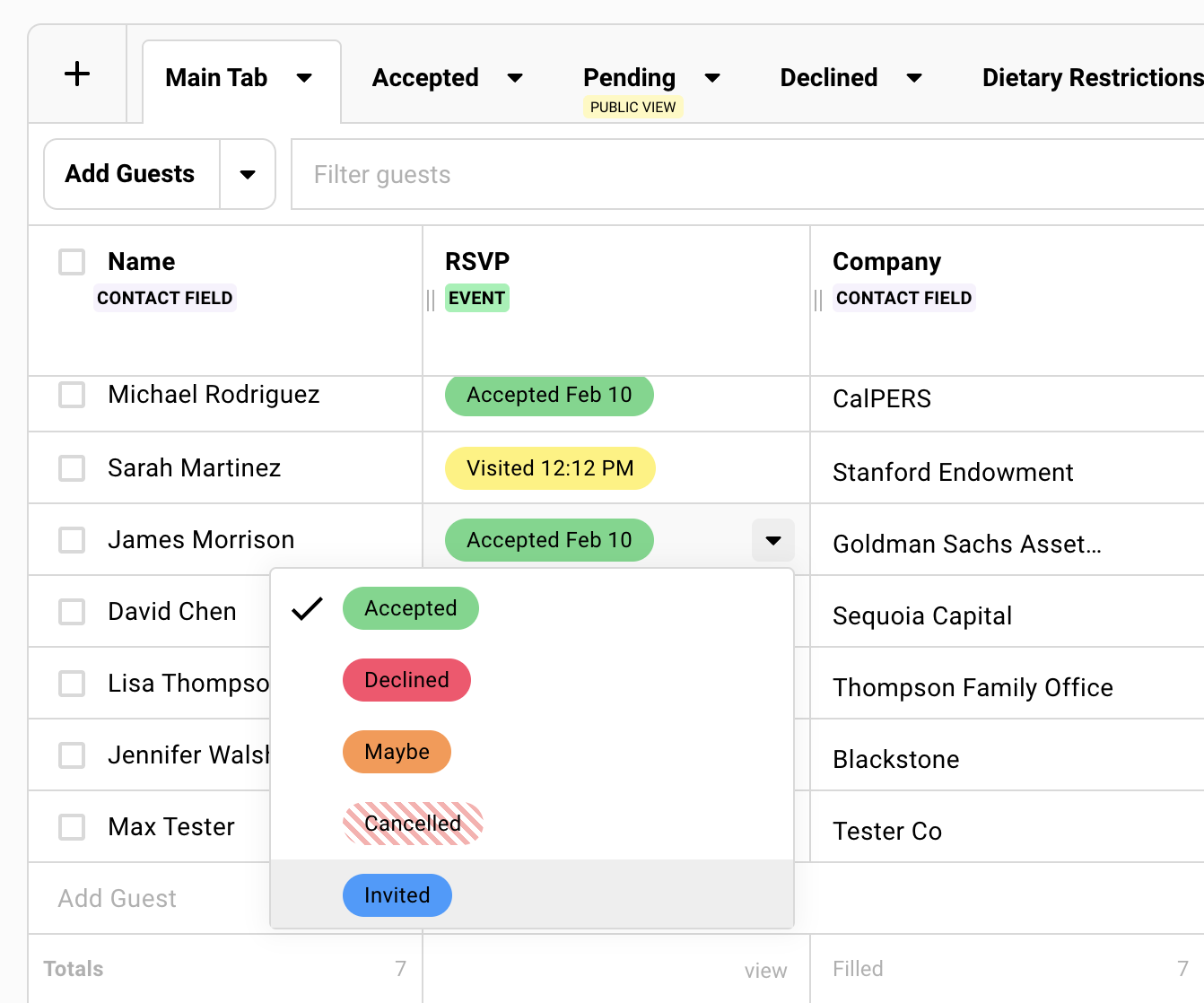
Section titled “Understanding RSVP Statuses”Before you filter, understand what the statuses mean. Each tells you something different about where the guest is in their decision process.
Blank (No Status)
Guest has been added to your list but never received an invitation. They are not candidates for a follow-up. They need an initial invite first.
Invited
Guest received your invitation email but has not interacted with it. The email may be unopened or simply waiting for them to act.
Visited
Guest clicked their RSVP link and viewed the landing page but did not submit a response. They are interested but uncommitted.
These guests are often your warmest follow-up targets.
Accepted — Survey Incomplete
Guest started the RSVP process but did not finish the survey questions (only fires if there are required questions on the registration form).
Accepted / Declined / Maybe / Waitlist
Guest has responded. They do not need a follow-up unless you are specifically re-engaging Maybes or accepting Waitlisted guests.
Creating a “Not RSVP’d Yet” View
Section titled “Creating a “Not RSVP’d Yet” View”A saved view filters your guest list to show only the people who need a follow-up. Create it once and reuse it throughout your event.
Create a New Guest List View
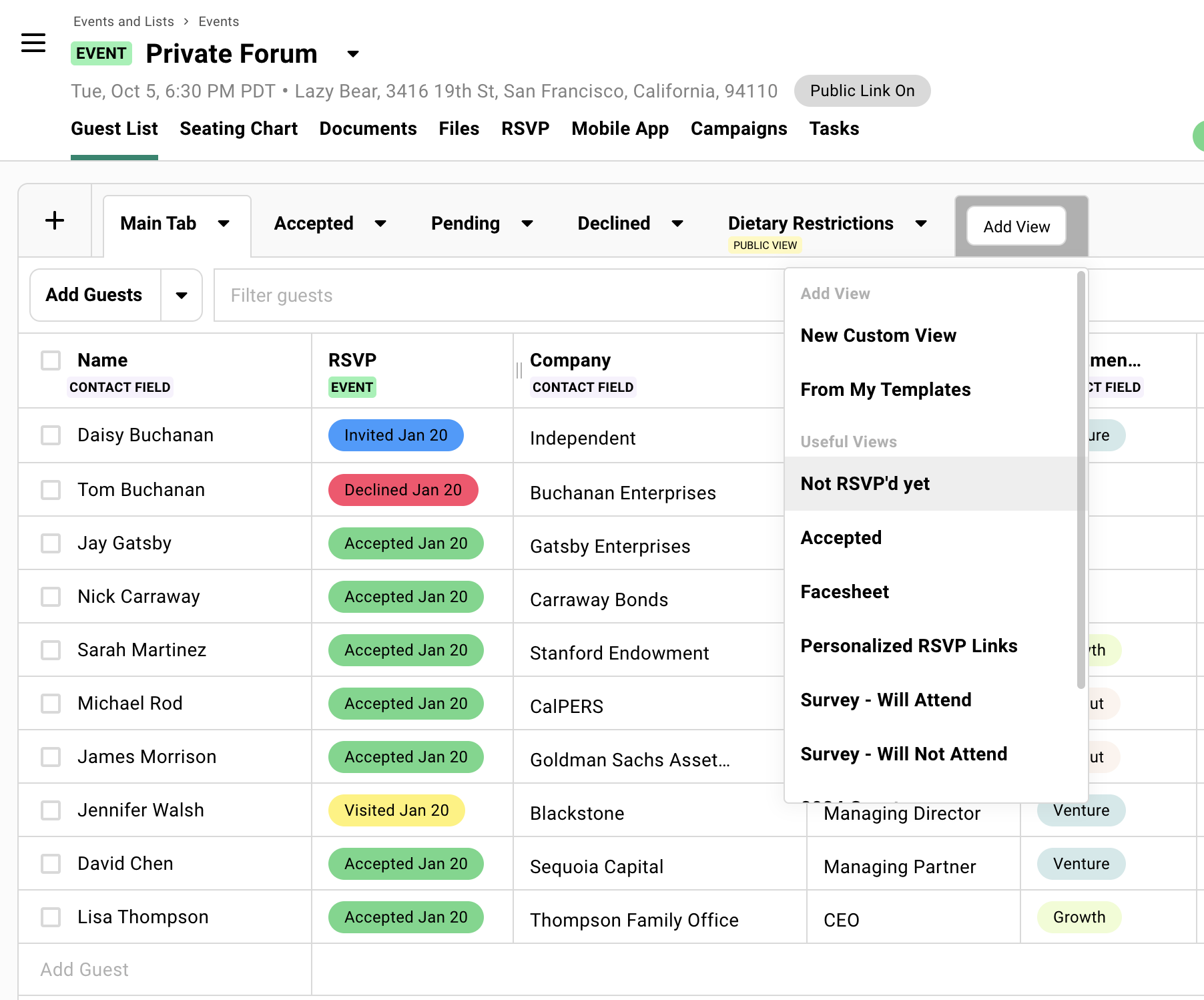
On your guest list, click Add View » Not RSVP’d Yet.
This creates a new tab on your guest list with a pre-applied RSVP status filter. It will show guests who have not registered for your event either way.
Modify this filter if you like to remove blank RSVP status and optionally add “Accepted - Survey Incomplete”. Do not include Accepted, Declined, or Waitlist unless you have a specific reason.
Add the Last Sent Campaign column (optional)
Click Columns » Add Fields » Campaigns » Last Sent Campaign.
This shows which email each guest received most recently and when. Useful for timing your follow-ups.
Sending a Follow-up Email
Section titled “Sending a Follow-up Email”With your follow-up view active, you can select guests and send them a message directly from the guest list.
Select your recipients
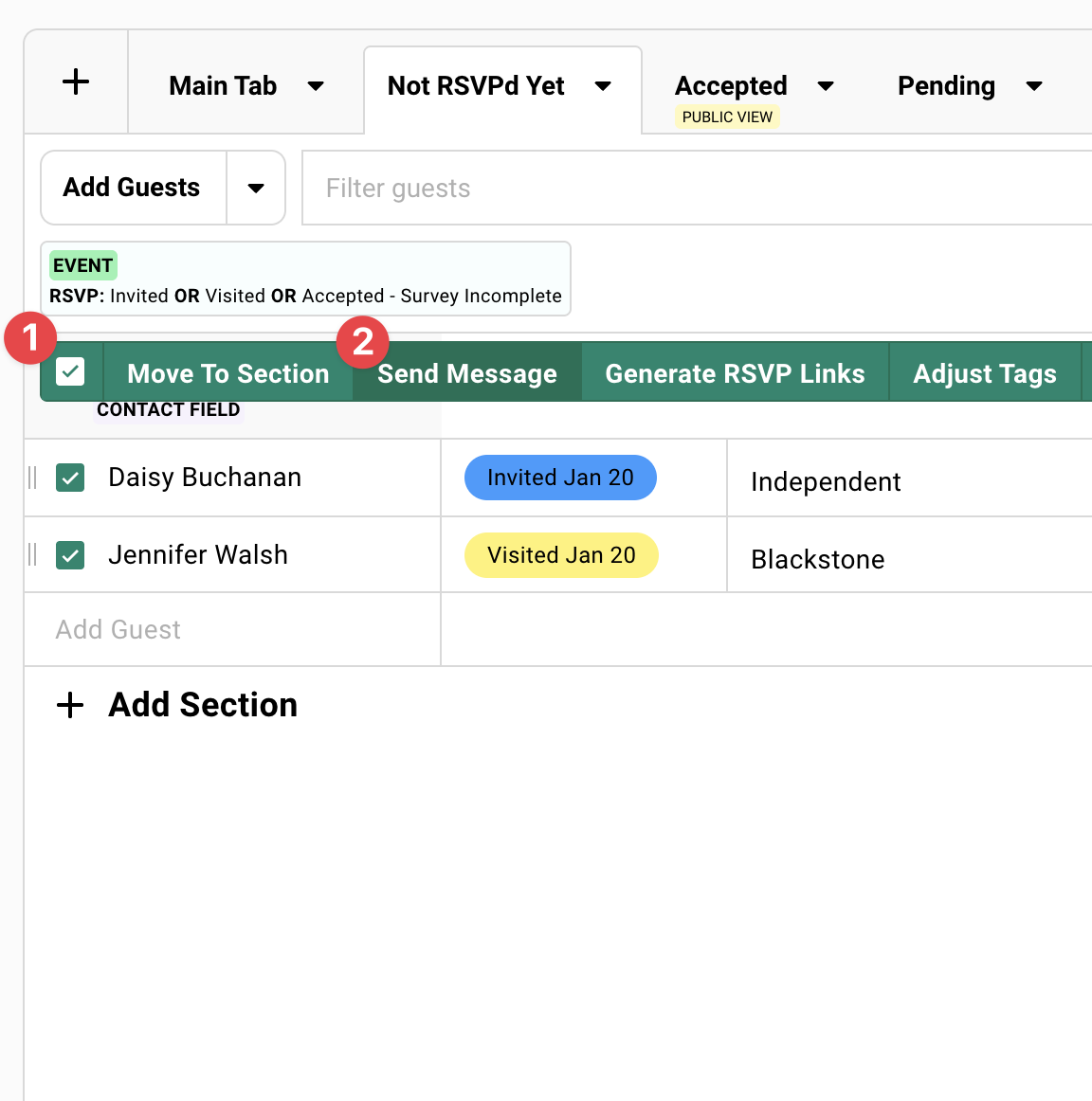
Click Select All to choose everyone in the filtered view, or select individual guests manually.
Only visible guests in your current view will be selected.
Send message
Click Send Message in the toolbar that appears. This opens the campaign composer with your selected guests as recipients.
Include the RSVP link
In the composer, click the + icon and select RSVP Link. This inserts the {rsvpLink} merge tag, which becomes each guest’s unique personal link when the email sends.
Never send a follow-up without the RSVP link.
Choose new or existing
You can write a fresh follow-up message or select an existing campaign from the Campaigns tab to resend.
Both options work. See best practices below for guidance on which approach to use.
Follow-up Best Practices
Section titled “Follow-up Best Practices”Sending the same exact invitation a second time rarely works. If they did not respond the first time, something needs to change. Either the timing was wrong, the message did not land, or they need a different approach.
Good follow-ups feel personal, not automated. Here’s what works.
Change the format
If your first invite was image-heavy and designed, make your follow-up plain text. It reads more like a personal note from a colleague than a marketing blast.
The contrast catches attention.
Add urgency or context
Include a deadline (“Please let us know by Friday”), mention limited capacity (“We’re finalizing the seating chart”), or explain why their response matters (“We want to make sure we have you on the list”).
Ask for a decision either way
Some guests avoid responding because they are unsure. Give them permission to decline: “Just let us know either way so we can plan accordingly.”
This often converts fence-sitters into confirmed attendees or clean declines.
Adjust your subject line
“Reminder: [Event Name]” or “Following up: [Event Name]” signals this is a second touchpoint. Some people filter or sort by subject, so differentiation helps.
Timing matters
Send your first follow-up 5-7 days after the initial invitation. Send a second follow-up 3-4 days before your RSVP deadline (if you set one).
Do not send more than 2-3 follow-ups total unless the event is very high-stakes.
Common Questions
Section titled “Common Questions” What is the difference between Invited and Visited status?
“Invited” means they received the email but have not interacted. “Visited” means they clicked the link and viewed your landing page but did not submit a response.
Both need follow-ups, but Visited guests are often warmer leads since they showed interest.
Can I see who opened my invitation email?
If you have email tracking enabled (Team Settings), you can see open and click rates at the campaign level. Individual open tracking can be show on the guest list using the Columns » Add Fields » Campaigns option and choosing Opened.
The “Visited” status tells you they clicked through to the landing page.
Should I include guests with blank status in my follow-up?
No. Blank status means they never received an invitation in the first place. Send them an initial invite, not a follow-up.
Your follow-up view should exclude blank status guests.
What if someone says they never got the original invitation?
Check that their email address is correct in the guest list. Resend the invitation directly to them.
Event-related emails sometimes land in spam or get caught by corporate filters, especially if they include images, lots of links, and heavy HTML formatting.
How many follow-ups is too many?
Two or three is standard. More than that and you risk annoying people. If someone has not responded after three touches, they are either not interested or the event is not a priority for them.
Consider a phone call or personal outreach for truly VIP guests.
Can I automate follow-ups in Gatsby?
Gatsby does not have automated drip campaigns for follow-ups.
Follow-up timing and messaging varies widely between events. The saved view workflow makes manual follow-ups fast and targeted.