
Overview
Canceling or Postponing Events
How to communicate with guests when plans change. Gatsby's cancel button archives the event but does not notify anyone. Here is how to handle guest communication yourself.
What “Cancel” Actually Does in Gatsby
Section titled “What “Cancel” Actually Does in Gatsby”You might expect clicking “Cancel Event” to notify everyone automatically. It does not. The button archives the event and changes what guests see if they visit the landing page. But it sends no emails. Guests who already RSVP’d will show up unless you tell them otherwise.
When you cancel an event in Gatsby:
- The event moves to your archived section
- Editing your registration form shows “This event has been canceled”
- No emails are sent
- No calendar invites are removed or updated
If invitations never went out, you can just cancel and move on. If guests are expecting to attend, you need to handle communication separately.
Canceling an Event
Section titled “Canceling an Event”Three things to do: stop new registrations, notify your guests, archive the event.
Step 1: Close Registration
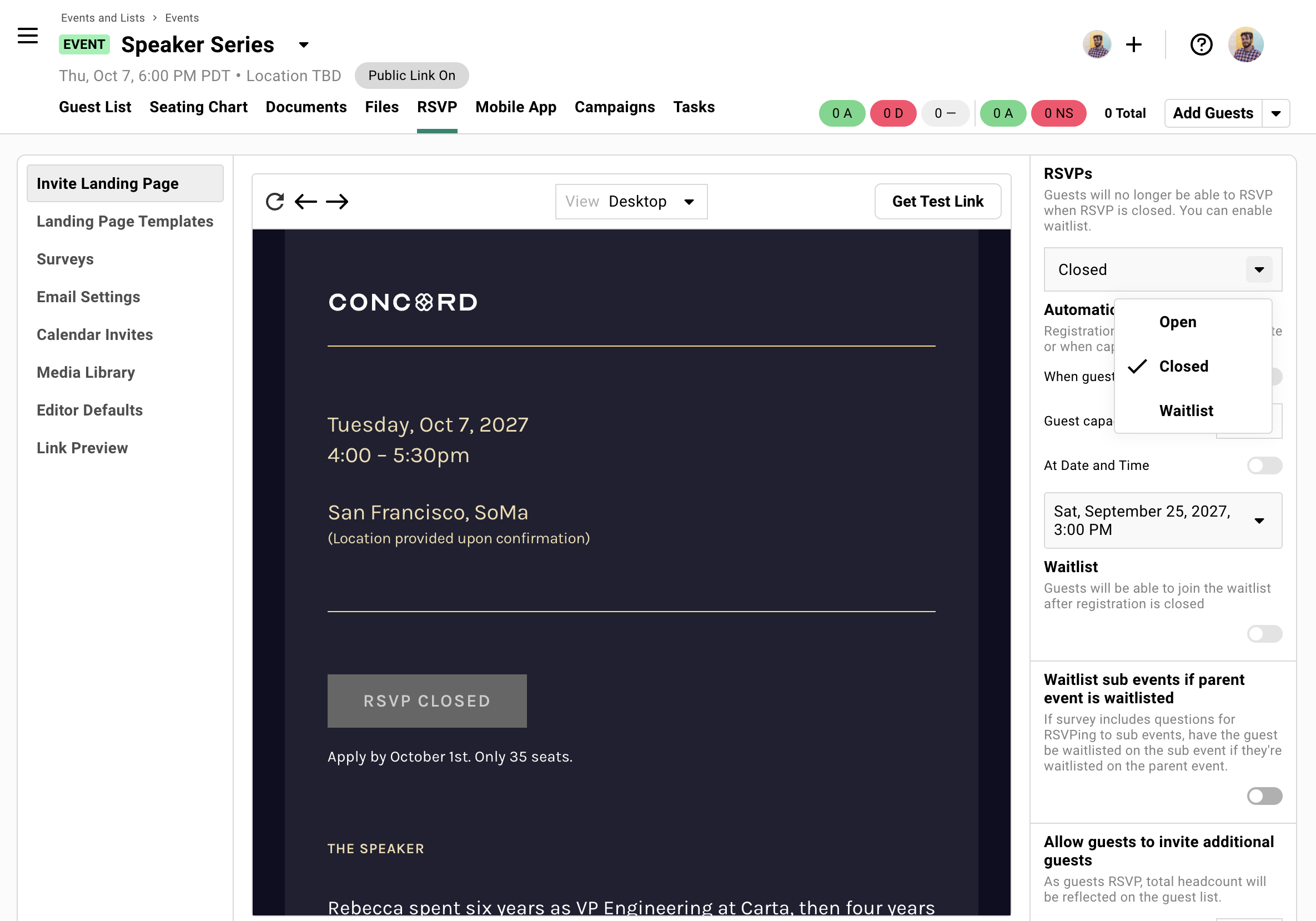
In the RSVP tool, change the event status from “Open” to “Closed.” This prevents new RSVPs from any outstanding invitation links.
Do this first.
Step 2: Send a Cancellation Campaign
Use Campaigns to email guests who accepted. Filter by RSVP status to reach everyone who committed.
Include why you’re canceling (if appropriate) and any next steps.
Step 3 (optional): Rename the event and send an update
If you edit event details and rename the event like, “[CANCELED] Event Name”, we’ll give you the option to send a calendar invite notice to your guests who have been sent a calendar invite before.
This renames the event in their calendar for extra clarity.
Step 4: Archive the Event
-
Click the dropdown next to the event name.
-
Select Edit Event Details.
-
Scroll to the bottom.
-
Click Cancel Event.
This moves the event to your archived section.
Postponing an Event
Section titled “Postponing an Event”Same flow, one key difference: preserve the event. When you set the new date, you can re-engage the same guests without starting over.
What to Do Now
-
Close registration.
-
Send a campaign explaining the postponement and when you’ll share the new date.
-
Edit event details and rename the event with something like “[Postponed] Event Name”
-
Do NOT archive the event. Keep it active so you can update it later.
When You Have a New Date
-
Edit event details, set the new date and time, and rename the event.
-
Send the calendar invite update now (or share later)
-
Send a follow-up campaign.
Include guests’ personal RSVP links so they can confirm or change their response.
What About Calendar Invites?
Section titled “What About Calendar Invites?”Guests have the event on their calendar. Should you remove it for them?
You can send calendar updates or deletions through Gatsby. But we recommend a simpler approach: tell guests the event is canceled and let them remove it from their own calendar.
Why? A calendar invite disappearing without explanation feels abrupt. Guests wonder if something went wrong. A clear email followed by them managing their own calendar is cleaner.
If You Still Want to Send a Calendar Update
Rename the event to include “[CANCELED]” in the title. When you save, Gatsby offers to send a calendar update to guests who already have the invite.
This updates the title on their calendar without removing the event.
Why We Don't Recommend Calendar Deletions
Gatsby can remove calendar invites by changing guest RSVP status to “Declined.” But this deletes RSVP tracking data and sends a system notification that can feel impersonal.
Better to communicate clearly and let guests handle their calendars.
Common Questions
Section titled “Common Questions” What about guests who never RSVP'd?
Pending guests never received calendar invites. They only know about the cancellation if you email them.
Consider whether you want to send a campaign to invited-but-not-responded guests, or just those who accepted.
Can I restore a canceled event?
Yes. Canceled events are archived, not deleted.
Find the event under the “Archived” section of your Events and Lists dashboard. Click the three-dots menu and restore it.
What do guests see if they visit the landing page after cancellation?
Gatsby won’t change the content of your landing page. The button will change to the Closed button if the event is set to closed (typically, “RSVP Closed”).
Guests revisiting their registration form see a message at the top of their registration form that the event has been canceled.