
Overview
Collecting Addresses for Holiday Gifts
Use Gatsby Lists to collect mailing addresses and survey responses with branded forms, automatic tracking, and contact enrichment.
Why Use a Gatsby List
Section titled “Why Use a Gatsby List”Holiday season means corporate gifting, which means chasing down 50+ contacts for their mailing addresses. Google Forms feels sketchy, TypeForm costs money for features you don’t need, and email threads are chaos.
Use a Gatsby List instead.
Branded survey forms.
Each contact gets a unique link. No asking for name and email.
Pre-filled data.
If you already have someone’s address, it shows up on their form. They confirm instead of re-typing.
Automatic contact enrichment.
Survey responses save directly to contact records. No spreadsheet matching.
Built-in follow-up tracking.
Pre-filtered tabs show who responded and who hasn’t.
Permanent data.
Addresses live in contact records. Next year? Same thing.
View a live example
Public demo; production uses unique, non‑transferable links without asking for name/email.
When this workflow works
- Holiday corporate gifting (>50 contacts, need mailing addresses fast)
- Event swag collection (pre-event surveys for shirt sizes, dietary needs)
- Post-event follow-ups (feedback forms tied to actual attendee records)
- Client data enrichment (collecting information that updates contact profiles permanently)
- Any scenario where you need survey responses tied to specific people, not anonymous submissions
Create from Template
Section titled “Create from Template”The Gift Management template comes with survey fields, email campaigns, and filtered views pre-configured.
Creating the list
-
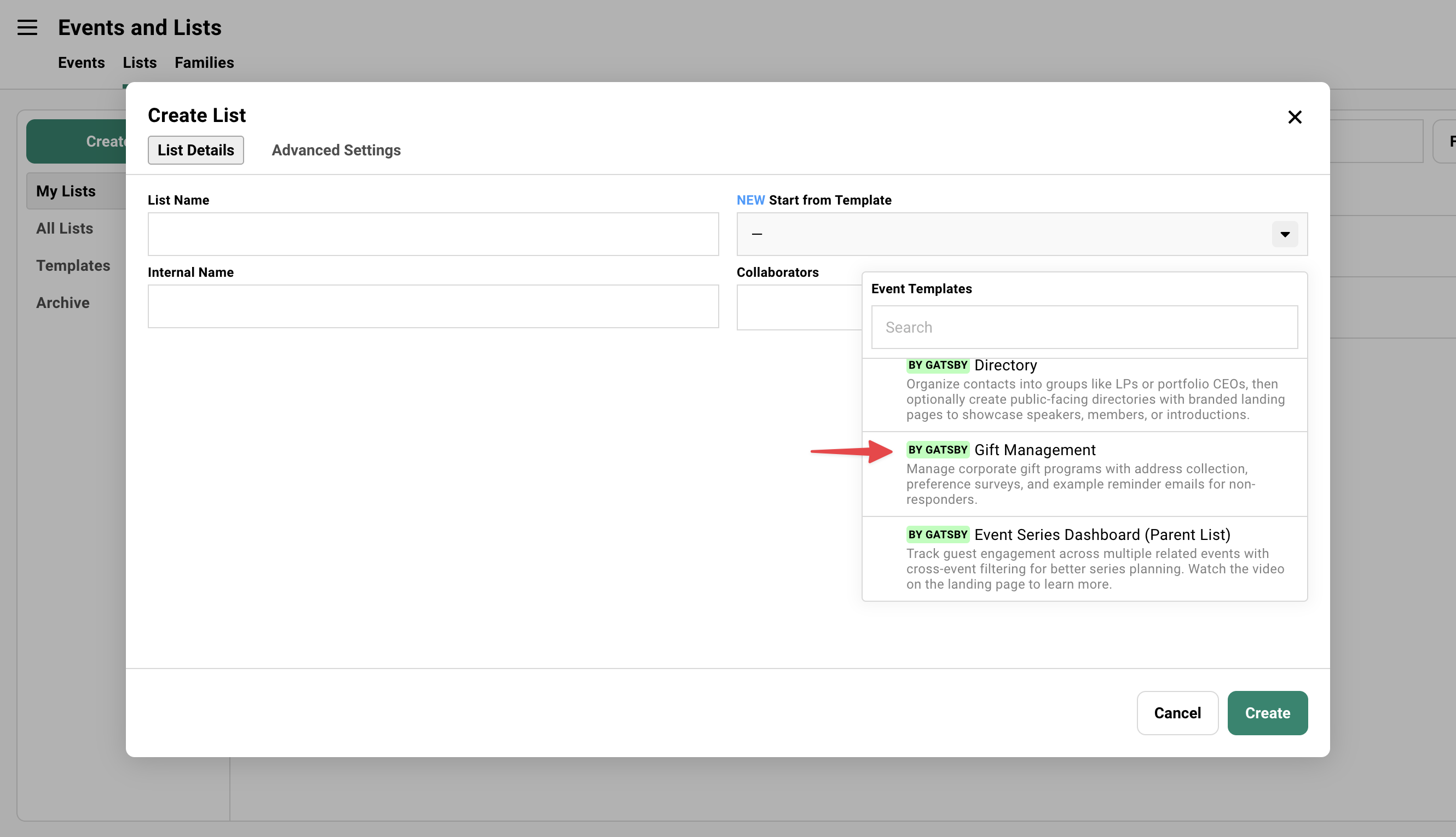
From your dashboard, click Create List → pick the Gift Management template.
-
Use Add Guests to import from CSV or pull from other events/lists.
You need contact records before sending surveys.
Related: Uploading Contacts
What the template includes
- Pre-configured survey fields for mailing addresses and gift preferences
- Two email campaigns (initial announcement + follow-up for non-responders)
- Filtered guest list tabs (Need Addresses, Completed)
- Landing page with branded form
Delete what you don’t need. Add what you do.
Customize the Survey and Landing Page
Section titled “Customize the Survey and Landing Page”The template includes example questions for gift preferences and dietary restrictions. Edit to match what you need.
Editing survey questions
-
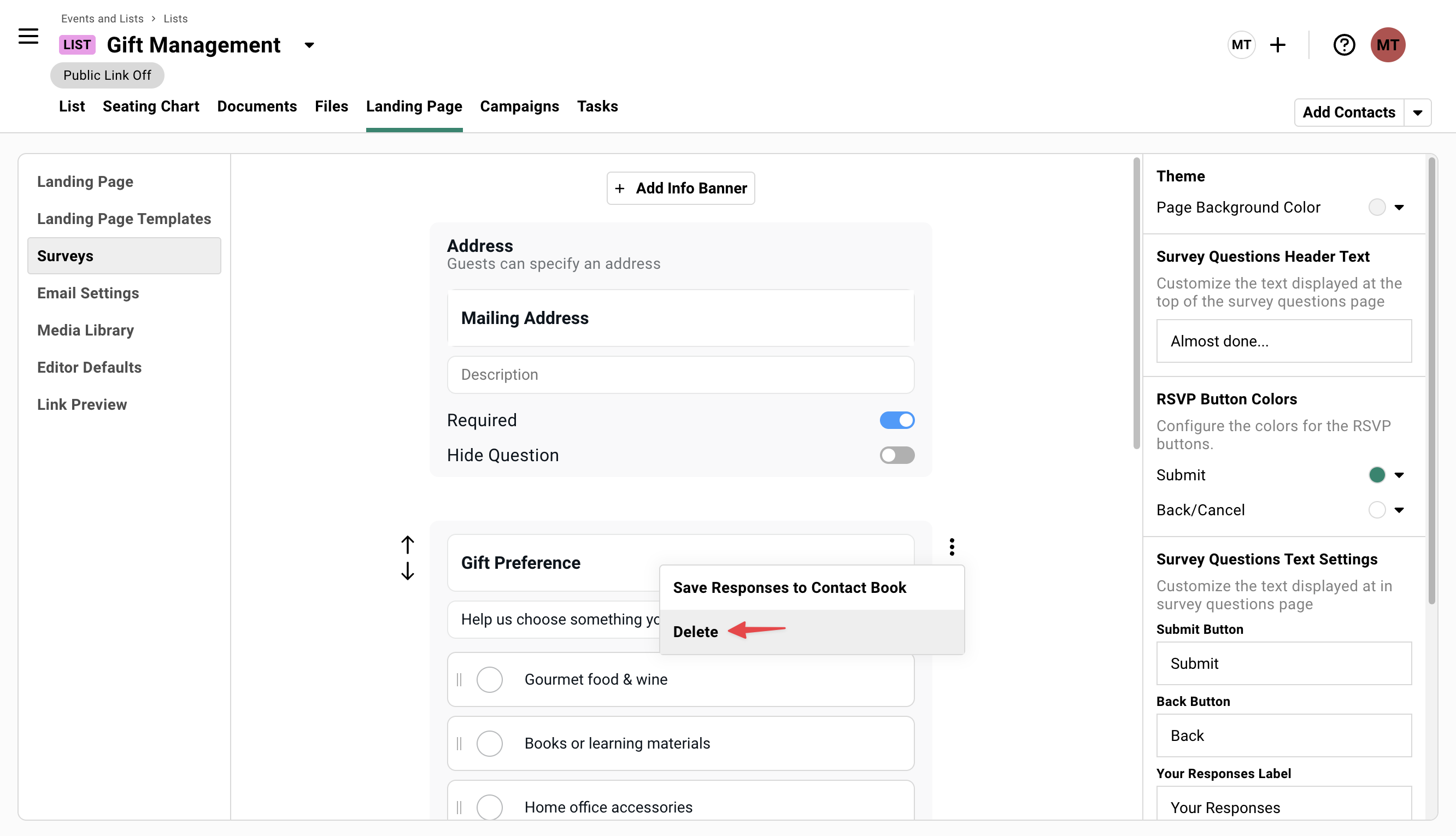
Go to the Surveys tab.
-
Edit the existing questions or add new ones.
-
Delete questions you don’t need.
Standard question types: text fields, multiple choice, checkboxes.
Branding the landing page
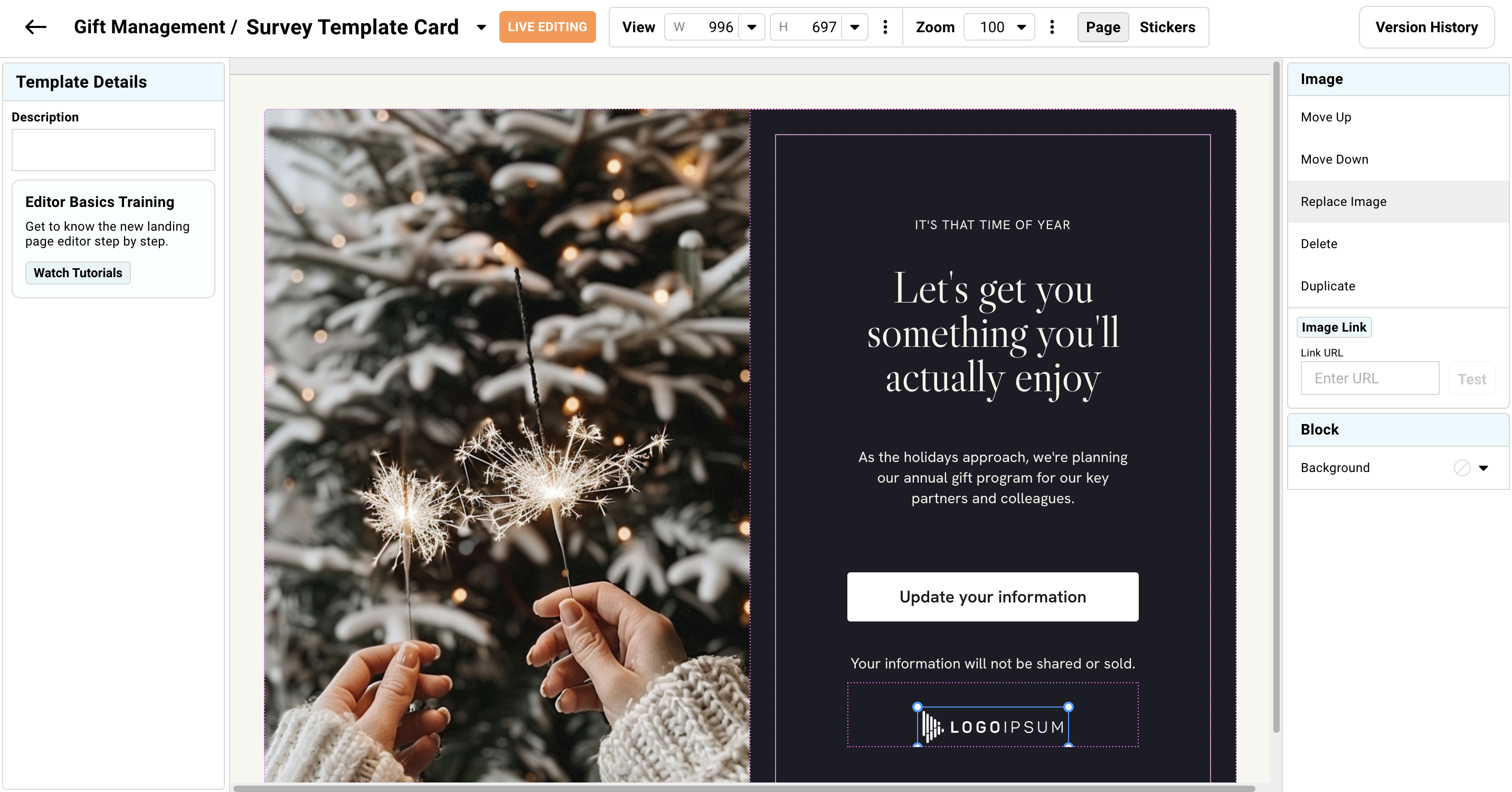
The form works without the landing page content (use the “Skip to Survey” option), but adding context increases response rates. Why you’re asking. What you’re sending.
-
Check the Landing Page Templates section to edit the landing page.
-
Add context about the gift program.
Initial Campaign
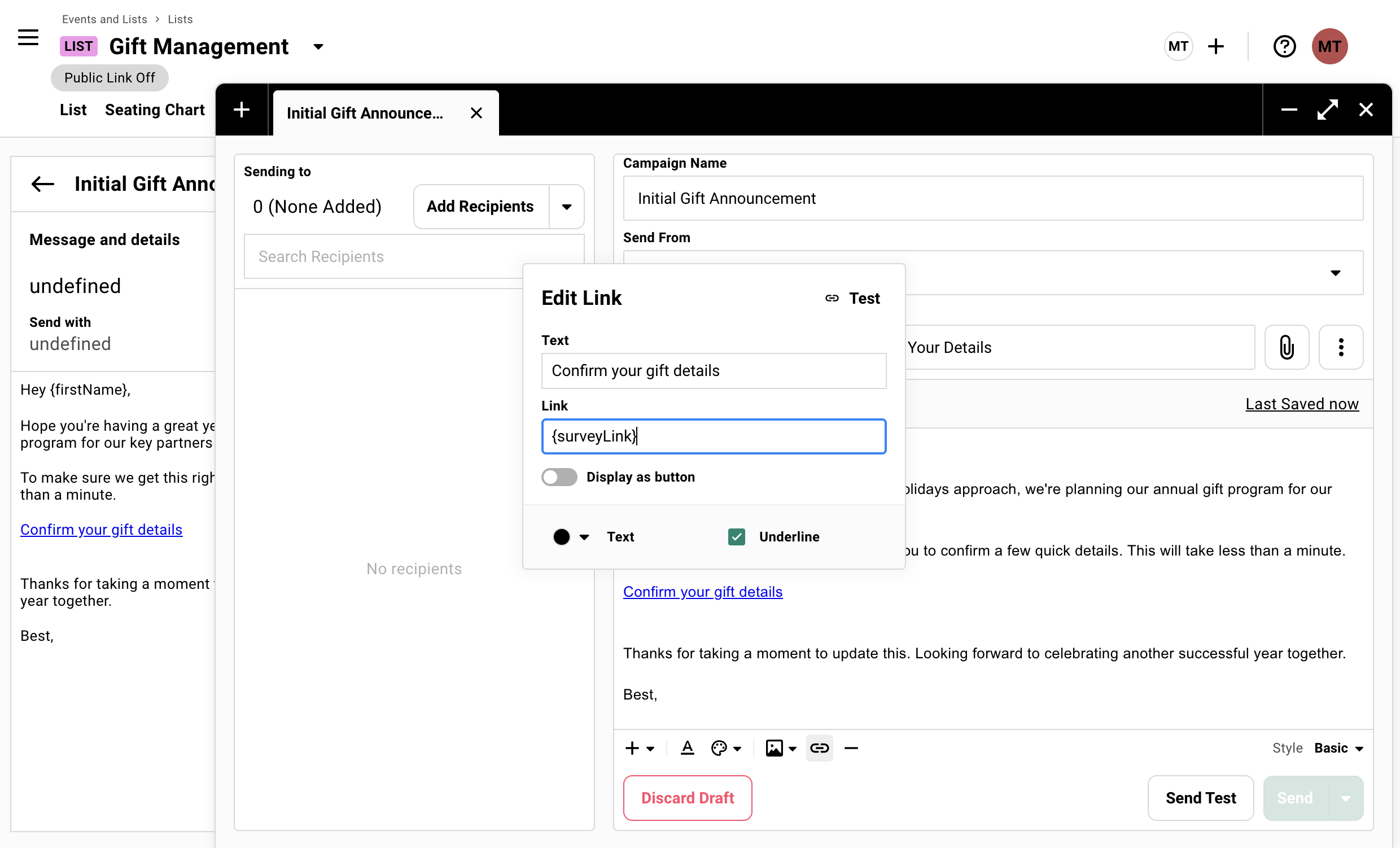
Section titled “Initial Campaign”Edit the “Initial Gift Announcement” campaign to match your voice. The unique survey link means no one has to enter their name or email.
The workflow
-
Go to Campaigns tab → open the “Initial Gift Announcement” campaign.
-
Edit the copy to match your voice.
-
Ensure
{surveyLink}is used in your email. -
Send.
Why unique links matter
Each person’s survey link is unique and non-transferable. When they fill out the form, the data automatically saves to their contact record. No manual spreadsheet matching.
If you already have their address from a previous campaign, it pre-fills on the form. They confirm instead of re-typing.
Follow Up Non-Responders
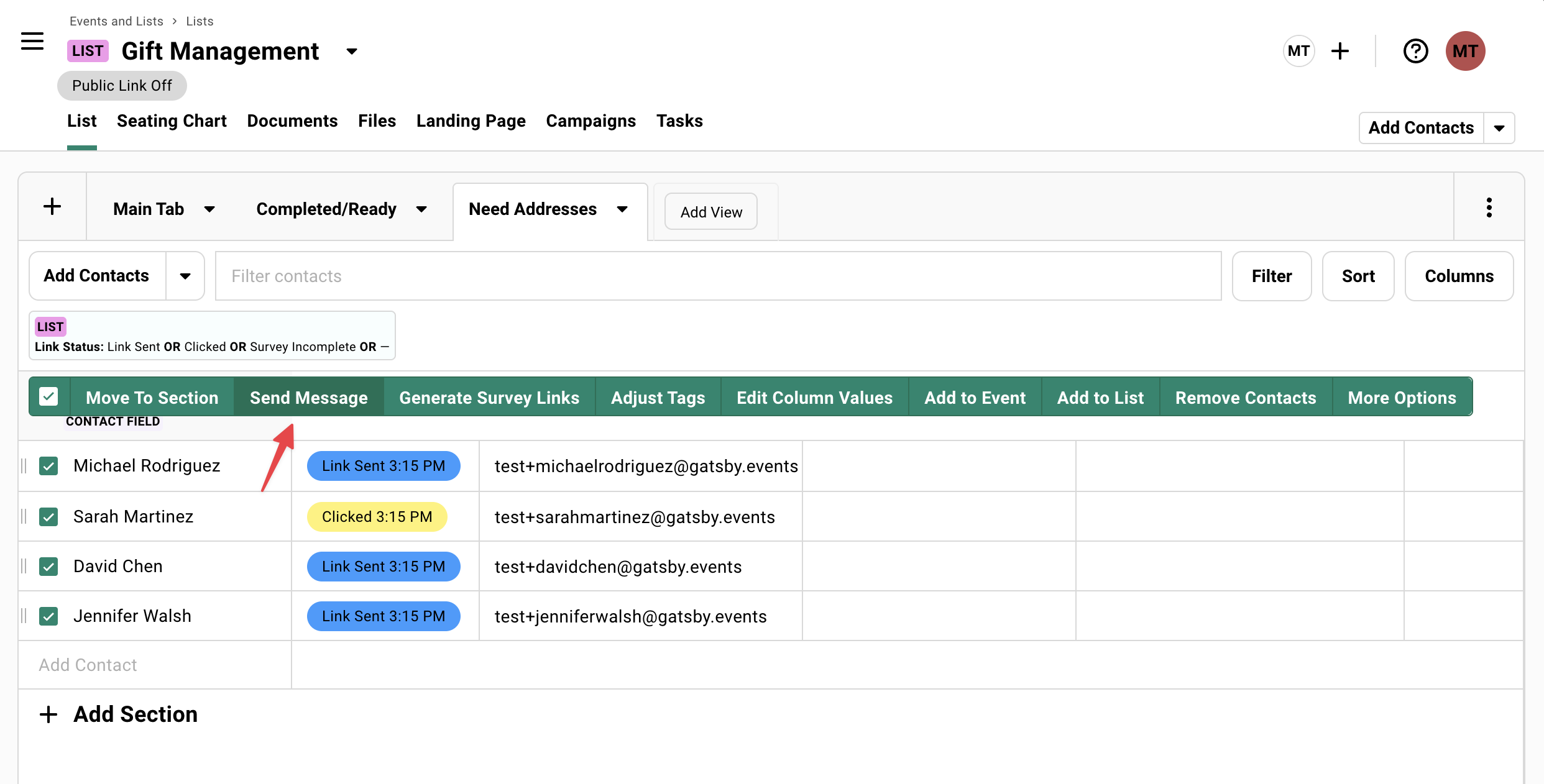
Section titled “Follow Up Non-Responders”Wait 3-5 days. Check who hasn’t responded. Send the follow-up campaign with different messaging. They were probably just busy.
The workflow
-
Check the Guest List tab’s “Need Addresses” filter to see who hasn’t responded.
-
Send the follow-up campaign only to that filtered group.
The template includes a pre-written follow-up with different messaging.
Track and Export Addresses
Section titled “Track and Export Addresses”The pre-configured filters do the work. When your fulfillment team needs the data, it’s ready.
Exporting addresses
-
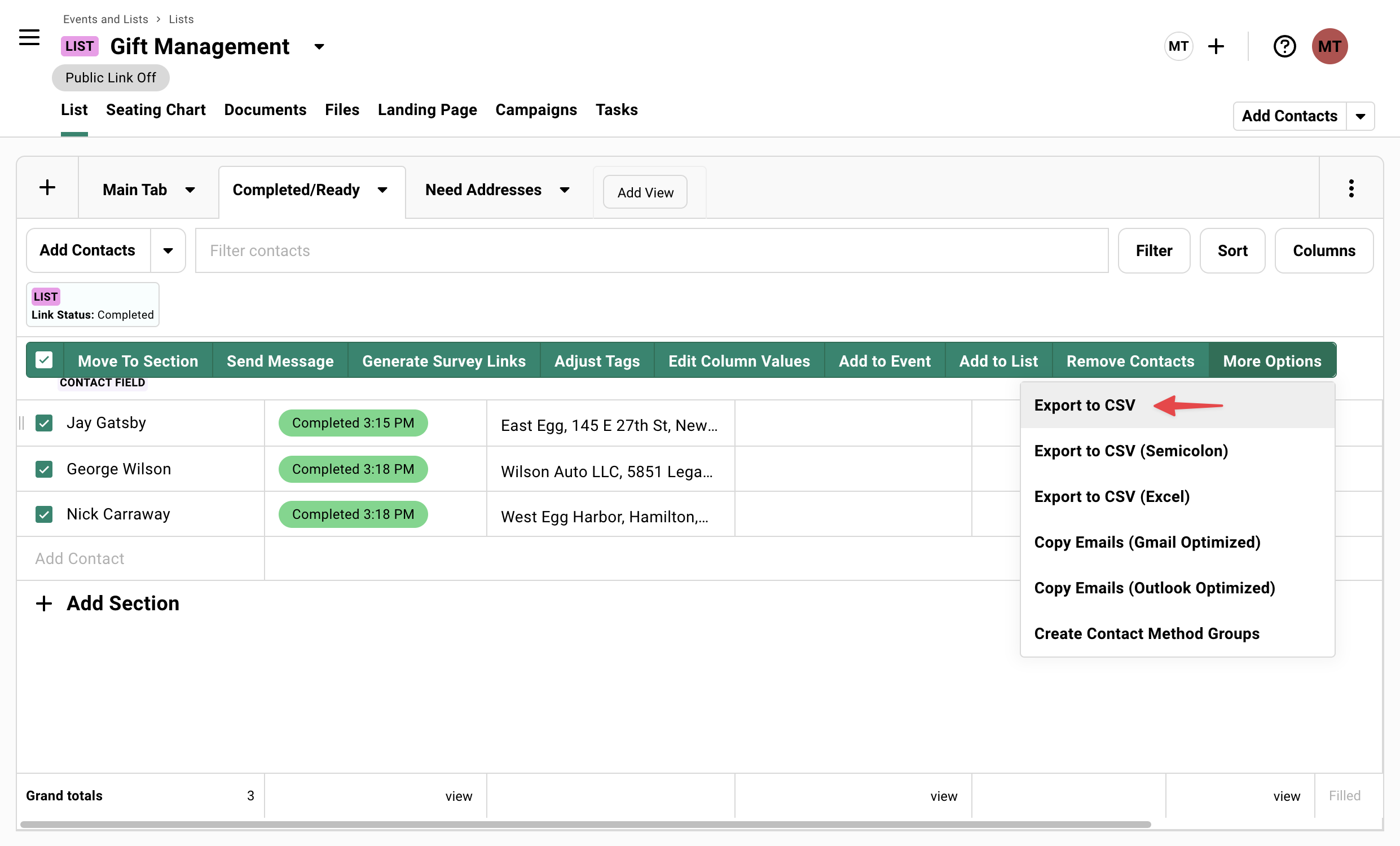
Click the Completed filter tab.
-
Hit Export → choose CSV format.
-
You get names, addresses, and any preference responses.
Where the data lives
Addresses live permanently in each contact’s profile. Next time you need to mail someone something, it’s already there.
If a contact’s address is already in Gatsby, the form pre-fills it. They confirm it’s still current and click submit. Next year when you need addresses again? Same thing. The data persists across campaigns and years.
Why This Beats Other Survey Tools
Section titled “Why This Beats Other Survey Tools”Google Forms: Anonymous responses you have to manually match to contacts. No way to send personalized follow-ups to non-responders. Looks impersonal.
TypeForm: Costs $35/month+ for features like hidden fields (which you need to track who’s who). Responses don’t sync to your contact system.
Email threads: Chaos. Half the people reply, half don’t. You’re manually updating a spreadsheet and sending follow-ups one by one.
Gatsby Lists: Responses enrich your contact records permanently. Pre-filtered tabs show exactly who you need to chase. Branded forms build trust. Export when ready. Done.
Common Questions
Section titled “Common Questions” Can I use this for surveys that aren't gift-related?
Yes. The template is called “Gift Management” but it’s just a List with survey fields pre-configured. Use it for any scenario where you need to collect information from specific contacts: feedback forms, registration data, preference collection.
Do contacts need a Gatsby account to fill out the survey?
No. They click the link in your email, fill out the form, done. No login required.
What if someone's address changes later?
They can update their contact info if they have access to their unique survey link. Or you can manually edit their contact record in Gatsby. The form submission isn’t locked after completion. It’s live contact data.
Can I add custom questions beyond the template?
Yes. Go to the Surveys section under the RSVP tool and add whatever fields you want. Text fields, multiple choice, checkboxes.
Does this work for Lists with >100 contacts?
Yes. No contact limit on Lists. Send campaigns, track completion, export addresses the same way whether you have 20 people or 200.