
Overview
Forms and Surveys
Collect guest information during registration. Ask different questions based on who guests are. Responses save to profiles and pre-fill for future events.
One form serves returning VIPs, first-time guests, and public registrants. Each needs a different experience.
Your $500K client should not fill out an intake form. New contacts need full details. Public registrants need vetting. A static form gets all three wrong.
Conditional Logic
Show questions based on guest attributes. VIPs see one button. New registrants see ten questions. Each guest gets the form that fits them.
Profile Pre-Fill
Responses save to contact profiles. Dietary restrictions from March auto-fill in June. No one re-enters information you already have.
The Friction Tradeoff
Section titled “The Friction Tradeoff”You want to ask twenty questions. Budget, timeline, dietary restrictions, session preferences, T-shirt size. Every field gives you better data.
Every field also costs you registrations.
Someone on their phone at a coffee shop will abandon a five-minute form. Someone at their desk planning ahead might complete it. The math is always the same: what information is worth the friction of asking for it?
Gatsby gets you the data without the drop-off. Profiles pre-fill what guests already answered, conditional logic hides questions that don’t apply, and staged collection lets you spread the ask across weeks instead of front-loading a single form.
The Pre-Fill Advantage
When responses save to contact profiles, they auto-fill for returning guests.
Someone who attended three events never types their dietary restrictions again. You still have the data. They skip the form fields.
Your most engaged contacts get the smoothest registration. New contacts provide information once, then carry it forward. By the second event, most guests complete the form in seconds.
Progressive Collection
You do not have to ask everything at once.
Collect interest first. Logistics later. Add questions to the same form as your event approaches. Send guests back to update their responses before the deadline.
The form grows with your planning timeline. Early registrants see fewer questions. Late registrants see the full set. Both work.
What to Make Required
Only require what you truly need.
Name and email come automatically. Everything else is a choice. Optional fields convert better than required ones.
Ask yourself: would you rather have 100 registrations with 60% completing this field, or 80 registrations with 100% completing it? The math usually favors optional.
Predefined Questions
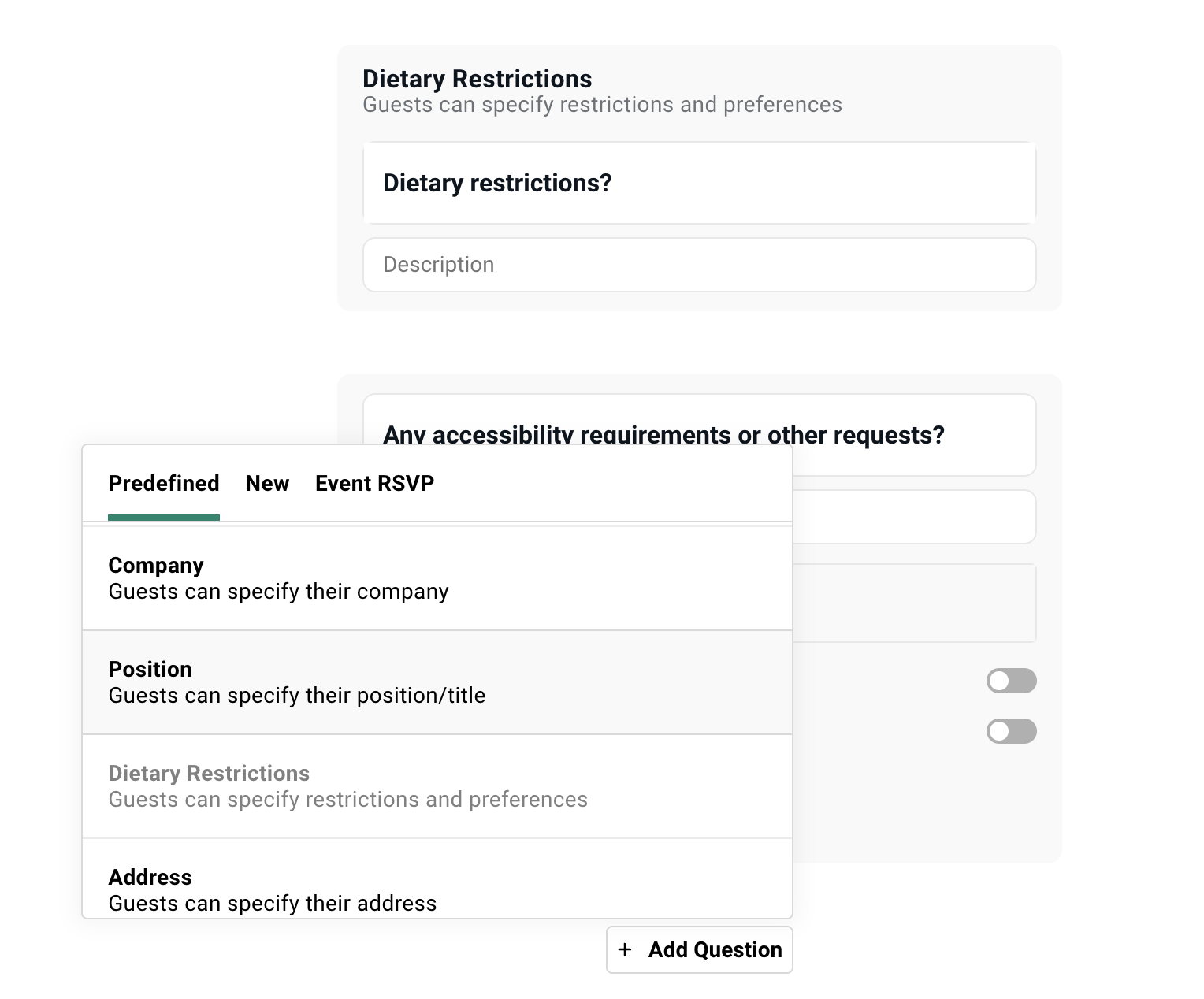
Section titled “Predefined Questions”Predefined questions connect directly to contact profile fields. Responses save and pre-fill without configuration. Use these for standard guest information.
Available Predefined Questions
- Phone number: Mobile or office number
- Company: Organization name
- Position/Title: Job title or role
- Dietary restrictions: Food preferences and allergies
- Address: Mailing address fields
- Profile picture: Photo upload
- Associated CC contact: Someone who should receive copies of communications
Why Use Predefined Over Custom
No configuration needed. Automatic profile sync. Standardized across your organization.
If you are asking for company name, use the predefined Company question rather than creating a custom text field. The data goes to the right place. It pre-fills next time. Everyone on your team sees consistent data.
Limitations
You cannot add conditional logic to predefined questions. You cannot change their format. They are fixed to specific contact fields.
If you need conditional behavior or custom formatting, create a custom question instead.
Custom Questions
Section titled “Custom Questions”Custom questions cover everything else. Choose the format that fits the data you need.
Question Type Reference
Short text
One-line answers. Names, brief responses, specific details.
Long text
Multi-line answers. Bios, explanations, detailed feedback.
Single select
Choose one option from a list. Renders as radio buttons or dropdown. Use for mutually exclusive choices. Morning or afternoon session. Not both.
Multi-select
Choose multiple options. Renders as checkboxes. Use for non-exclusive choices. Which breakout sessions interest you?
File upload
Headshots, speaker decks, documents. Guests upload directly. Files attach to their guest record.
List subscription
Opt-in to a Gatsby contact list. Use for newsletter signups, interest-based lists, or ongoing communication preferences.
Informational text
Not a question. Display text or images within the form. Use for instructions, legal disclaimers, or section breaks.
Question Settings
Section titled “Question Settings”Every question has settings that control who sees it, whether it is required, and where responses go.
Required vs Optional
Mark questions as required to force completion. Be thoughtful. Every required field is friction.
Save required status for what you truly need. Name and email are already captured. Everything else is negotiable.
Save Responses to Contact Book
This setting determines whether data is visible in the contact profile. It only works for custom questions.
When enabled: Responses save and auto-fill from a custom field on the contact profile. Data persists across events.
When disabled: Responses stay event-specific. (Default)
Save to contact book for information you will want at future events.
Keep event-specific for one-time questions.
Ask Plus-Ones
When your event allows plus-ones, you can ask the same question for each plus-one.
The primary guest completes it on behalf of their guests. No separate form needed. Dietary restrictions for the whole party in one submission.
Hidden Questions
Hide a question from guests while keeping it in the form.
Useful when you want to stage questions to show them later.
Conditional Logic
Section titled “Conditional Logic”Conditional logic shows questions only when they are relevant.
Someone who answered “yes” to traveling from out of town sees follow-up questions. Someone who answered “no” doesn’t need to see hotel details.
How It Works
Under any custom question, click “Only ask Question If…” and add conditions.
The conditional question stays hidden until the trigger condition is met.
Common Patterns
- Ask session preferences only if attending in person
- Ask breakout preferences only if they selected the workshop track
- Ask travel requirements only if they need accommodation
Multiple Conditions
You can add multiple conditions to a single question. All conditions must be true for the question to appear.
Use this for highly targeted follow-ups. Ask about the CFO roundtable prep materials only if they selected the CFO track AND indicated they want to participate actively.
What You Cannot Do
Predefined questions do not support conditional logic. The format is fixed.
You cannot condition based on plus-one answers. The primary guest answers for plus-ones.
You cannot create branching paths where one condition leads to multiple dependent questions in sequence. Each conditional question is independent.
Questions by RSVP Type
Section titled “Questions by RSVP Type”Show different questions to guests based on how they register. Public link registrants see the full intake (when set to Waitlist mode). Invited VIPs see two fields and a confirm button.
Attendee vs Non-Attendee Questions
Separate question sets exist for guests who accept versus decline.
Attendees see logistical questions. Dietary restrictions. Session preferences. Arrival times.
Decliners might see a single question asking why. Or nothing at all.
Toggle between Attendees and Non-Attendees at the top of the survey questions interface.
Waitlist-Specific Questions
When guests register through the public link with waitlist mode enabled, you can show vetting questions.
Ask for LinkedIn URL. Company bio. Why they want to attend.
Use this data to decide who to approve. The form does your qualification work before you review a single application.
Accepted vs Waitlist Path
Invited guests who click “Accept” follow the accepted path. Public registrants hitting the waitlist follow a different path.
Condition questions on RSVP type to show different experiences. Your known guests get one form. Unknown applicants get another.
Questions by Guest Attributes
Section titled “Questions by Guest Attributes”Use custom fields and tags to control which questions each guest sees. If you tagged someone as a VIP last Tuesday, the form already knows that when they click their link.
Conditioning on Custom Fields
If you have a “Guest Type” field with values like VIP, General, or Speaker, you can show questions only to specific types.
VIPs see a confirmation button. Speakers see session preference questions. General attendees see the standard intake.
The form knows who they are. It treats them accordingly.
The Setup
-
Ensure guests have the relevant custom field or tag set before they register.
-
Add your conditional question.
-
Click “Only show if…” and select the field condition.
-
Choose the specific value that reveals this question.
The field must exist on the guest record before they click their link. Set it during import. Or add it manually to the guest list.
Why This Matters
Your event team tagged 50 people as VIPs last week. Those VIPs click their personal link and see a three-question form. Everyone else sees ten questions.
One form, one URL pattern, no routing logic on your end. The conditions you set handle who sees what.
See Contact Profiles for setting up custom fields before registration.
Event RSVP Questions
Section titled “Event RSVP Questions”You are running a retreat with a welcome dinner, three breakout sessions, and an optional excursion.
If you create one event, you get one calendar invite. If you create separate events, you manage separate guest lists…
Event RSVP questions put multiple events on a single form. Guests select what they’d like to attend. Each selection sends its own calendar invite with the correct time.
How It Works
Add an Event RSVP question to your form. Select which events or lists guests can choose from.
Multi-select for additive options. Select all sessions you want to attend.
Single select for mutually exclusive options. Pick one track.
Calendar Invite Behavior
Each child event the guest selects sends its own calendar invite.
The welcome dinner is on their calendar at 6pm. The morning session is at 9am. The excursion is Saturday afternoon. Separate entries. Correct times.
No more “Day 1: 9am-6pm, Day 2: 9am-3pm” marathon calendar blocks.
Where to See Responses
Guests appear on both the main event’s guest list and every other event they selected.
Filter the main to see who is attending the excursion. Open the excursion event to see just those guests. Both views are accurate. Both update in real time.
Conditional Logic with Event RSVP
Show follow-up questions based on which events guests select.
If they choose the outdoor excursion, ask about mobility requirements. If they choose the CFO roundtable, ask about their current challenges.
The form builds itself around their choices.
Event Families (setting up parent-child event structures) is not required for this.
Where Responses Live
Section titled “Where Responses Live”Survey responses appear in multiple places. Knowing where to look depends on what you need.
Guest List Columns
Add survey questions as columns on your guest list. See all responses in one view.
Sort by dietary restriction. Filter by session preference. Export to a spreadsheet.
Every question you add becomes an available column. Enable the ones you need for each view.
Contact Profiles
Responses saved to contact book appear on each guest’s contact profile.
Visible across all events. Pre-fill on future registrations. The institutional knowledge your team builds over time.
Export Options
Export your guest list with all survey columns included.
Standard CSV format. Works with Excel, Google Sheets, CRM imports. Whatever your downstream systems need.
Editing Responses
Use a guest’s personal RSVP link to view and edit their responses.
Useful when collecting information over the phone. Or updating details on their behalf. You see exactly what they see. Your changes save to their record.
Adding Questions Over Time
Section titled “Adding Questions Over Time”You do not have to ask everything upfront. Add questions as your event develops. Prompt guests to return and complete new fields.
Staged Collection Workflow
-
Launch with basic questions to gauge interest.
-
Add logistical questions as the event approaches. Dietary restrictions. Arrival times. Session choices.
-
Send a campaign with their RSVP link asking them to “complete your registration.”
-
Repeat as needed before the deadline.
Each visit shows the current form. Guests complete what is new. Previous answers stay intact.
The Cancellation Question
When guests return to their registration, they see an “Are you attending?” question at the top.
This lets them cancel if plans changed. Useful for events with long lead times.
You can hide this during initial registration if you only want one button on the landing page.
Late Additions
Add questions after some guests have already registered.
Existing guests see new questions when they return. New guests see the full form. Both paths work.
No need to plan every question upfront. The form evolves with your event.
See Email Campaigns for sending guests back to update their registration.
Skip to Survey
Section titled “Skip to Survey”Bypass the landing page entirely. Send guests straight to the form.
When to Use It
- Post-event surveys where you don’t need a landing page
- Quick data collection from existing contacts
- Address or preference gathering for non-event purposes
- NPS scores and feedback forms
How to Enable
In the RSVP tool, enable “Invite Link Skip to Survey.”
Guests click their link and land directly on the form. No landing page view. No RSVP buttons. Just questions.
Post-Event Survey Workflow
-
Create a List (not an Event).
-
Add your feedback questions.
-
Enable Skip to Survey.
-
Filter your original event for attendees.
-
Add them to the new List.
-
Send a campaign with their survey link.
Responses tie back to contact profiles. Your post-event feedback connects to the same people who attended.
Plus-One Questions
Section titled “Plus-One Questions”When your event allows plus-ones, the form automatically asks for their names. You can extend additional questions to plus-ones as well.
Automatic Name Collection
When plus-ones are enabled, guests see fields for plus-one names.
Email address can be required or optional. Configured in your plus-one settings.
Extending Questions to Plus-Ones
Toggle “Ask plus-ones” on any survey question.
The primary guest answers for each plus-one. No separate form needed. One submission covers the whole party.
Where Plus-One Data Appears
Plus-ones appear as separate rows on your guest list.
Their survey responses (answered by the primary guest) attach to their own records. Filter, sort, and export just like any other guest.
See Capacity and Waitlists for plus-one limits and settings.
Form Appearance
Section titled “Form Appearance”Limited customization on purpose. Clean forms with fewer distractions complete at higher rates.
What You Can Change
- Page background color
- Button labels and colors
- System text labels (useful for translations or tone adjustments)
- Header image at the top
What You Cannot Change
Fonts. Question styling. Layout structure.
This is intentional. Simple forms without distractions convert better. The limitations protect your conversion rate.
Confirmation Screen
After submission, guests see a confirmation message.
You can add an image and customize the text.
Testing Your Form
Section titled “Testing Your Form”Test the full guest experience before going live. Not just the preview. The actual form with real data.
Why Test Links Are Not Enough
Test links show a preview but don’t auto-fill.
Conditional logic based on guest attributes does not fire. You see a generic experience, not what your VIPs will see.
The preview is useful, but it’s not complete.
The Right Way to Test
-
Add yourself as a guest on the guest list.
-
Set any custom field values that affect conditional logic.
-
Generate your personal RSVP link.
-
Open in a new browser tab.
-
Submit the form.
Your responses save for real. You experience exactly what that guest segment will see.
Testing Different Segments
Add yourself multiple times with different emails.
Set different custom field values on each. Test the VIP experience. Test the general attendee experience. Test the public link experience.
Find problems before your guests do.
Common Questions
Section titled “Common Questions” Where do I see guest responses?
Add survey questions as columns on your guest list. Responses appear as sortable, filterable data.
Click Columns. Add Fields. Select the questions you want to see.
Should I save responses to contact book or not?
Save to contact book if you want the data at future events. Dietary restrictions. Company info. Communication preferences.
Keep event-specific for one-time questions. Which session track this time. How they heard about this specific event.
Can returning guests update their answers?
Yes. Responses pre-fill when they return. They can change answers and re-submit.
Updates save to their profile if contact book sync is enabled.
What happens to responses if I delete a question?
Existing responses remain on guest records. The column stays available on the guest list.
You just cannot collect new responses.
Can I require questions for some guests but not others?
Not directly. Required status applies to everyone who sees the question.
Use conditional logic to hide questions from certain segments instead. If they do not see it, they do not have to answer it.
We collect information over the phone. Can we fill out forms for guests?
Yes. Use the guest’s personal RSVP link.
Fill out the form on their behalf. Responses save to their record. They can return later and see what you entered.
Can I let guests pick sessions?
Yes, guests can register once, pick sessions, get individual calendar invites for each.
- Anything that needs its own calendar invite needs to be an event in Gatsby
- Add survey question: Event RSVP » Multiple Events - Multiple Select
- Each selection sends separate confirmation email (with calendar invite attached) from the other event.
Need to collect more information or different information from guests
Add new questions to survey. Send follow-up campaign asking accepted guests to update their registration using their RSVP link.
Data not auto-filling for guests on survey form
Doesn’t work with Public Links.
For personal/unique links, enable Save Responses to Contact Book for custom survey questions. This connects survey responses to custom contact fields. If there’s data in the custom field, it will be auto-filled for guests. Guests are able to change and update data.