
Overview
Landing Pages
Your registration website. Design branded pages that reflect your organization, not your event software. Start from a template or customize every detail.
Your guest goes to register and lands on a page that looks nothing like your team
It reads like a startup threw together a quick page, not an established team running polished events. Guests pick up on that.
Full Design Control
Choose your own fonts, colors, and imagery. Start from a template or customize every detail until the page looks like it came from your team, not your software vendor.
Build Once, Reuse Everywhere
Save templates to your global library. Your next executive dinner starts from your last one.
What Landing Pages Are
Section titled “What Landing Pages Are”Landing pages are your registration website. When a guest clicks their RSVP link, this is the page they see. You control the design, the content, and the branding. The page reflects your organization, not your software vendor.
One Page Live at a Time
You can have multiple templates for your event, but only one is “in use” at any moment. That’s the one guests see.
There’s no publish button. Changes save automatically, and you can swap which template is live anytime.
Every guest sees the same page regardless of how they got there. Personal links, public links, and referral links all point to the same landing page.
Local vs Global Templates
Local templates live within one event only. Design something for your March dinner, and it stays with that event.
Global templates live in your library, available across all events. Design once for executive dinners. Duplicate it to global, and your next executive dinner starts from a proven foundation.
Browsing and Starting
Section titled “Browsing and Starting”Browse the template library and preview your options before committing. Once you find one you like, duplicate it to your event and customize from there.
Finding Templates
-
From your event’s RSVP tool, click Landing Page Templates.
-
Browse available designs. Gatsby templates and your team’s saved templates appear here.
-
Click any template to preview it on desktop, tablet, and mobile.
Preview Modes
Preview shows what guests will see in different registration states.
Normal registration shows Accept, Decline, and Maybe buttons as configured.
Waitlist mode shows a single button that joins the waitlist.
Registration closed shows the page with no active buttons.
See how buttons change in each state before going live.
Duplicating to Your Event
You cannot edit global templates directly. They belong to everyone.
-
Preview the template you want.
-
Click Duplicate to Event.
-
The template becomes a local copy you can customize.
-
After customizing, you can duplicate back to global to save improvements for future events.
Using the Global Library
Section titled “Using the Global Library”The global library stores templates that any event in your organization can access.
What Global Templates Contain
Fonts, colors, logo placement, approved content structure.
Someone on your team designs the executive dinner template once. Everyone who runs executive dinners starts from that foundation. No more hunting for the “right” version.
Promoting Local to Global
-
Customize a template for your event.
-
Open the template’s dropdown menu.
-
Select Duplicate to Global Library.
-
The template is now available for any future event.
Recommended Workflow
-
Browse the global library first.
-
Duplicate a template to your event.
-
Customize for this specific event.
-
Set as in-use.
Start from what exists. Customize what you need.
Template Editor Mode
Section titled “Template Editor Mode”Template Editor is the default. Safe for quick customization. Prevents breaking layouts.
What You Can Do
-
Replace images and logos.
Click any image to upload a new one.
-
Edit text content.
Click any text block to update it.
-
Update colors and fonts.
Use “Change all fonts and colors” for quick brand application.
-
Move blocks up and down.
Reorder content without breaking the layout.
-
Duplicate or delete blocks.
Expand agendas or speaker lists. Remove sections you do not need.
What You Cannot Do
- Change text size
- Add new block types
- Change padding, spacing, or responsive breakpoints
- Deep layout modifications
That requires Advanced Editor.
Why the Limits Exist
The limits protect your brand. Your event team cannot accidentally break the mobile layout, and non-designers stay within safe boundaries. The approved design stays approved.
Advanced Editor Mode
Section titled “Advanced Editor Mode”Sometimes the template is close but not quite right. You need different padding on mobile, custom spacing between sections, or a block type that the template didn’t include.
Template Editor can’t do that. Advanced Editor can.
What It Unlocks
-
Copy and paste blocks between templates.
Grab a section from one design, use it in another.
-
Add new block types.
Insert blocks that did not exist in the template.
-
Modify responsive breakpoints.
Control exactly how content adapts to different screen sizes.
-
Precise spacing and sizing.
Every padding value, every width, every margin.
When to Use It
- When Template Editor cannot do what you need
- When building a new template from scratch
- When copying elements between templates
- When you need pixel-level control
Learning Resources
Advanced Editor is more complex than Template Editor and takes time to learn.
Detailed tutorials are available in the video help center when logged into Gatsby. Start there.
Content Blocks
Section titled “Content Blocks”Everything on your landing page is a block. Different block types serve different purposes.
Block Types Reference
Text blocks
- Text: Written content and descriptions.
- Bullet list: Unordered lists for agendas and highlights.
- Number list: Ordered lists for schedules and sequences.
Media blocks
- Image: Full images with optional captions.
- Cropped Image: Images with custom crop settings.
- Video: YouTube links, Vimeo embeds, or direct uploads (24MB max).
- Embed: External content like maps or forms.
Structure blocks
- Layout: Organize content into columns.
- Horizontal Set: Side-by-side elements in a row with wrapping.
- Divider: Visual breaks between sections.
Action blocks
- Button: External links to other pages.
- Invite Buttons: RSVP actions. Their behavior is controlled outside the editor.
Block Settings
All blocks share common settings:
- Background color
- Width and height
- Corner radius
- Borders
- Padding
Specific blocks have additional settings unique to their type. Click any block to see what you can configure.
The Sticker Sheet
Section titled “The Sticker Sheet”The Sticker Sheet is a library of pre-designed blocks that came with your template. If you deleted a section and need it back later, this is where you find it.
What It Is
Pre-designed blocks that came with the template.
Toggle between Page view and the Stickers view in the editor toolbar. Page shows your landing page. Sticker Sheet shows blocks you can add.
When to Use It
You deleted the agenda early on. The event was six weeks out. No agenda finalized.
Now it is two weeks out. Agenda is ready. You need the section back.
-
Switch to Sticker Sheet view.
-
Find the agenda block.
-
Click Add to page.
-
Edit the content.
Why It Matters
You can safely delete sections you do not need yet. Add them back later without redesigning from scratch.
The template’s original components are always available.
RSVP Button Options
Section titled “RSVP Button Options”You deleted the “Maybe” button in the template editor, but guests still see three buttons. That’s because RSVP buttons are configured outside the editor.
The template shows all possible buttons since it doesn’t know which event it will serve.
A template used for one event might have Maybe enabled while the same template on another event has it disabled.
Where to Configure Buttons
On the Invite Landing Page preview screen, look at the right sidebar.
- Enable or disable the Maybe button
- Enable or disable the Decline button
- Set the event to waitlist mode
These settings control what guests actually see. Not the template editor.
Common Configurations
Accept + Decline (default)
Standard two-button setup. Clear yes or no.
Accept only
No decline option. Useful when you want to minimize friction.
Accept + Decline + Maybe
Let guests indicate interest without full commitment. Maybe is treated similar to Accepted. Follow-up recommended.
Waitlist mode
Single button joins the waitlist. Used when capacity is full or you want to control acceptance manually.
The Common Mistake
Deleting button labels in the template editor does not remove the button. The button is still there. Just with no label.
Configure visibility from the preview screen, not the editor.
See Capacity and Waitlists for when to use waitlist mode.
Previewing and Testing
Section titled “Previewing and Testing”Preview what guests will see before going live. Test every button state.
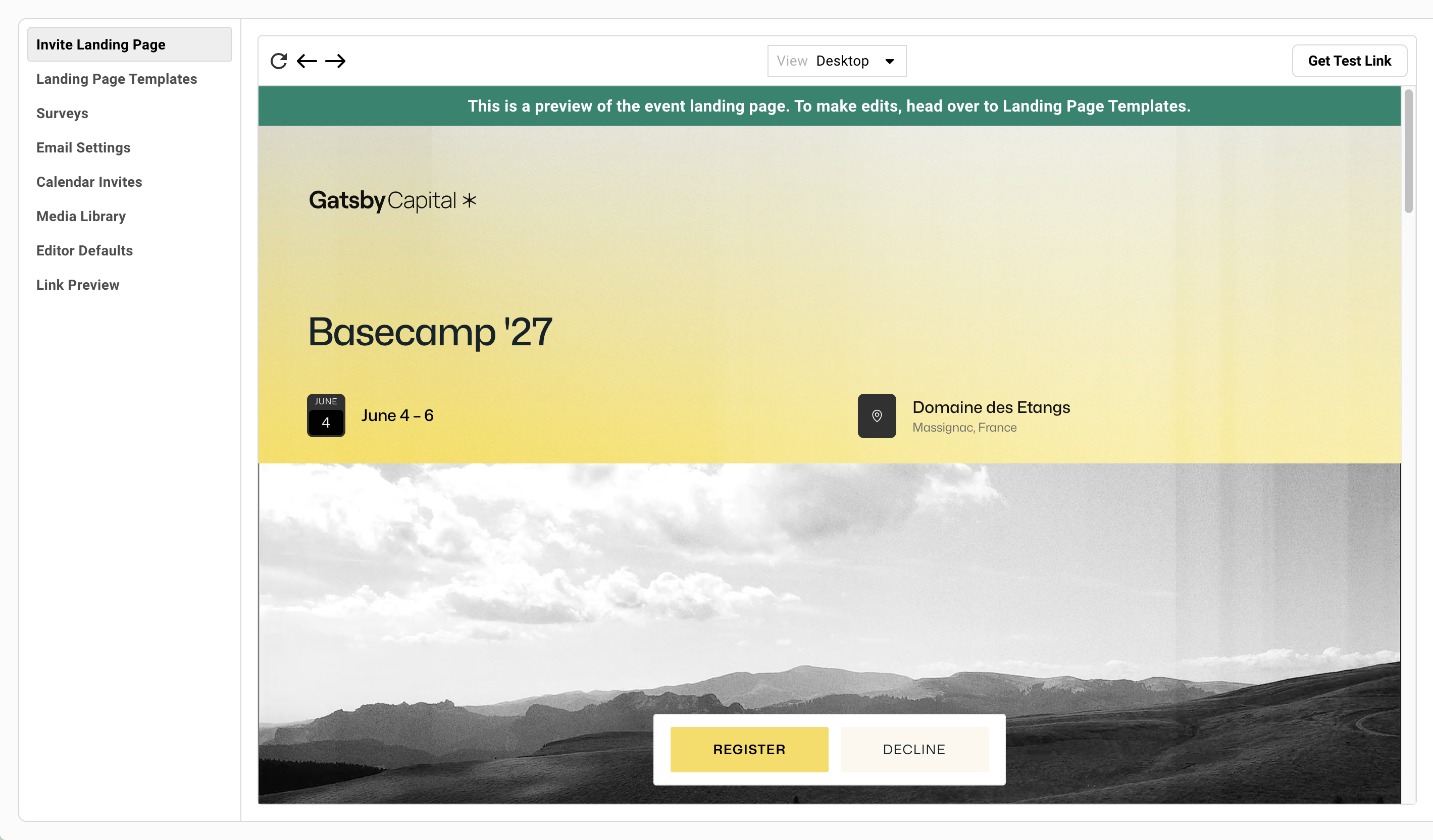
The Preview Screen
The RSVP tool opens to the Invite Landing Page preview by default. This shows what guests see when they click their link.
Use the preview to check:
- How your page looks with current content
- Button states (Accept, Decline, Maybe, Waitlist)
- Overall layout and branding
Device Previews
View your page on desktop, tablet, and mobile.
The viewport is pixel-accurate. Cycle through viewport presets to ensure your page works on all devices. Check mobile especially. Most guests will view on their phones.
Survey and Confirmation Preview
Click through buttons to preview the full guest experience.
- Click Accept to see the survey form
- Complete the survey to see the confirmation screen
- Verify the entire flow before going live
Test Links vs Live Links
Preview uses a test link. Nothing auto-fills.
Live personal links will show pre-filled guest information (name, email, company). Public links will show empty form fields.
What you see in preview is close to the public link experience.
Media Library
Section titled “Media Library”A central library for images and videos used across your templates and events.
How It Works
Upload assets directly to the media library. Or add them while editing a landing page. Either way, they appear in your library.
Same asset can be used across multiple templates and events.
Replacing Assets
Update a speaker photo in the library. It updates everywhere that photo is used.
Useful when a speaker sends a better headshot. Or when you update your logo. One change, everywhere at once.
Managing Assets
Delete, rename, and organize images and videos. Same workflow for both.
Keep your library clean. Old assets pile up fast.
Link Preview Settings
Section titled “Link Preview Settings”Control how your event appears when shared on LinkedIn, WhatsApp, or messaging apps.
Featured Image
The image that appears in link previews.
Set this intentionally. Without it, platforms auto-select something random. Could be your footer logo. Could be a speaker’s face cropped badly.
Title and Description
Customize the open graph title and description. This is what people see before they click.
Make it compelling. “Q3 Executive Dinner” tells them what. “Join 40 portfolio CEOs for an evening of…” tells them why.
Where to Configure
RSVP tool settings, Link Preview section.
Set this before sharing any links. First impressions happen before the click.
View-Only Links
Section titled “View-Only Links”Share your landing page without enabling registration. RSVP buttons are visible but non-functional.
How to Get One
-
Open your landing page template.
-
Click the dropdown arrow next to the Edit button.
-
Select Get view-only link.
Use Cases
Design review
Share with your boss before going live. Get approval without enabling real RSVPs.
Parking and logistics
Link to a logistics page from your confirmation email. Guests can view details without re-registering.
Speaker bios
Create a standalone page with speaker information. Share or embed anywhere.
Live agenda at event
QR code at the venue linking to an agenda you can keep updated. Changes reflect immediately.
Common Questions
Section titled “Common Questions” Can I use my own fonts and colors?
Yes. Use “Change all fonts and colors” in Template Editor for quick brand application. Use Advanced Editor for precise control over every element.
How much time does this take?
Anywhere from 20 minutes customizing an existing template to 20 hours building a fully custom design.
Most teams duplicate a template and update content in under an hour.
Why does my template show buttons I didn't want?
Button visibility is controlled outside the editor. Check RSVP button settings on the Invite Landing Page preview screen, right sidebar.
Can I copy blocks between templates?
Yes. Requires Advanced Editor mode.
If I delete a section, can I get it back?
Yes. Use the Sticker Sheet to restore pre-designed blocks that came with the template.
Do I need a landing page for every event?
No. Landing pages are optional. For simple events, you can use just the RSVP card.
Landing pages are most valuable when you need to provide detailed information or build excitement. Executive dinners, conferences, and high-touch events benefit most.
Image and file size limits/recommendations
Images on Landing Pages
- PNG, JPG, GIF, WEBP, AVIF, SVG supported
- Less than 5MB recommended (24MB maximum)
- Optimal size varies on template (use 2880px wide as a baseline)
Images in Emails
- PNG, JPG, GIF recommended
- Less than 2MB recommended (24MB maximum)
- In Marketing mode, 1200px wide recommended
Documents
- 24MB max per file
- PDF watermarking available
- All common formats supported
Videos on Landing Pages
- 24MB max for direct upload
- Unlimited via YouTube/Vimeo embed
- MP4 recommended format
- Gatsby does not re-encode/optimize videos for streaming