
Overview
Calendar Invites
Send calendar invites that update automatically when event details change. Set the organizer, customize the description, and push updates to guests with one click.
One venue change and now 150 guests with the wrong calendar entry…
Most guests won’t open the update email. The ones who do rarely fix their calendar manually. You find out the morning of when the questions start.
Push updates automatically
Change the venue or time and send updated invites. Guest calendars overwrite the old entry automatically.
Track per-guest invite state
Each guest gets a unique calendar entry tied to their registration. You see who has current details and who still needs an update.
How Calendar Invites Work
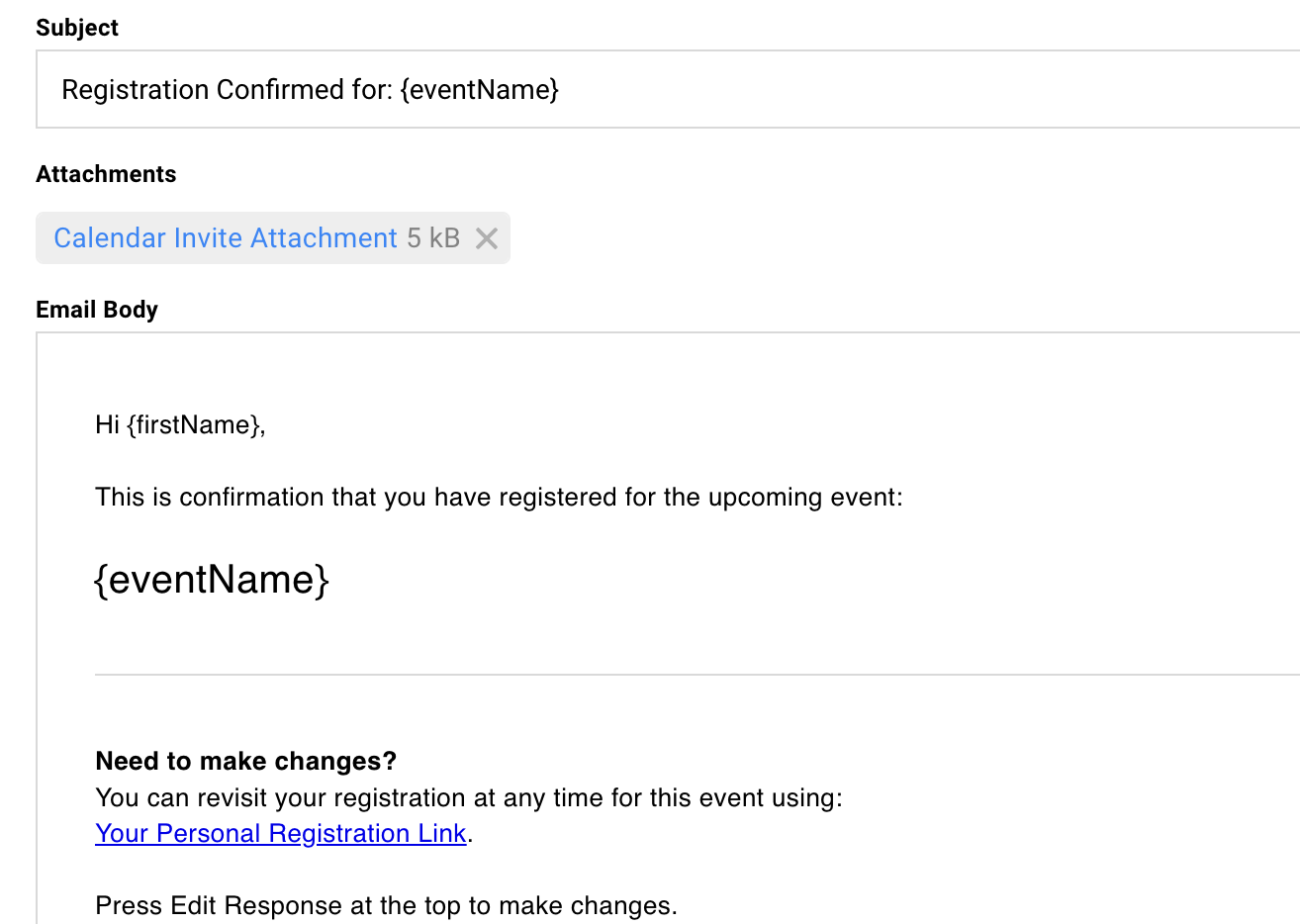
Section titled “How Calendar Invites Work”Calendar invites attach to confirmation emails by default, sending automatically after a guest registers. Each event has one calendar invite configuration. Find it in RSVP tool → Calendar Invite.
Gatsby generates individual calendar invites per guest. When details change, you push an update. Their calendar app receives it and overwrites the old entry. No manual action required from guests.
Why Individual Invites
Each guest gets a unique calendar entry tied to their email. This lets you track state (up-to-date vs outdated) and push targeted updates.
The tradeoff: the organizer sees duplicate entries on their personal calendar if using. One entry for every guest. A shared address like events@yourcompany.com saves this.
When Invites Are Sent
By default, calendar invites attach to confirmation emails. These send automatically after a guest registers.
You can also attach calendar invites to any campaign email. Useful for save-the-date flows or waitlist approvals where you want a personalized message alongside the invite.
One Invite Per Event
Each event generates one calendar invite configuration. One set of details. One organizer. One description.
Multi-day conferences or events with separate sessions need other events created. Each sub-event has its own calendar invite. Guests register through the parent and select sessions. Each session sends its own calendar block.
Choosing the Organizer
Section titled “Choosing the Organizer”The organizer is who appears as the meeting host on guests’ calendars. This is the most important setting to get right before your first send.
Use a Shared Address
Use events@yourcompany.com or a similar shared address.
Since each guest gets an individual invite, the organizer’s calendar shows a duplicate event for every guest. A shared address keeps personal calendars clean.
Organizer Options
Select from connected email accounts. Gmail, Outlook, or SendGrid addresses all work.
The name that appears can be customized separately from the email address. Show “Acme Events Team” even when sending from events@acme.com.
Do Not Change After Sending
Changing the organizer email after invites are sent creates duplicate events on guests’ calendars, one from the old organizer and one from the new. They cannot be recalled.
Change the display name if needed. Never change the email address after your first send.
Customizing the Invite Content
Section titled “Customizing the Invite Content”Event name, date, time, and location sync automatically from your event settings. The description field is where you add context.
Steps to Customize
-
Navigate to RSVP tool, then Calendar Invite.
-
Click Edit.
-
Modify the description field.
-
The synced fields (name, date, time, location) can be overridden here if needed.
Description Field Defaults
The default description includes each guest’s unique RSVP link with helper text:
“Change or edit your response” with the link below.
This reminds guests that declining the calendar invite does not decline them from the event. They need to use their RSVP link to change their registration.
Plain Text Only
Calendar invites do not support custom fonts, images, or rich formatting. Spam filters are strict.
Keep it simple. Text that renders correctly everywhere is better than formatting that breaks in half your guests’ calendar apps.
Sending Updates
Section titled “Sending Updates”Details change after invites go out. Every change means another email that guests need to open, read, and act on by manually updating their calendars. Most won’t.
Gatsby tracks calendar invite state per guest. When you change event details, you push an update that automatically overwrites the old calendar entry on guests’ devices.
Two ways to send updates: during the save flow or later from the event dashboard. The system tracks who has up-to-date versus outdated calendar invites.
Update During Editing
-
Make changes to event details (date, time, location).
-
Click Save.
-
A prompt asks if you want to send updated calendar invites.
-
Click Share details now to send immediately.
Update Later
Decline the prompt when saving. The “Unshared Event Updates” box appears on your event home screen.
Click Send Event Updates when ready.
Useful when you want to batch multiple changes. Make several edits over a few days. Send one consolidated update instead of five.
Who Receives Updates
Updates go to guests who previously received calendar invites. Typically, this means Accepted guests.
Guests who never received an invite are not affected. Their calendar stays empty. They will get the invite when they register.
Tracking Update Status
Add the “Calendar Invite State” column to your guest list.
Shows “Up-to-date” or “Out-of-date” per guest. Filter by this column to see who still needs the update. Useful after adding guests late or if some updates failed to send.
Calendar Invite Columns
Section titled “Calendar Invite Columns”Two columns track calendar invite information on your guest list. State shows whether their invite is current. Status shows their calendar response (if using Google integration).
Calendar Invite State
Shows “Up-to-date” or “Out-of-date.”
Updates after you send calendar updates. Use this to identify guests who missed an update or were added after the last send.
Calendar Invite Status
Shows Accept, Decline, or Pending based on how guests responded to the calendar invite itself.
Requires the organizer to be set to a connected Google Calendar account. The organizer’s calendar will show duplicate entries for each guest.
Why Status Is Unreliable
People treat calendar invites differently than event RSVPs.
Guests decline the calendar invite but show up. Others accept it and never attend.
Use RSVP status as your source of truth, not calendar status.
Common Questions
Section titled “Common Questions” When should I send calendar invites?
After registration, not before.
Attach them to confirmation emails. Including calendar invites in initial invitations feels like calendar bombing. Let guests commit first.
Can I send calendar invites to specific guests?
Yes. Attach the calendar invite to a campaign and send to selected recipients.
Useful for waitlist approvals or manual follow-ups where you want a personalized message alongside the calendar block.
What if I need separate calendar invites for different sessions?
Create child events. Each child event has its own calendar invite, confirmation email, and capacity settings.
Guests register through the parent and select sessions. Each selection triggers its own calendar invite.
See Event Families for setting up parent-child structures.
Can guests add the event without registering?
Skip the ICS download link. Downloads don’t capture responses as RSVPs, so you lose visibility into who is attending. Guests should register instead.
Do calendar invite responses update RSVP status?
No. Calendar Accept or Decline is separate from Gatsby RSVP status.
Include the RSVP link in your calendar description so guests can update their actual registration if plans change.
What happens if I change event details but do not send an update?
Guests keep the old calendar entry.
The “Unshared Event Updates” box appears on your dashboard until you send or dismiss it.
Can I recall or delete calendar invites?
You can send delete notifications to guests whose status changes to Declined.
This instructs their calendar app to remove the event. Covered in the postponing and canceling events workflow.
How can I check if a calendar invite was sent?
Check “Calendar Invite State” column on the guest list. “Up to Date” means a calendar invite was sent.
How can I collect Yes/No/Maybe status from the calendar invite?
Set the Calendar Invite Organizer to a connected Google account with calendar permissions enabled. The Calendar Invite Status column on the guest list shows each guest’s response.