
Overview
Webhooks & Zapier
Automate event data flow to any CRM or app. Webhooks push guest activity, RSVP changes, and attendance data to HubSpot, Airtable, Salesforce, and thousands of other tools through Zapier, Make, or n8n.
Why Webhooks Matter
Section titled “Why Webhooks Matter”The export-to-CSV loop kills event ROI.
Guest registers at 2pm. You export the list next Tuesday. Clean up duplicates. Match to existing contacts. By the time your sales team sees the record, the prospect forgot they attended.
Every event, 10-15 hours of data entry. Every event, a week where follow-up dies in the gap.
Webhooks flip this. Gatsby pushes event data automatically as it happens. Guest checks in, your CRM updates. RSVP changes, the record reflects it. You configure it once. It runs forever.

Guest Webhooks
Section titled “Guest Webhooks”The most commonly used webhooks. Fire when anything changes about a guest on any event.
Guest Created or Edited
This single webhook handles most CRM sync use cases. It fires whenever guest data changes.
Data included:
- Guest name, email, company
- RSVP status and attendance status
- Custom field responses
- Event details (name, date, location)
When it fires:
- Guest added to event (manually or via import)
- Guest submits RSVP through landing page
- RSVP status changes (Accepted, Declined, Maybe, Waitlist, Canceled)
- Guest checks in at event
- Guest information updated
- Custom field responses saved
Event Webhooks
Section titled “Event Webhooks”Track event lifecycle in external systems.
Event Created
Fires when you create a new event. Use this to create matching records in project management tools or notify your team.
Event Deleted
Fires when an event is removed. Use this to clean up related records or archive data.
Common Use Cases
- Sync event calendar to external tools
- Trigger task creation in Asana or Monday
- Update team dashboards
- Create project folders automatically
Manual Sync
Section titled “Manual Sync”Push all guest data at once instead of waiting for changes.
Sync Entire Guest List
Triggered manually from within Gatsby. Sends every guest record for an event through the webhook.
When to use:
- Setting up a new integration
- Backfilling historical data
- Verifying your automation works correctly
- Recovering from sync issues
Requirements
Section titled “Requirements”Before you start, confirm you have everything needed.
What You Need
- Zapier account: Pro plan or higher (free plan does not include webhooks)
- Webhooks enabled: Contact support if you do not see the option in Gatsby
- Destination app: HubSpot, Airtable, or your target connected in Zapier
Alternative Platforms
This guide uses Zapier. The same concepts apply to Make.com and n8n if you prefer those tools.
Creating the Connection
Section titled “Creating the Connection”Connect Gatsby to Zapier in five steps.
Step-by-Step Setup
-
Create your Zap
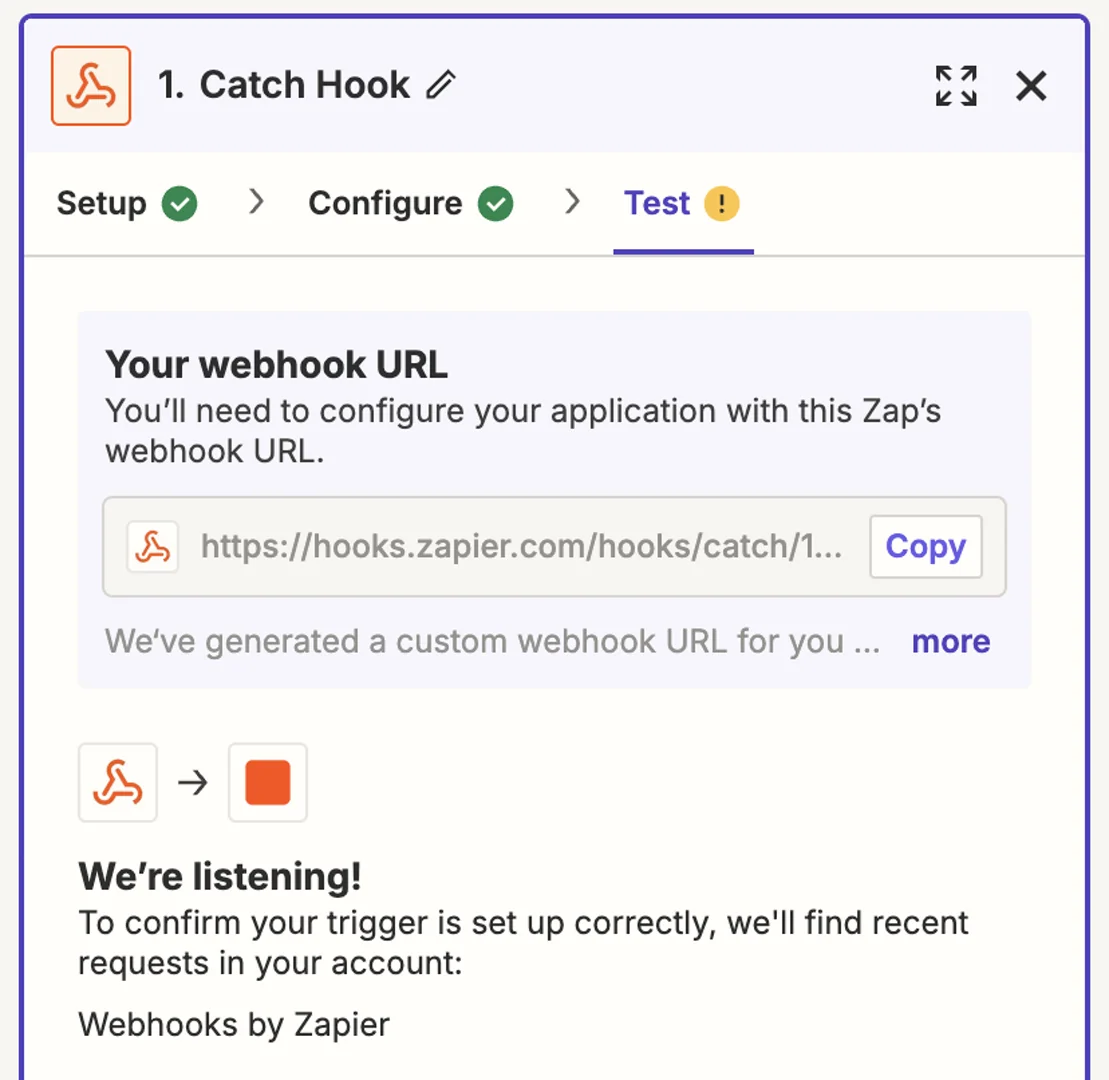
In Zapier, create a new Zap. Choose “Webhooks by Zapier” as your trigger app. Select “Catch Hook” as the trigger event.
-
Copy the webhook URL
Zapier generates a unique webhook URL. Copy this entire URL including the https:// prefix.
-
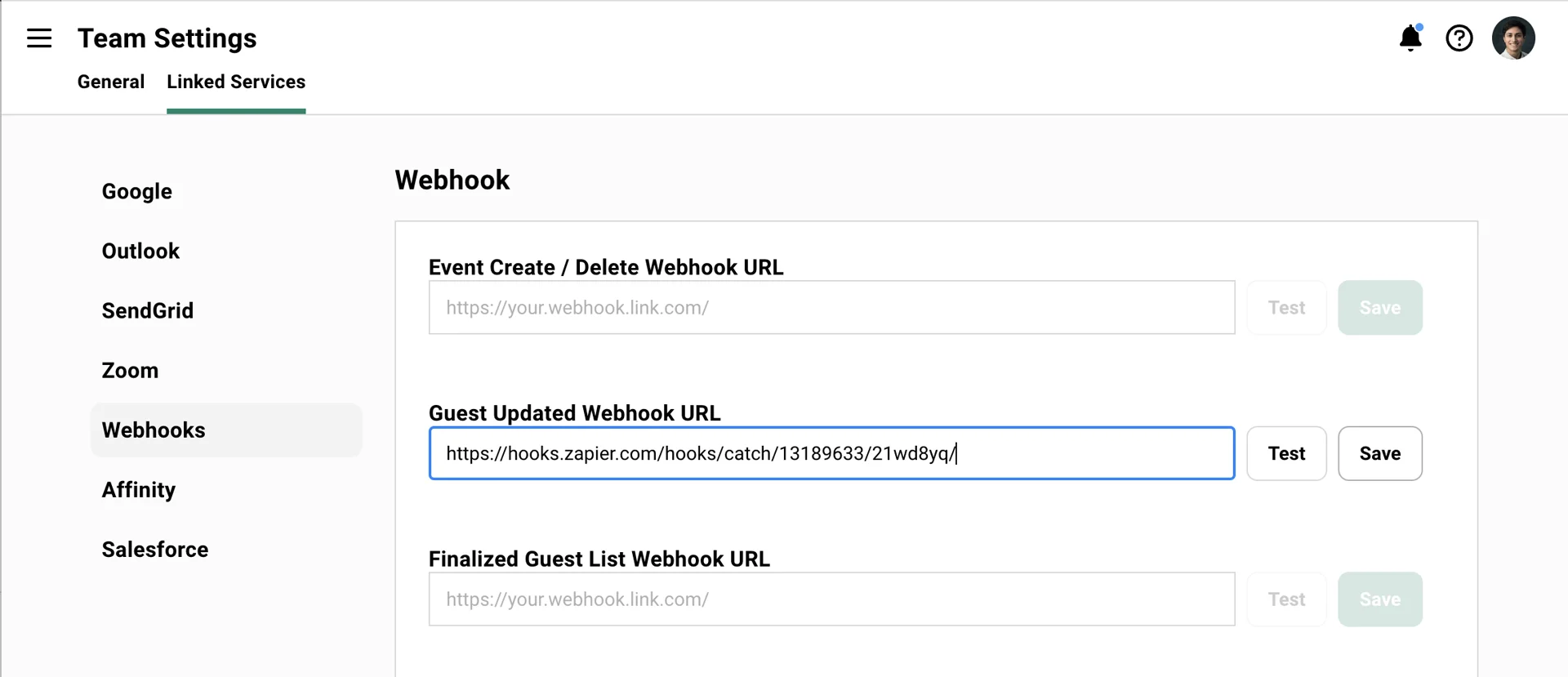
Configure Gatsby
In Gatsby, go to Settings > Integrations > Webhooks. Paste your webhook URL into the appropriate field. For CRM sync, use “Guest Updated Webhook URL” since it captures RSVP changes and new registrations.
-
Save and test
Click Save, then click Test in Gatsby. You should see “Webhook reachable” confirmation.
-
Generate real data
Add a guest to any event or update an existing RSVP. This sends actual data through the webhook so Zapier has real field names to work with.
Testing Your Webhook
Section titled “Testing Your Webhook”Verify the connection works before building your full automation.
Verifying the Connection
In Zapier:
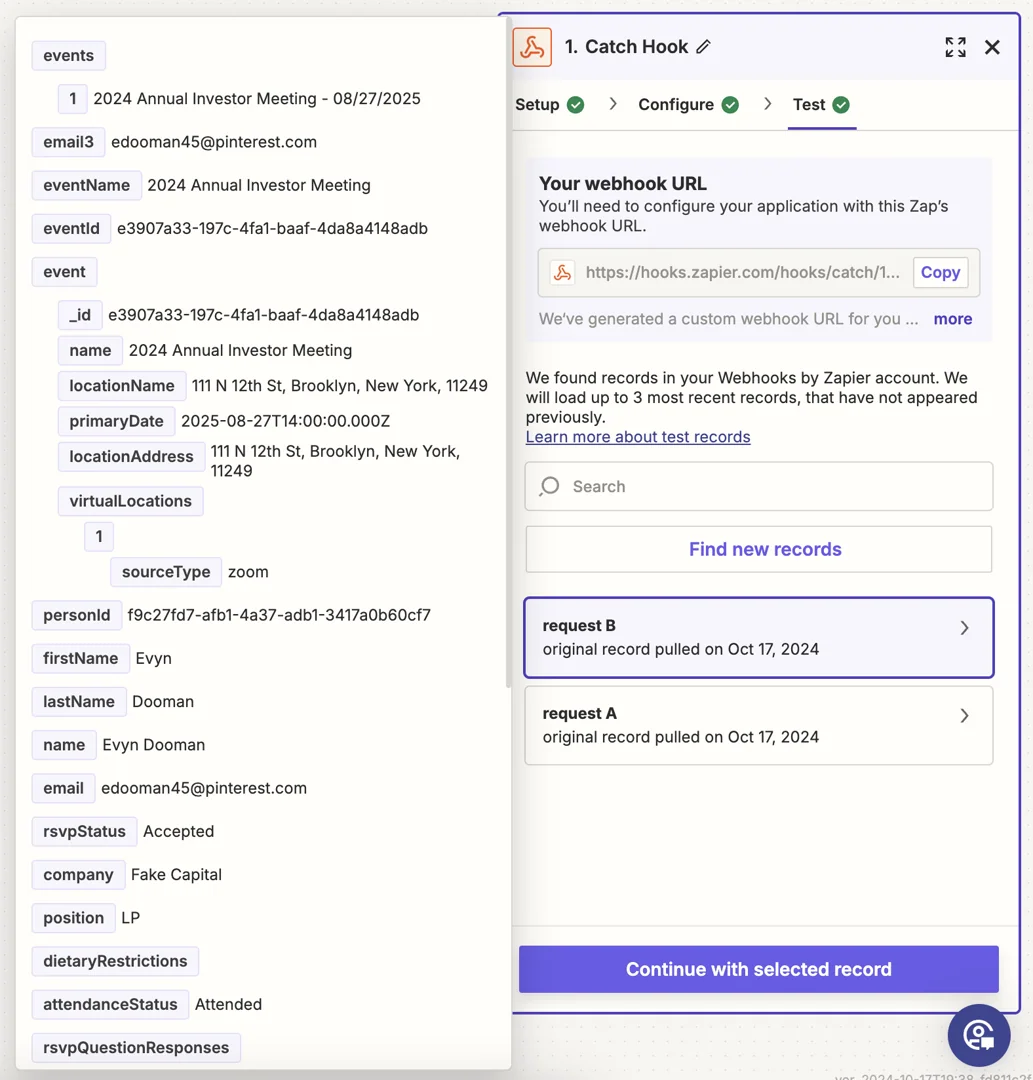
Click “Test trigger” after pasting the URL. It should show “We found a request!” with sample data fields.
If no data appears:
Make sure you triggered an actual guest change in Gatsby after setting up the connection. The test only works with real webhook events.
Review the data:
Look at the field names Zapier received. Common fields include Email, First Name, Last Name, Company, RSVP Status, Event Name. These become the building blocks for your automation.
The Core Pattern
Section titled “The Core Pattern”Every destination follows the same logic: check if the person exists, create them if not, update their record with event data. Email address is your matching key.
The Workflow Logic
-
Webhook receives guest data from Gatsby
-
Search for existing record by email in destination
-
If found, update the existing record
-
If not found, create a new record
-
Map relevant fields (RSVP status, event name, attendance, etc.)
Why Email Matching Matters
Email is the primary identifier in Gatsby. Using email as your matching field prevents duplicate records when the same guest appears across multiple events.
Handling Multiple Events
Each webhook includes event details. You can log each event as a separate activity, update a “last event attended” field, or build a complete event history depending on your destination’s capabilities.
HubSpot Example
Section titled “HubSpot Example”Sync Gatsby event registrations to HubSpot contacts automatically.
Step-by-Step HubSpot Setup
-
Add HubSpot action
After your webhook trigger, add a HubSpot action. Choose “Create or Update Contact.”
-
Connect HubSpot
Connect your HubSpot account when prompted. Grant Zapier permission to manage contacts.
-
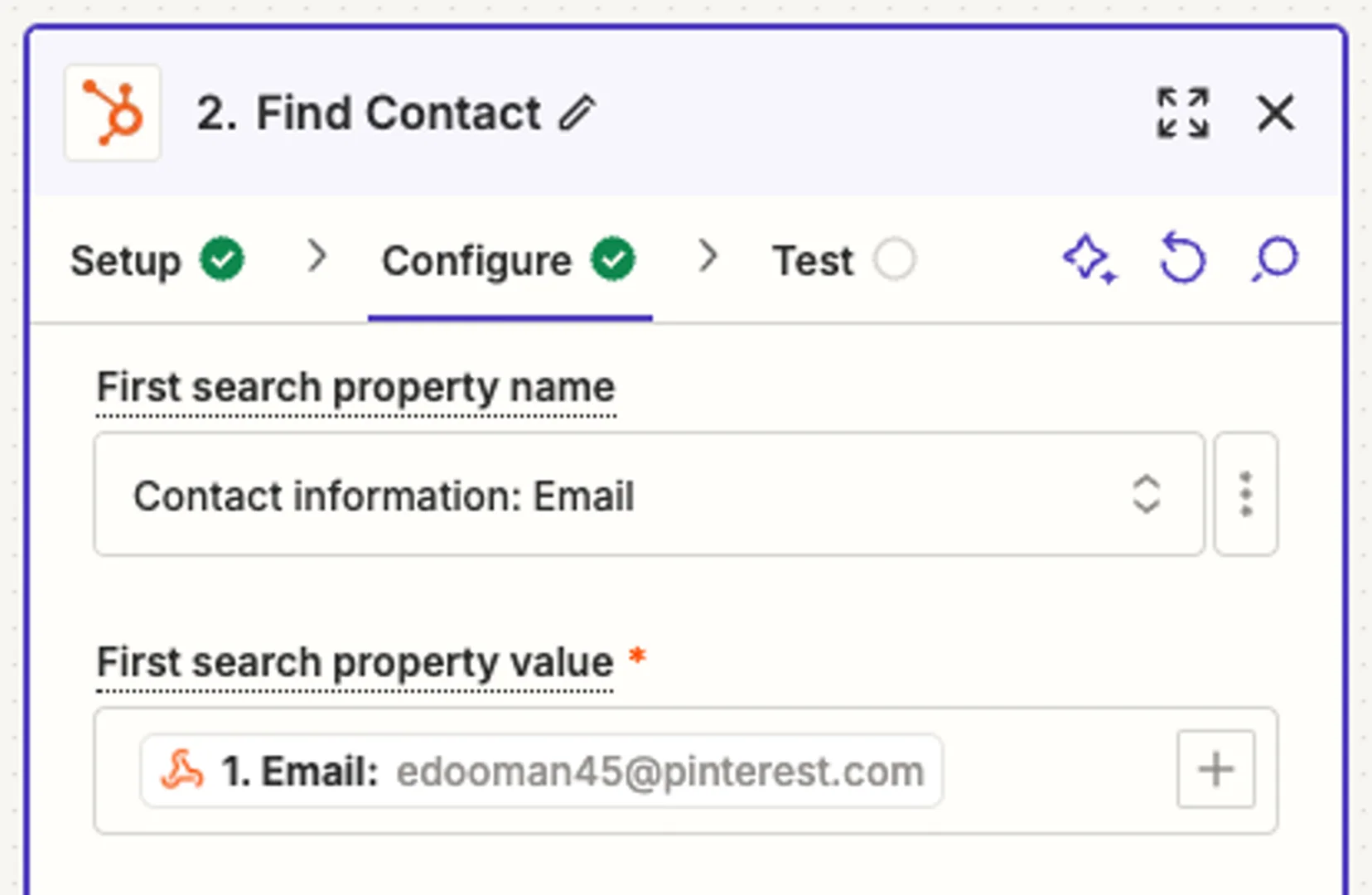
Configure email matching
Set email as the field to search for existing contacts. Enable “Create contact if it does not exist.”
-
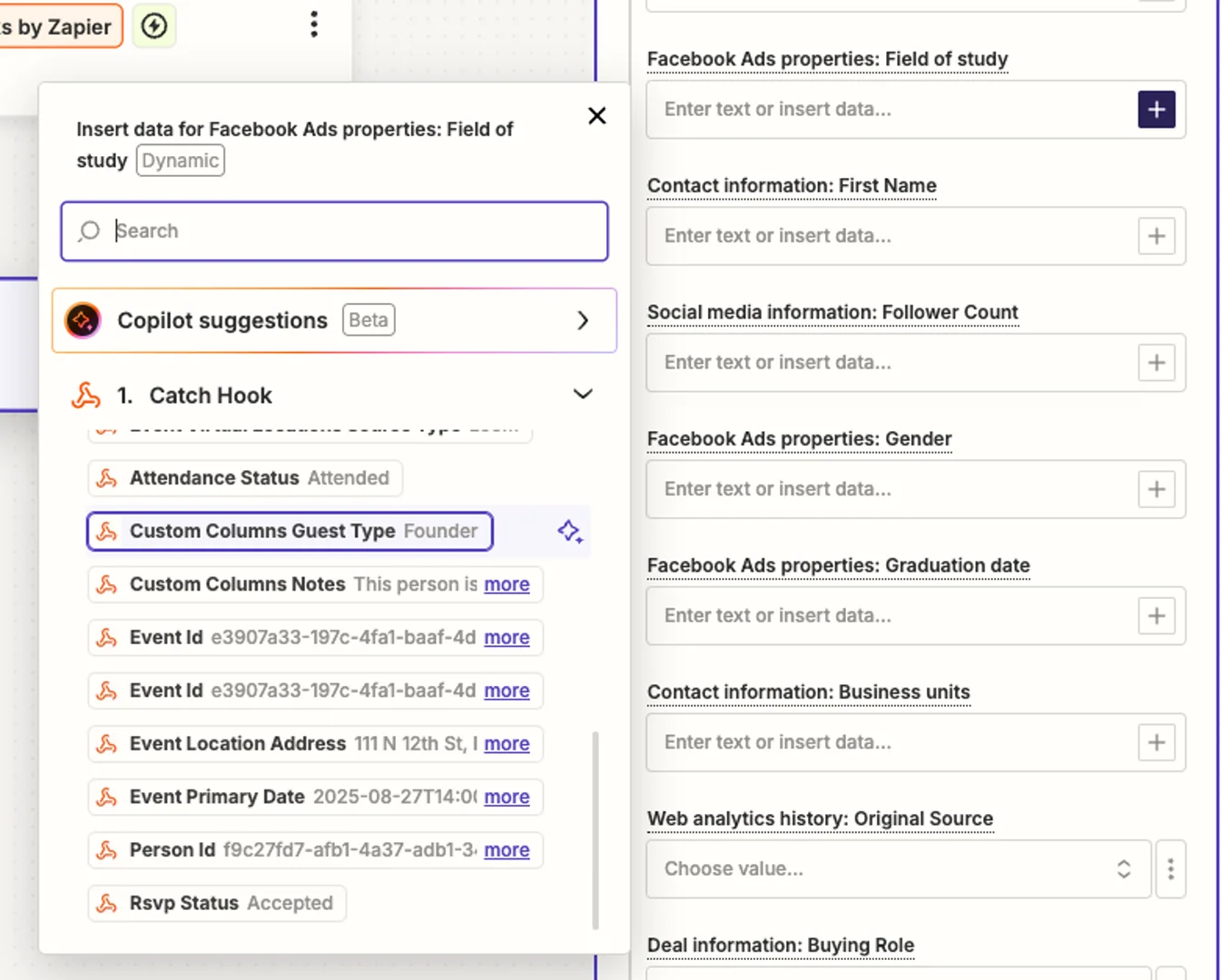
Map your fields
Map Gatsby fields to HubSpot properties: First Name, Last Name, Company, and any custom properties you want to track like Event Name or RSVP Status.
Pro Tip: Event History
Create a custom HubSpot property for “Events Attended” or use Timeline Events to log each registration separately. This builds a complete picture of each contact’s event engagement over time.
Airtable Example
Section titled “Airtable Example”Build an event tracking database in Airtable that updates automatically.
Step-by-Step Airtable Setup
-
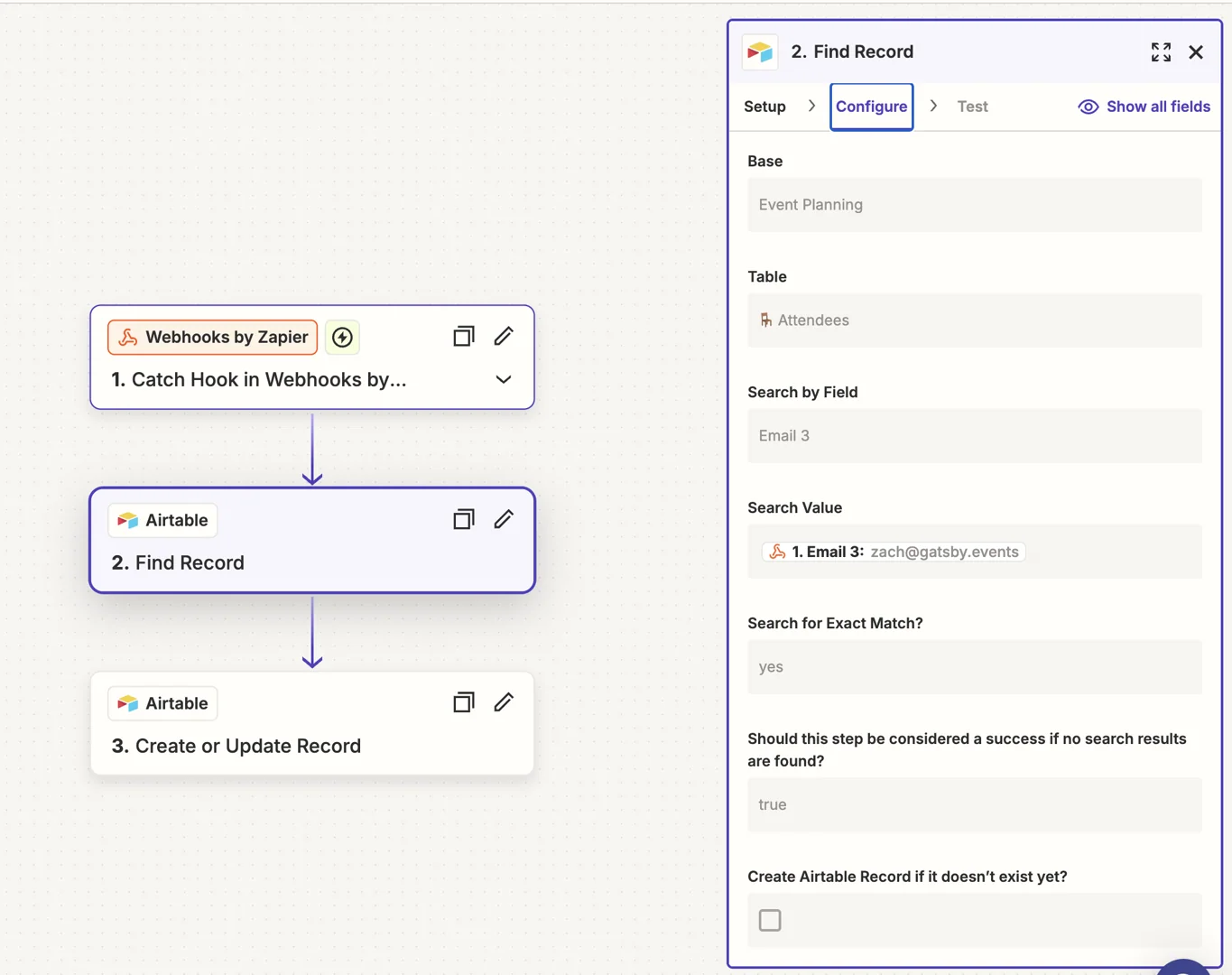
Add Find Record step
Add an Airtable “Find Record” action. Search by email to check if the person already exists in your base.
-
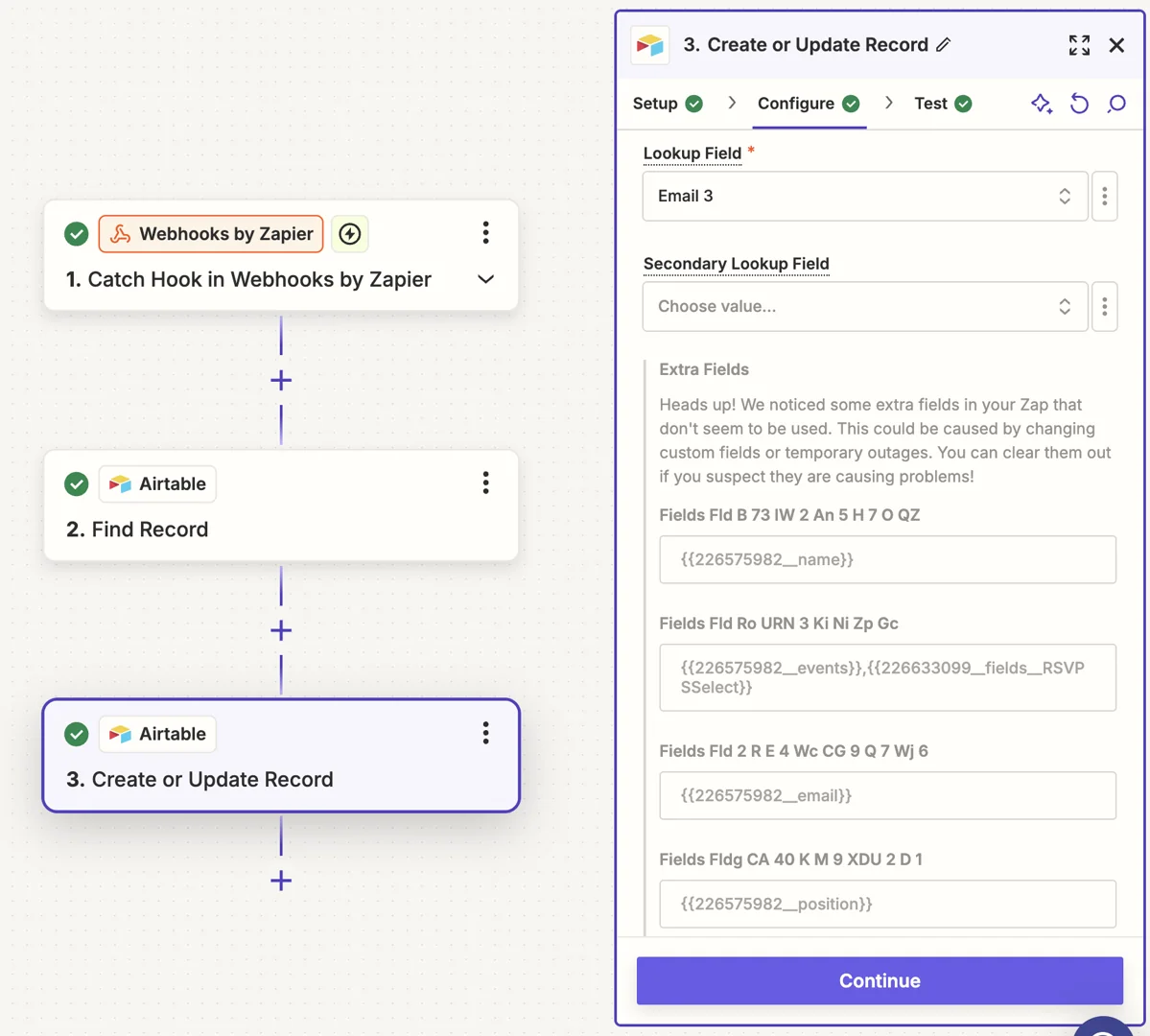
Add Create or Update step
Add an Airtable “Create or Update Record” action. Use email as your lookup field.
-
Map your fields
Map Gatsby data to Airtable columns: Name, Email, Company, RSVP Status, Event Name, Event Date.
Building Event History
Create a linked “Events” table. Each row represents one person at one event. Link to a People table for the master contact record. This lets you query by person or by event.
Common Questions
Section titled “Common Questions” Do I need a paid Zapier plan?
Yes. Webhook triggers require Zapier Pro or higher. The free plan does not support webhooks. Make.com and n8n have similar paid tiers for webhooks.
Can I use this with any CRM?
If Zapier connects to it, you can send Gatsby data there. HubSpot, Salesforce, Pipedrive, Copper, Attio, Monday, Notion, Airtable, Slack, and thousands more.
What data comes through the webhook?
Guest webhooks include: name, email, company, RSVP status, attendance status, custom field responses, plus event details like name, date, and location.
How fast do webhooks fire?
Near real-time. Typically within seconds of the action in Gatsby. If you are not seeing data, check your Zapier task history for errors.
My webhook shows as unreachable
Check that you copied the complete URL including https://. Verify your Zapier plan includes webhooks. Try generating a new webhook URL in Zapier.
Can I prevent duplicate records?
Use email as your matching field in the destination app. Configure your action to “create or update” rather than just “create.” This finds existing records before creating new ones.
Does Gatsby have an API?
Yes. The API allows bidirectional data flow, including pulling data into Gatsby. Contact support for API documentation and access.
How do I enable webhooks?
Contact Gatsby support. Webhooks may need to be enabled for your account before the settings appear.
Zapier integration requirements
- Pro plan required (webhooks not in free tier)