
Overview
Salesforce Integration
Sync guest lists and event data with Salesforce CRM. Push RSVP status, attendance, and first-party contact updates to campaigns automatically.
Why This Matters
Section titled “Why This Matters”Field marketing runs 12 regional dinners. Attendance data sits in Gatsby. Sales asks which prospects are hot. Week-long lag while marketing ops exports CSVs, imports to Salesforce, updates campaign members. By then, competitors already followed up.
Gatsby’s Salesforce integration eliminates that lag. Check in a guest at your event. Salesforce updates in real-time. Sales prioritizes hot leads while relationships are fresh, not next week when momentum is dead.
What Syncs
Section titled “What Syncs”Here’s a common misconception. Teams expect the integration to pull all Salesforce contact data into Gatsby. Company enrichment. Custom fields. Full history.
That’s not the purpose.
Gatsby captures messy event data at the door and pushes clean records back to Salesforce. Your CRM is the source of truth. Gatsby is the staging area. The integration pushes event participation UP to Salesforce, not contact enrichment DOWN.
What Gatsby Sends to Salesforce
Section titled “What Gatsby Sends to Salesforce”Three types of event data sync automatically to Salesforce Campaign Members.
RSVP Status
Invitation responses sync to the custom RSVP Status field on Campaign Members.
Values: None, Invited, Declined, Accepted, Waitlist, Maybe
When a guest responds to your invitation, their status updates in Salesforce automatically. No manual entry. No batch exports.
Attendance Status
Check-in data syncs to the custom Attendance Status field on Campaign Members.
Values: N/A, Yes, No Show
This is the ground truth of who actually showed up. When your team checks in a guest at the event, Salesforce updates immediately.
Campaign Member Updates
Adding or removing guests in Gatsby updates Campaign Member lists in Salesforce. The reverse works too. Add someone to a Salesforce Campaign, and they appear in the Gatsby guest list.

First-Party Data Updates
Section titled “First-Party Data Updates”Event registration captures fresh contact data. That data can flow back to Salesforce.
Company and Position Updates
When guests update their company or title during registration, those changes can sync back to their Salesforce Contact record.
This is first-party data from the guest themselves. Not stale enrichment databases. Not third-party scrapers. Direct from the source.
How Field Mapping Works
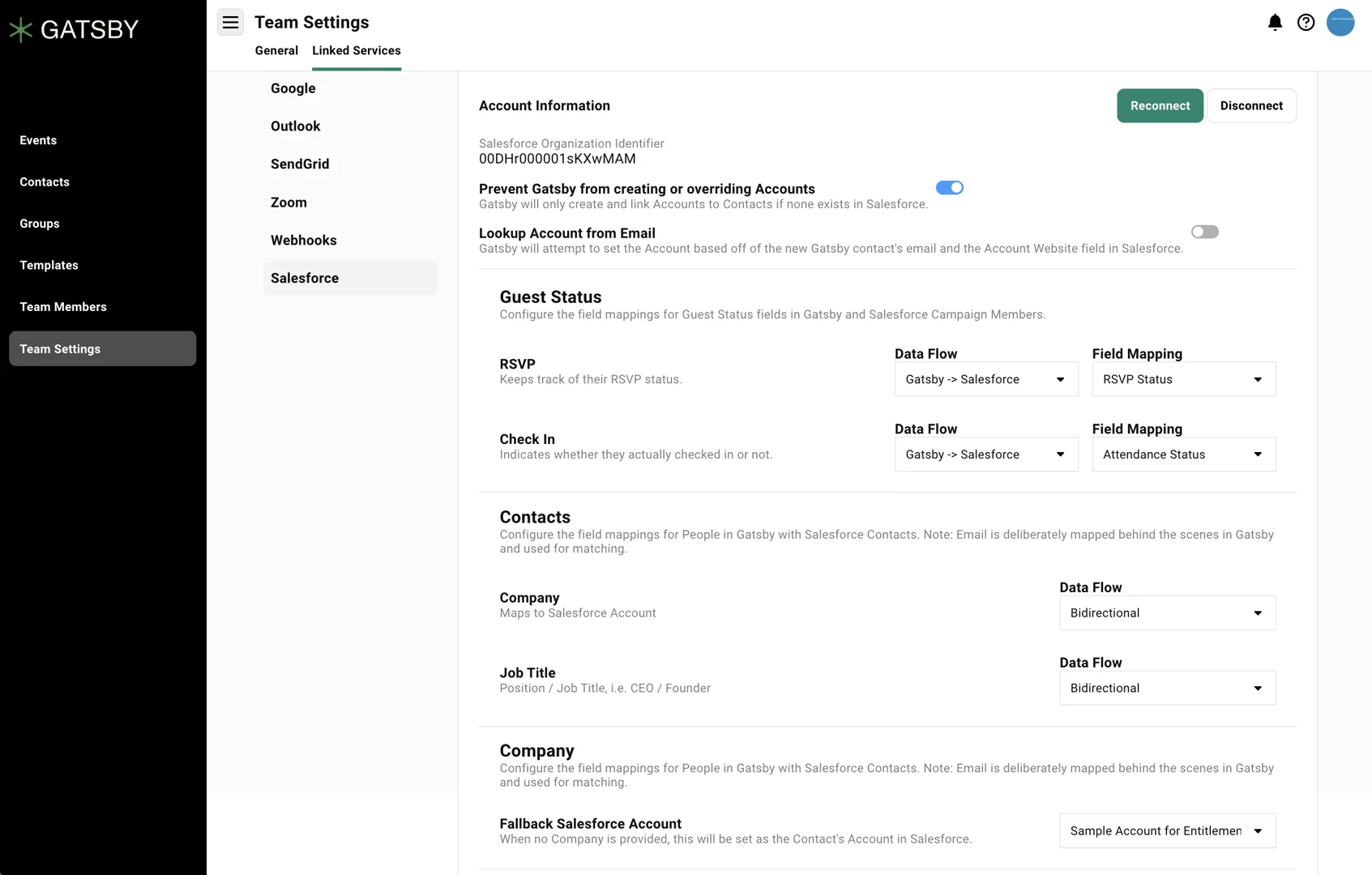
Configure which Gatsby fields map to which Salesforce fields. Choose sync direction per field: Gatsby to Salesforce, Salesforce to Gatsby, or bidirectional.
Map the fields in Team Settings > Linked Services > Salesforce after completing the initial connection.
Data Flow Options
Section titled “Data Flow Options”Each mapped field has a sync direction. This controls how data moves between Gatsby and Salesforce.
Sync (Bidirectional)
Data flows both directions. Last update wins.
If a guest updates their title during event registration, Salesforce gets the new title. If your team updates it in Salesforce, Gatsby gets the change.
Best for: Contact information like company and job title. Fields where either system might have fresher data.
Watch out: Conflicting updates. If someone changes a field in both systems within seconds, the last one processed wins.
Enrich (Fill Blanks Only)
Only fills in empty fields. Never overwrites existing data.
If Salesforce has a guest’s job title but Gatsby doesn’t, Gatsby gets the title. If both systems have a value, neither changes.
Best for: Supplementary data you want to share without risking overwrites. Phone numbers, secondary emails.
One-Way (Gatsby to Salesforce)
Data flows in one direction only. Gatsby to Salesforce.
RSVP and attendance data should typically use this. Gatsby manages event execution. Salesforce receives the results.
Best for: Event-specific data like RSVP status and attendance. Data that originates in Gatsby and should flow to your CRM.
De-duplication
Section titled “De-duplication”Duplicate records are a primary concern for Salesforce teams. The integration includes rules to prevent creating duplicates.
How Matching Works
When Gatsby sends data to Salesforce, it matches on email address. If a Contact or Lead with that email already exists, the integration updates that record rather than creating a new one.
Prerequisites and Permissions
Section titled “Prerequisites and Permissions”Check these requirements before attempting connection. Missing either causes the integration to fail silently.
Marketing User Checkbox
The Salesforce user connecting the integration must have Marketing User checked on their profile. This is not enabled by default. IT must enable it.
Without this checkbox, campaign-related API calls fail. You’ll complete the connection successfully, but nothing will sync.
Change Data Capture
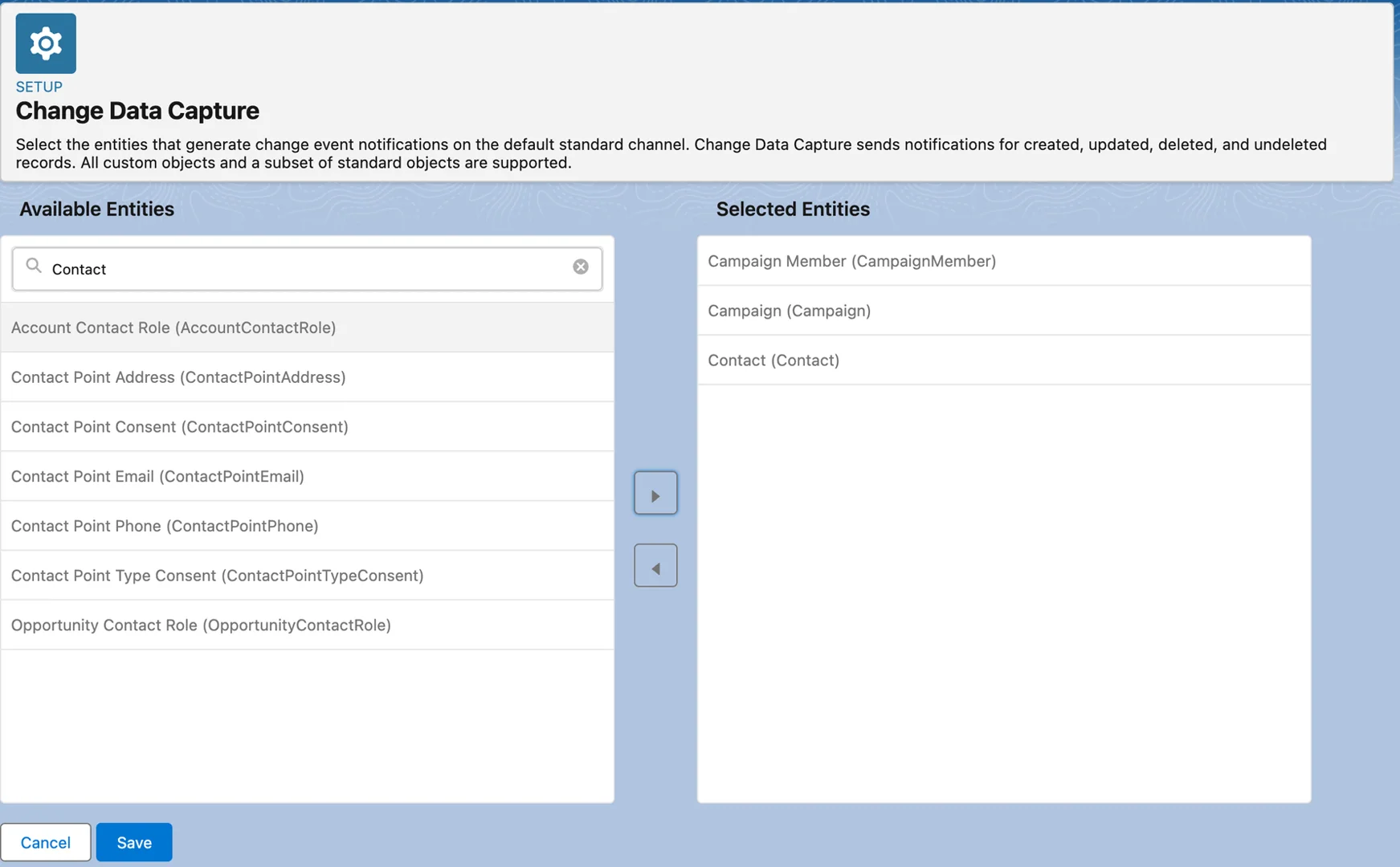
In Salesforce Setup, Change Data Capture must be enabled for Campaign, Campaign Member, and Contact objects. This allows Salesforce to notify Gatsby of changes.
Search “Change Data Capture” in Setup. Move the three objects from Available Entities to Selected Entities. Save.
Security Note
Gatsby is SOC2 Type 2 compliant. The integration uses OAuth for authentication. No passwords are stored.
Initial Setup
Section titled “Initial Setup”Connect Salesforce to Gatsby from Team Settings.
Step-by-Step Connection
-
Go to Team Settings > Linked Services > Salesforce in Gatsby.
-
Click Connect Salesforce.
-
Enter your Salesforce Login URL:
- Production:
https://login.salesforce.com - Sandbox:
https://test.salesforce.com
- Production:
-
Authenticate with a user that has Marketing User enabled.
-
Authorize Gatsby to access Salesforce.
The Salesforce integration requires an additional subscription. Contact us on Slack or email for pricing details.
Field Configuration
Section titled “Field Configuration”Create custom fields in Salesforce, then map them in Gatsby.
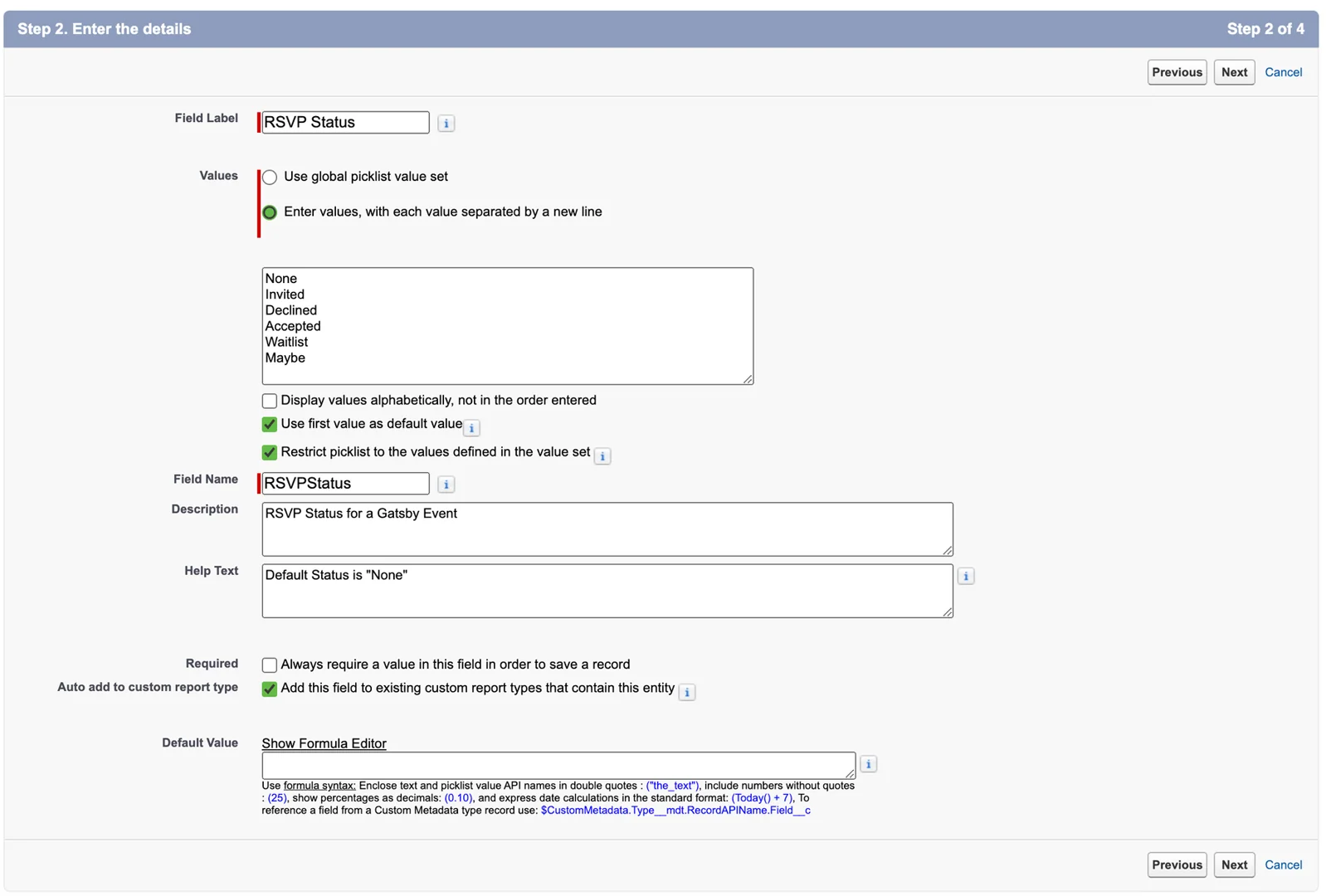
Creating the RSVP Status Field
-
Go to Setup > Object Manager > Campaign Member > Fields and Relationships.
-
Click New.
-
Configure the field:
- Field Label:
RSVP Status - Type:
Picklist - API Name:
RSVPStatus - Values:
None, Invited, Declined, Accepted, Waitlist, Maybe - Visibility: On for everyone (unless IT specifies otherwise)
- Field Label:
-
Save.
Creating the Attendance Status Field
-
Same location: Campaign Member > Fields and Relationships.
-
Click New.
-
Configure the field:
- Field Label:
Attendance Status - Type:
Picklist - API Name:
Attendance_Status - Values:
N/A, Yes, No Show - Visibility: On for everyone
- Field Label:
-
Save.
Enabling Change Data Capture
-
In Salesforce Setup, search “Change Data Capture”.
-
Move Campaign, Campaign Member, and Contact from Available Entities to Selected Entities.
-
Save.
Mapping Fields in Gatsby
-
Return to Team Settings > Linked Services > Salesforce.
-
Map each Gatsby field to its Salesforce counterpart.
-
Select sync direction for each field.
-
Save.
Configuring Fallback Account
When Gatsby creates a new Contact in Salesforce, it needs an Account to associate with that Contact. The fallback account handles cases where Gatsby can’t match a guest to an existing Account.
-
In Team Settings > Linked Services > Salesforce, find Fallback Account.
-
Select an existing Salesforce Account or create a generic one like “Event Registrations” or “Gatsby Contacts.”
-
Save.
New contacts without a matching Account get assigned to this fallback. Your team can reassign them later in Salesforce.
Linking Events to Campaigns
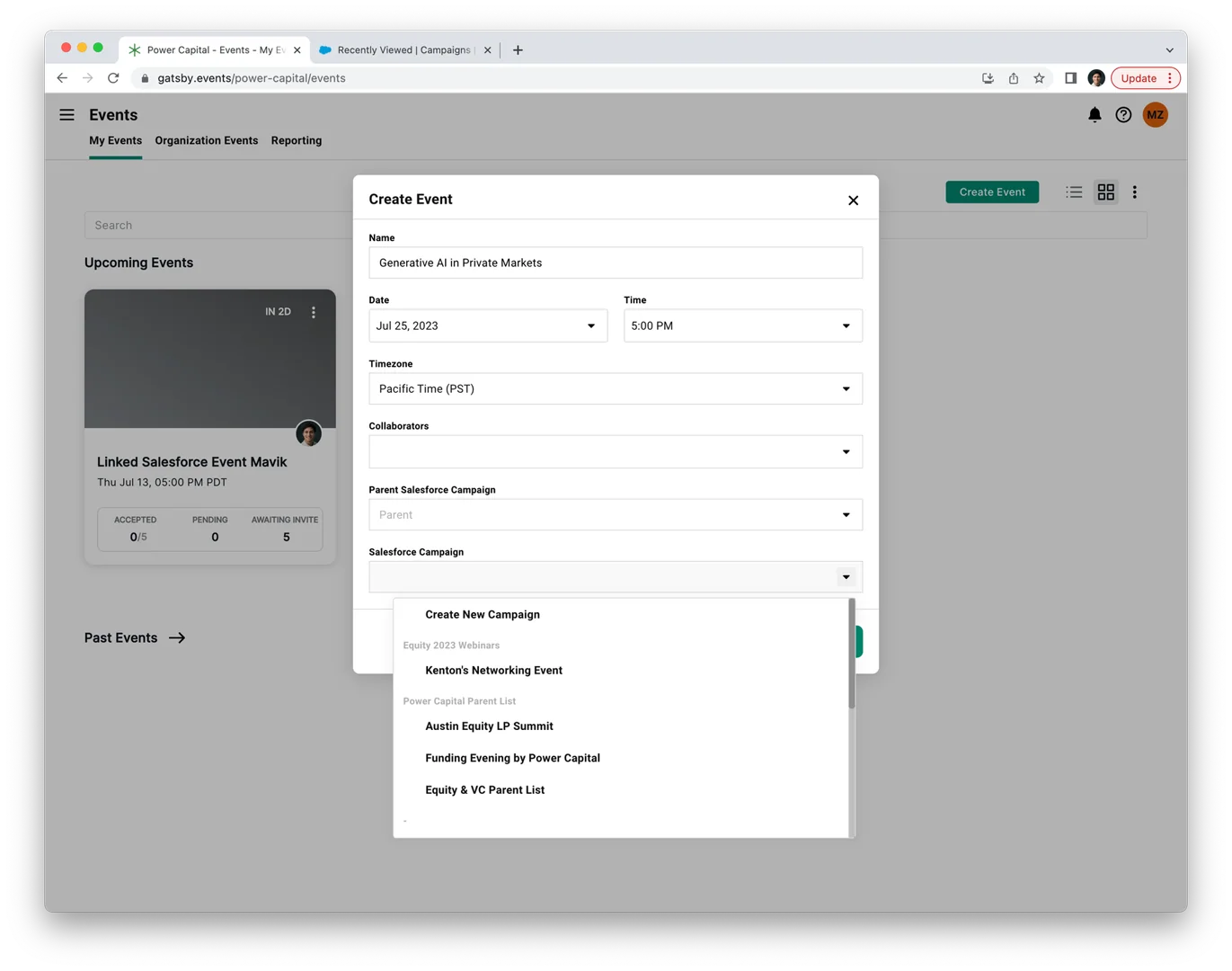
Section titled “Linking Events to Campaigns”Each Gatsby event connects to a Salesforce Campaign. Guests become Campaign Members. RSVP and attendance data syncs to their Campaign Member record.
Connecting to an Existing Campaign
-
Open your event in Gatsby.
-
Go to Event Details (the settings panel).
-
Select a Salesforce Campaign from the dropdown.
-
Save.
Creating a New Campaign from Gatsby
-
In Event Details, click Create New instead of selecting an existing campaign.
-
Name the campaign.
-
Optionally select a parent campaign.
-
Save. The campaign creates in Salesforce automatically.
Changing the Connected Campaign
-
Edit Event Details.
-
Select a different campaign from the dropdown.
-
Save. Future syncs go to the new campaign.
Custom Objects (Not Standard Campaigns)
If your Salesforce org uses custom objects like “Events” or “Functions” instead of standard Campaigns, the integration can work with those. Contact support to configure custom object mapping.
Common Questions
Section titled “Common Questions” Is this a two-way sync?
Partial. RSVP and attendance data flows from Gatsby to Salesforce. Campaign Member additions and removals sync both directions. Contact enrichment (company, title from Salesforce) does not automatically pull into Gatsby.
Can I customize the picklist values?
Yes. After creating the fields per setup instructions, you can modify display values to match your terminology. Keep the API names consistent for the integration to work.
Does this cost extra?
Yes. The Salesforce integration is an add-on. Contact support for pricing.
When does data sync?
Immediately. No batch process. No manual sync button. Check in a guest, Salesforce updates in real-time.
What about security?
Gatsby is SOC2 Type 2 compliant. The integration uses OAuth for authentication. No passwords stored.
Can I connect sandbox environments?
Yes. Use https://test.salesforce.com as your login URL during setup.
Salesforce integration requirements
- Marketing User checkbox required
- Change Data Capture enabled
- Custom fields for RSVP/Attendance