
Overview
Contact Lists
Lists are like events without dates. Use them for newsletters, directories, post-event surveys, and anywhere you need to collect information from contacts without the overhead of calendar invites and registration deadlines.
Events need dates. Not everything you track does.
You need addresses from 50 partners. Feedback from attendees three weeks after a conference. A newsletter subscriber list that lives alongside your contact records. None of that fits an event.
Events Without Dates
Same guest list tools. No calendar complexity. Just a landing page that stays open.
Unified Contact Management
Your contacts live in one place. Data follows them across events and lists.
Why Lists Exist
Section titled “Why Lists Exist”You need to collect addresses from 50 partners. Or survey attendees three weeks after an event. Or track newsletter subscribers.
None of that has a date.
Lists handle this. They share most tools with events. No dates, times, or calendar invites.
For detailed documentation on how the list interface works, see Guest Lists and Events. Views, columns, filters, sections, and bulk actions all work identically. The rest of this page focuses on differences and use cases.
Creating a List
Section titled “Creating a List”The Lists dashboard mirrors the Events dashboard. My Lists shows lists you created or collaborate on. All Lists shows everything your team is running.
Creating a List
Click Create List to open the dialog. Much simpler than events.
List Details
- List name (required)
- Internal name (optional, for your reference)
- Template selection
- Collaborators
Advanced Settings
- Enable parent-child linking
- Select parent or child lists
No dates. No times. No location. Just a name and you’re ready.
Key Differences from Events
| Feature | Events | Lists |
|---|---|---|
| Status tracking | RSVP Status | Link Status |
| Registration tool | RSVP tool | Landing Page tool |
| Calendar invites | Yes | No |
| Registration deadline | Configurable | Always open |
| Plus-ones | Configurable | Not available |
| Capacity limits | Configurable | Not available |
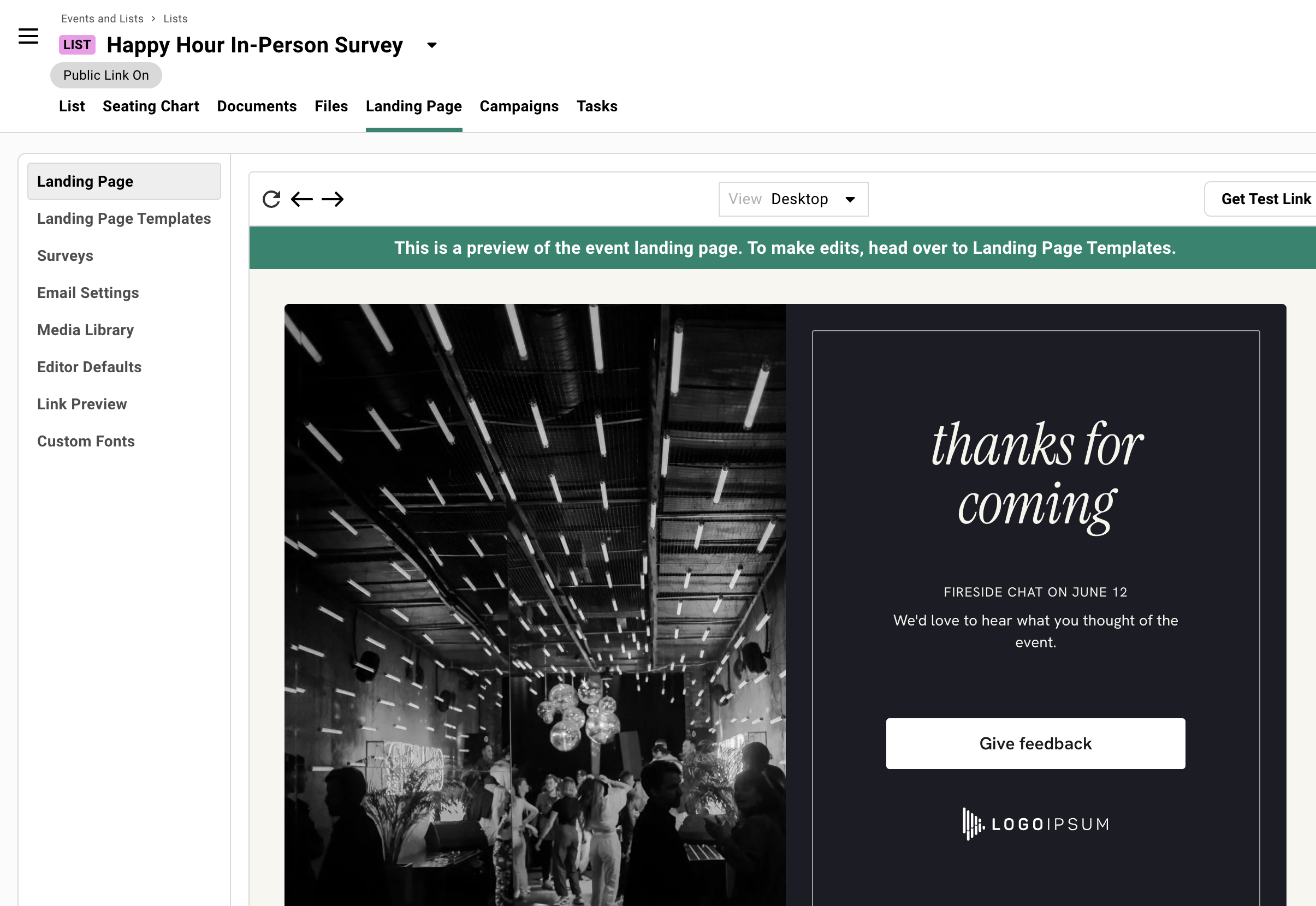
The navigation inside a list is nearly identical: List, Seating Chart, Documents, Files, Landing Page, Campaigns, Tasks. The only swap is Landing Page instead of RSVP.
Link Status vs RSVP Status
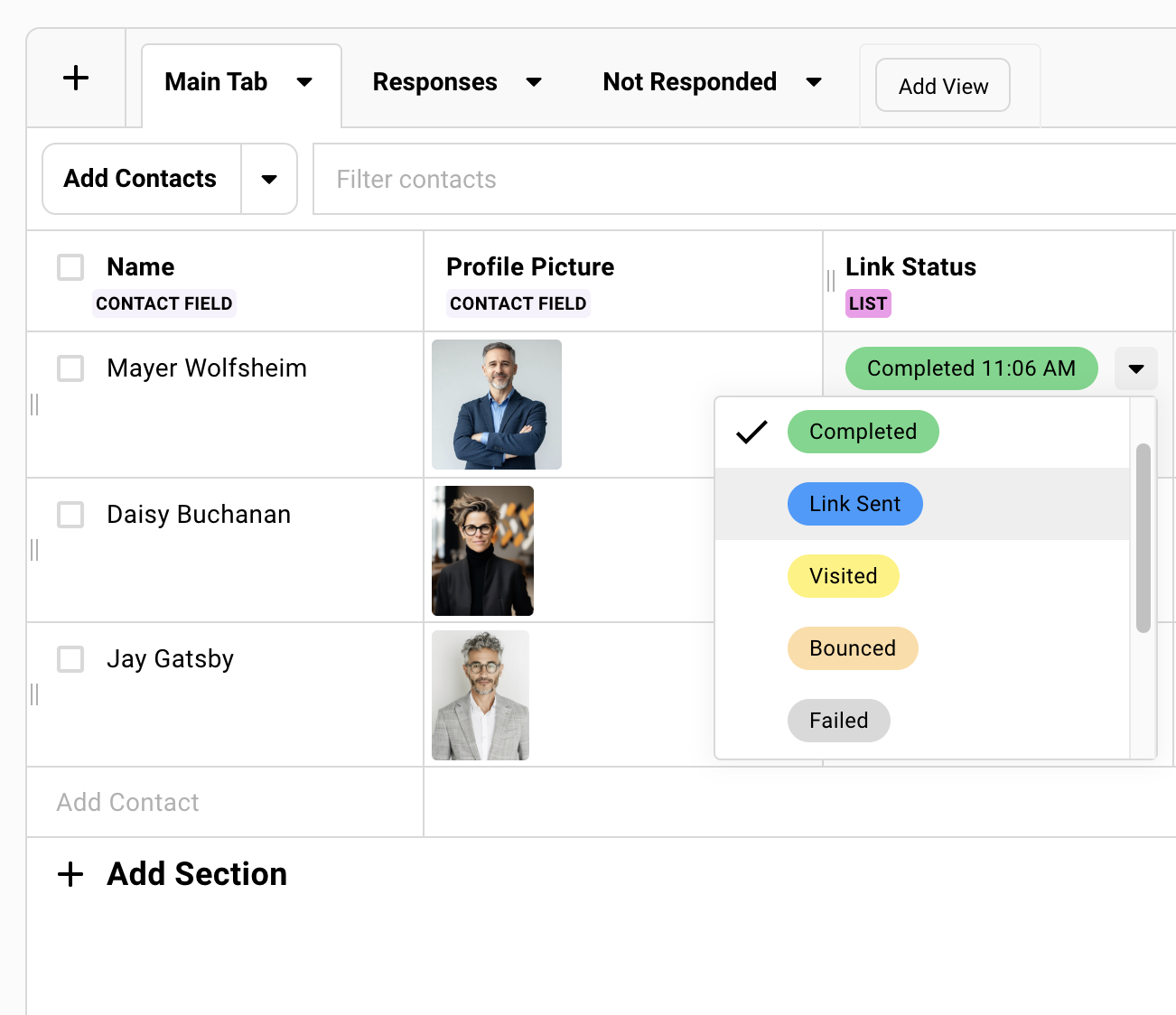
Section titled “Link Status vs RSVP Status”Lists use Link Status instead of RSVP Status. The lifecycle is simpler.
The lifecycle:
Link Sent → Visited → Completed
No Accept or Decline because there’s nothing to decline. Guests either complete the survey or they don’t.
Link Status Reference
| Status | Meaning |
|---|---|
| Blank | Not sent a link |
| Link Sent | Received a campaign with their unique link |
| Visited | Clicked the link. Viewed the landing page. |
| Completed | Finished the survey |
| Survey Incomplete | Started but didn’t finish required questions |
| Bounced | Email bounced |
| Failed | Email failed to send |
| Blocked | Previous bounce detected |
Newsletter Subscribers
Section titled “Newsletter Subscribers”Your newsletter lives in Mailchimp or HubSpot. Your relationship data lives in Gatsby. You want subscribers in your contact database without creating fake events to hold them.
Use a list. The landing page can act as your subscription form. Contacts join your database with their full history intact. Survey questions capture preferences, interests, and segments. Nothing fake, nothing cluttering your events dashboard.
Newsletters PlaybookPost-Event Surveys
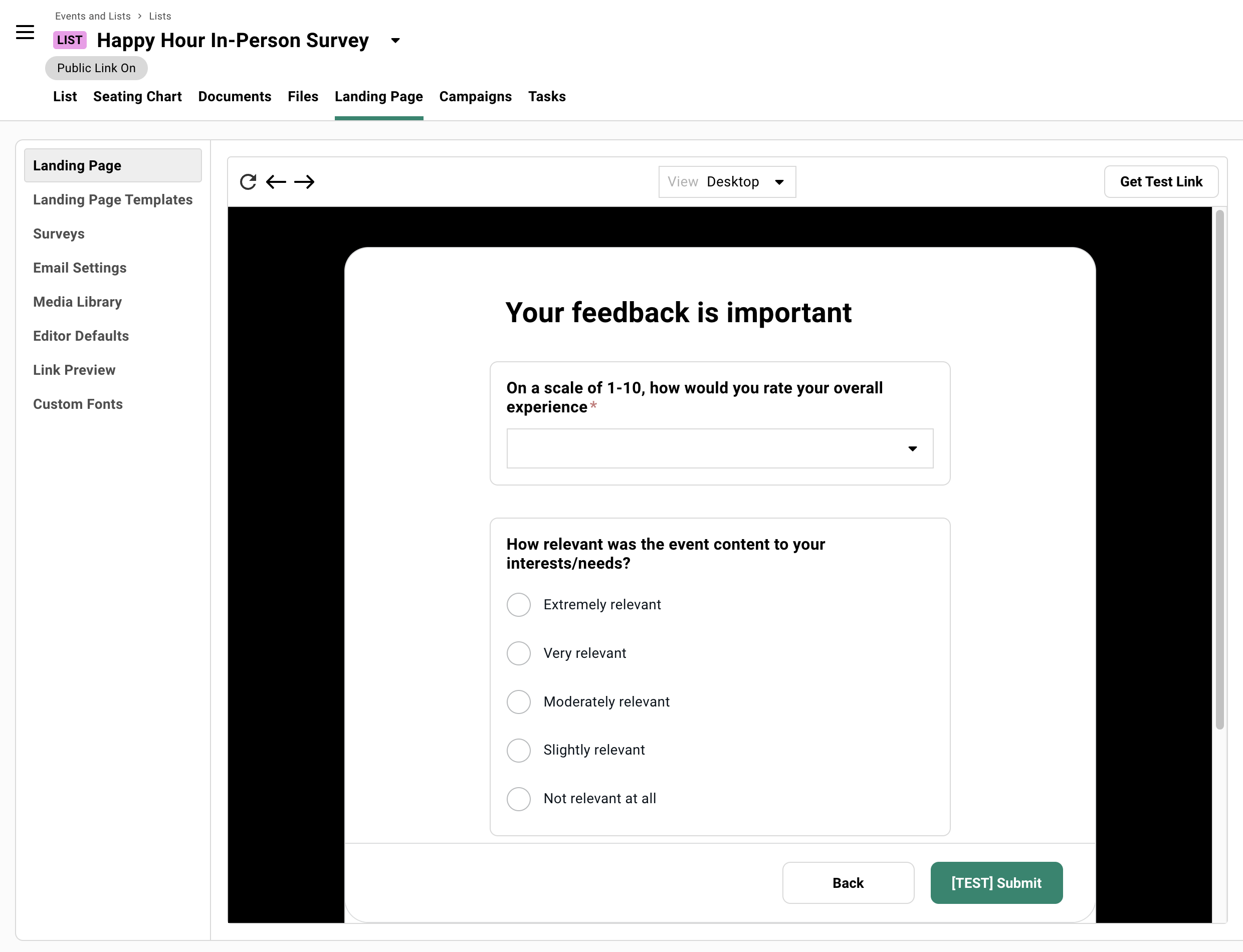
Section titled “Post-Event Surveys”You want feedback three weeks after your conference. If you use an event for this, your follow-up could trigger a calendar invite and registration confirmations for guests who already attended. Confusing at best…
Use a list. No calendar complications. The survey stays open. Add attendees from the original event.
Network Intelligence Dashboards
Section titled “Network Intelligence Dashboards”You want to see your entire contact network: who’s engaged, who’s dormant, who RSVPs yes but never shows.
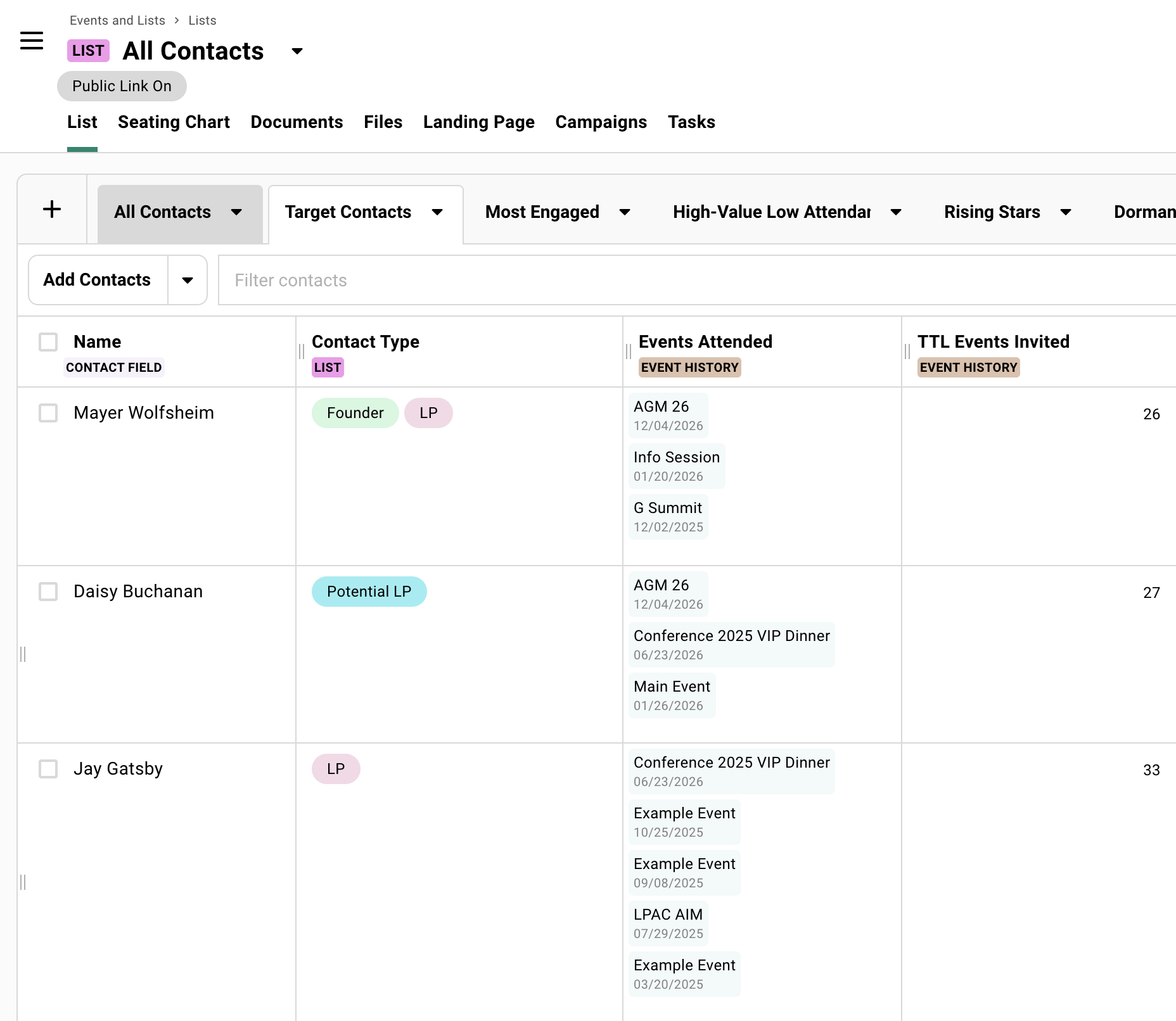
Create a list for this. Add Event History columns to see engagement patterns. Filter by total events attended, RSVP patterns, engagement level. Create views for different segments: highly engaged, needs re-engagement, VIPs who never show. No date means no confusion with your actual events calendar.
Internal Directories
Section titled “Internal Directories”Your team needs a shared reference for key contacts: board members, LP contacts, portfolio company executives. A spreadsheet works until someone needs to filter by relationship owner or see when a contact last attended an event.
Create a list. Organize contacts by relationship type. Add custom columns for internal notes, relationship owners, last contact date. Share views with team members. Password protect if needed. Contact profiles link to full engagement history.
Event Series Dashboards
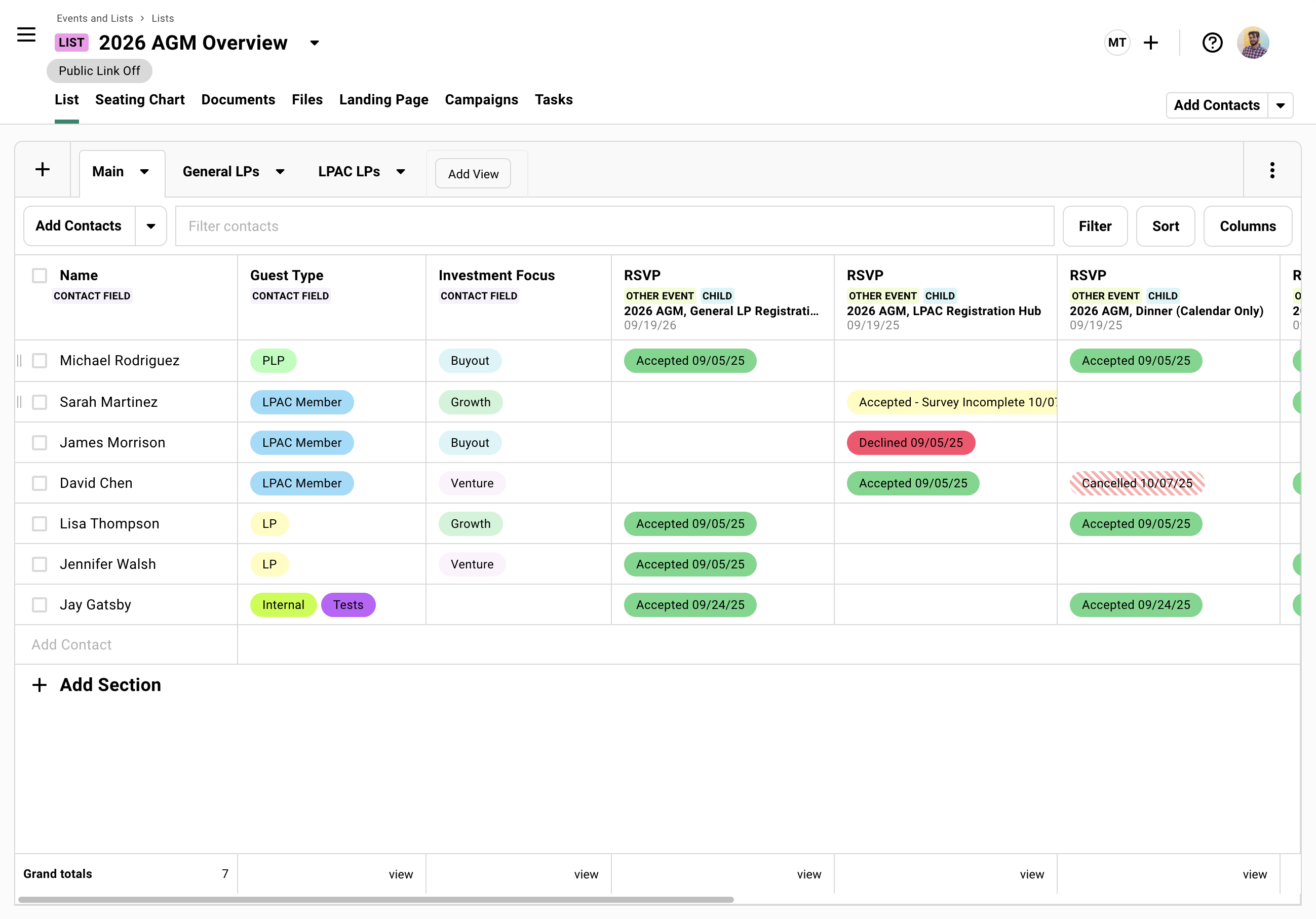
Section titled “Event Series Dashboards”You run a quarterly dinner series. You want to see everyone who’s ever attended any dinner in one place. Individual events show individual dinners. You need the aggregate view.
Create a parent list with child events. Guests bubble up from child events to the parent. Add RSVP Status columns from each child event. Now you see who’s been to one dinner and who’s been to all four.
Holiday Gift Address Collection
Section titled “Holiday Gift Address Collection”December hits. You need mailing addresses from 50 partners.
Google Forms sends responses to a spreadsheet that has nothing to do with your contact records. Chasing addresses over email means every update lives in someone’s inbox.
Use a list. Your branded landing page replaces the generic form. Personal links tie responses to existing contact records automatically. Addresses sync to contact profiles and persist year over year. Contacts can update if something changed, or confirm what’s already on file. Reuse the same list next year.
Collecting Addresses Playbook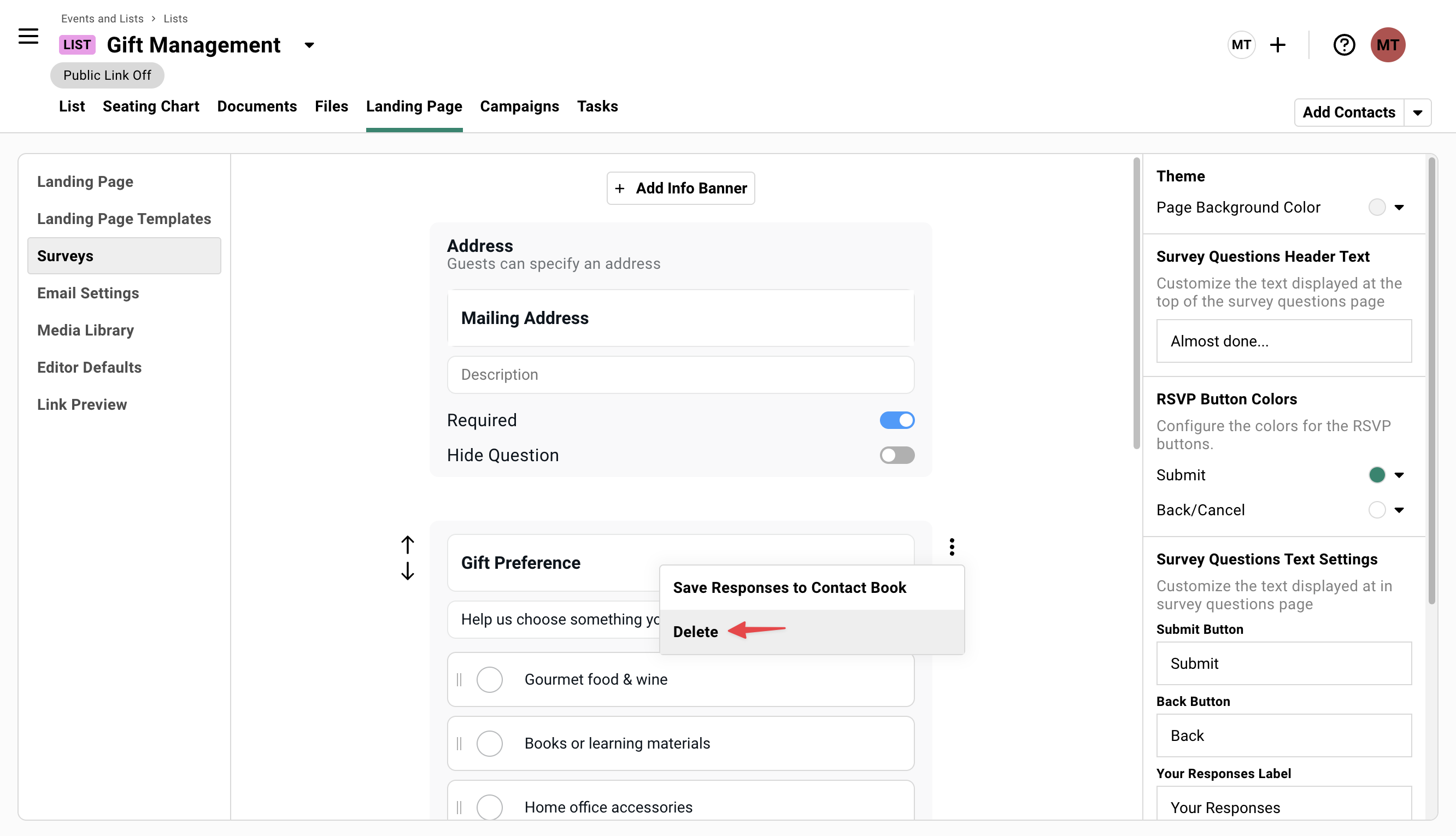
Parent-Child Lists for External Collaborators
Section titled “Parent-Child Lists for External Collaborators”You’re co-hosting an event. Each contributor has their own invite list. You don’t want them seeing each other’s contacts or your event settings. But you need everyone in one place for the actual event.
Use your event as a “parent” and create child lists for each contributor.
Each contributor gets access to their child list only. They upload their contacts to their child list. Contacts bubble up to the parent automatically. Contributors never see each other’s contacts or the main event settings.
This pattern works for co-hosted events, sponsor outreach, decentralized invite management, and any situation where multiple people contribute contacts without seeing the full picture.
Common Questions
Section titled “Common Questions” What's the difference between Events and Lists?
Events have dates. Lists don’t.
Use Events for gatherings. You get calendar invites, RSVP tracking, check-in, and attendance data.
Use Lists for ongoing groups (newsletter subscribers, guest directories, internal team, etc.) and for sending out survey forms (post-event surveys, address updates, event preferences, etc. ). Perfect for multi-event tracking (e.g. event series dashboard).
Both get the same tools: campaigns, landing pages, documents, tasks. Events add the date-specific stuff and different registration modes (waitlist, maybe, decline).
Can I convert a List into an Event later?
No direct conversion. But you can add list contacts to any event. The contacts and their data carry over.
Can I use the seating chart in a List?
Yes, the tool is available. Use cases include room assignments, table arrangements for ongoing groups, or organizational charts.