
Overview
Guest App
Give attendees a mobile experience during your event. Event details, attendee networking, push notifications, and real-time updates from a dedicated mobile app.
Printed packets get tossed. Email threads get buried. How do you keep event information accessible?
Attendees need schedules, venue details, and real-time updates. But printed materials are disposable. Email chains get lost in inboxes.
Your Event, Their Pocket
Schedules, documents, venue info. One app. Always current. No paper packets that get tossed.
Push Notifications That Land
Bus leaving in five minutes? Send updates that actually reach attendees instantly on their lock screen.
What the Guest App Does
Section titled “What the Guest App Does”Printed event packets get tossed. Email chains get buried. Text messages feel unprofessional.
Your attendees need event information accessible. But the tools you have feel either disposable or invasive.
The guest app puts your event in their pocket. Not a generic conference app. Your event, your content, your attendee list.
Attendees download the app (iOS and Android), create an account with their invited email address, and instantly see every event they are part of. From there, they access schedules, documents, other attendees, and real-time updates from you.
What Attendees Get Access To
- Event details and schedules: Always current. Change something and everyone sees it.
- Documents: Agendas, menus, speaker bios, venue maps.
- Attendee directory: See who else is coming. Photos, company info, bios.
- Push notifications: Real-time updates during the event.
- QR code sharing: Exchange contact info without business cards.
- Self check-in: Walk in and check yourself in. No line required.
How It Differs from Email or Printed Materials
The app is live.
Change the breakout room? Everyone sees it instantly. Send a notification? It appears on their lock screen.
Printed materials are fixed the moment you print them. Email threads get lost. The app stays current.
The Digital Concierge Use Case
For relationship-driven events, the guest app replaces the printed packet of bios and agendas.
Partners can check attendee photos and company info before conversations. A quick glance before walking into a dinner. Discreet, professional, always available.
No more “who is that?” moments.
Guest Setup Steps
Section titled “Guest Setup Steps”Two steps for guests: download the app and create an account with the email you invited them with.
Step 1: Download the App
Available on iOS (App Store) and Android (Google Play).
Search “Gatsby Guest” or use the direct links in your communications.


Step 2: Create an Account
Guests register using the email address on your guest list. This is how the app knows which events to show them.
They can add additional email addresses to their account later if needed.
What Happens After Login
Guests see all events they are invited to across any organizers using Gatsby.
One login. All their events.
The Email Address Requirement
Guests must use the email address you invited them with. Different email? They will not see the event.
Remind them in your communications which email to use.
Driving App Adoption
Section titled “Driving App Adoption”App adoption requires intentional communication. Start early and repeat the message across channels.
Add to Confirmation Emails
The moment someone RSVPs, include app download instructions.
They are engaged and ready to act. Capture that momentum.
Send a Dedicated Reminder
3-5 days before the event, send an email focused on app setup.
Include direct download links for iOS and Android. Make it easy.
Use QR Codes On-Site
Put app download QR codes on your registration site, in event signage, and at your check-in desk.
Walk-ins can join even if they missed the emails.
Communication Template
Here is a sample email structure.
Subject: Your app for {eventName} is ready
Hi {firstName},
We've set up an app for {eventName} to keep all the event details at your fingertips.
Download it here:
- iPhone: https://apps.apple.com/us/app/gatsby-guest/id6504500636- Android: https://play.google.com/store/apps/details?id=com.gatsbyevents.gatsbyguest.app
Sign up with this email address and you'll have instant access to the schedule, speaker information, venue details, and any real-time updates. You can also connect with other attendees through the app.
Need help getting set up? Just reply to this email and we'll walk you through it.
The Guest App is a premium add-on enabled per event. Reach out to learn more and activate it:
App Screens
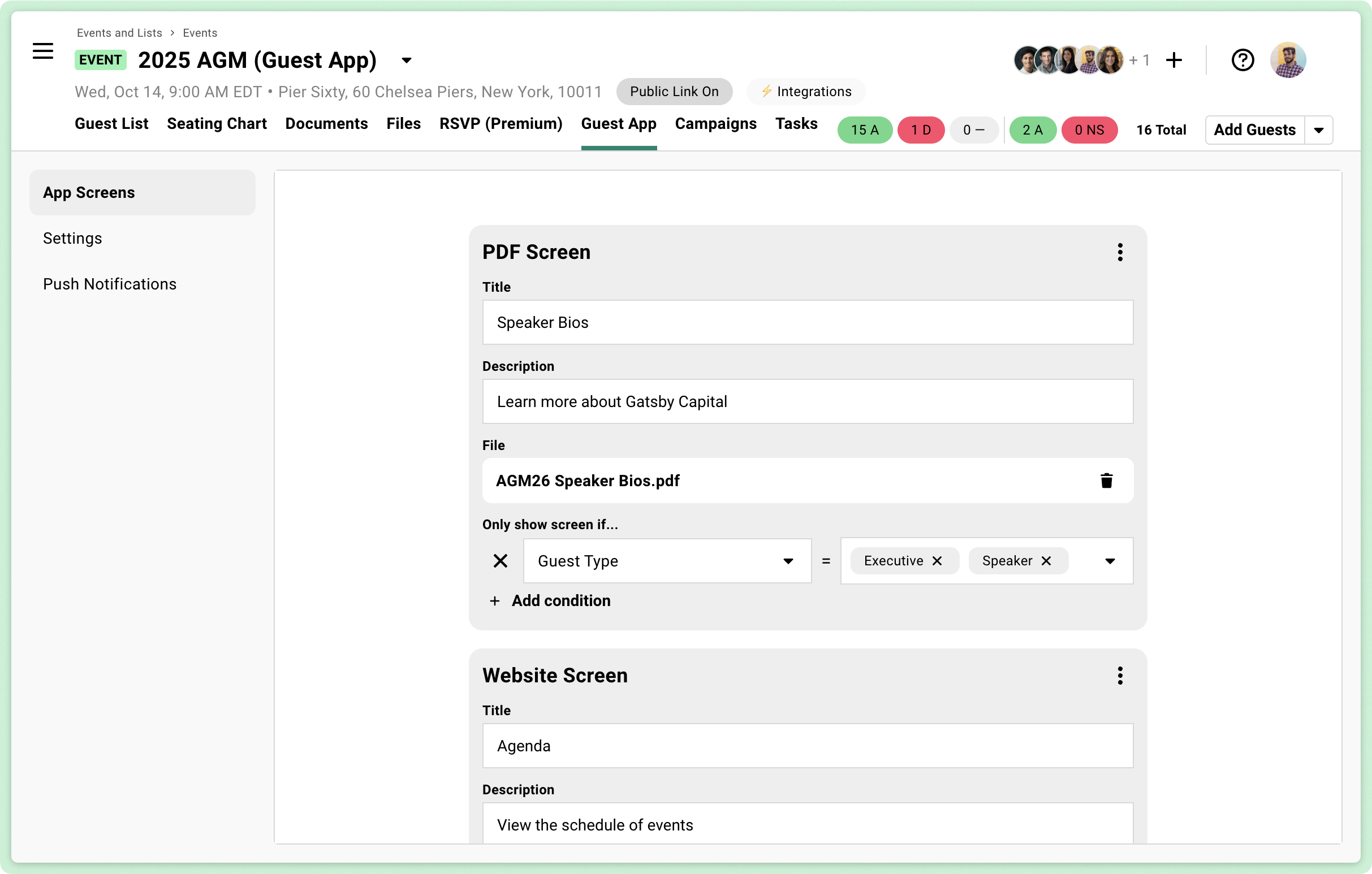
Section titled “App Screens”App Screens are the content tabs attendees see. Add documents, images, or external links. Control who sees what.
Content Types
- PDFs: Agendas, menus, speaker bios, parking instructions.
- Images: Venue maps, seating charts, schedules, floor plans.
- External websites: Polling tools, auction sites, feedback forms, sponsor pages.
What Each Screen Includes
- Title and description: What the content is and why it matters.
- File or link: The actual document or URL.
- Visibility conditions: Control who sees this screen.
Conditional Visibility
Show different content to different guests.
- Custom field tags: VIP-only content for tagged guests.
- RSVP status: Show content only to confirmed attendees.
- Survey question answers: Content based on their selections.
Platinum sponsors see the VIP reception details. Everyone else does not.
Real-Time Updates
Changed the breakout room location? Update the screen and everyone sees it instantly.
The app reflects current reality. Not whatever you printed yesterday.
App Settings
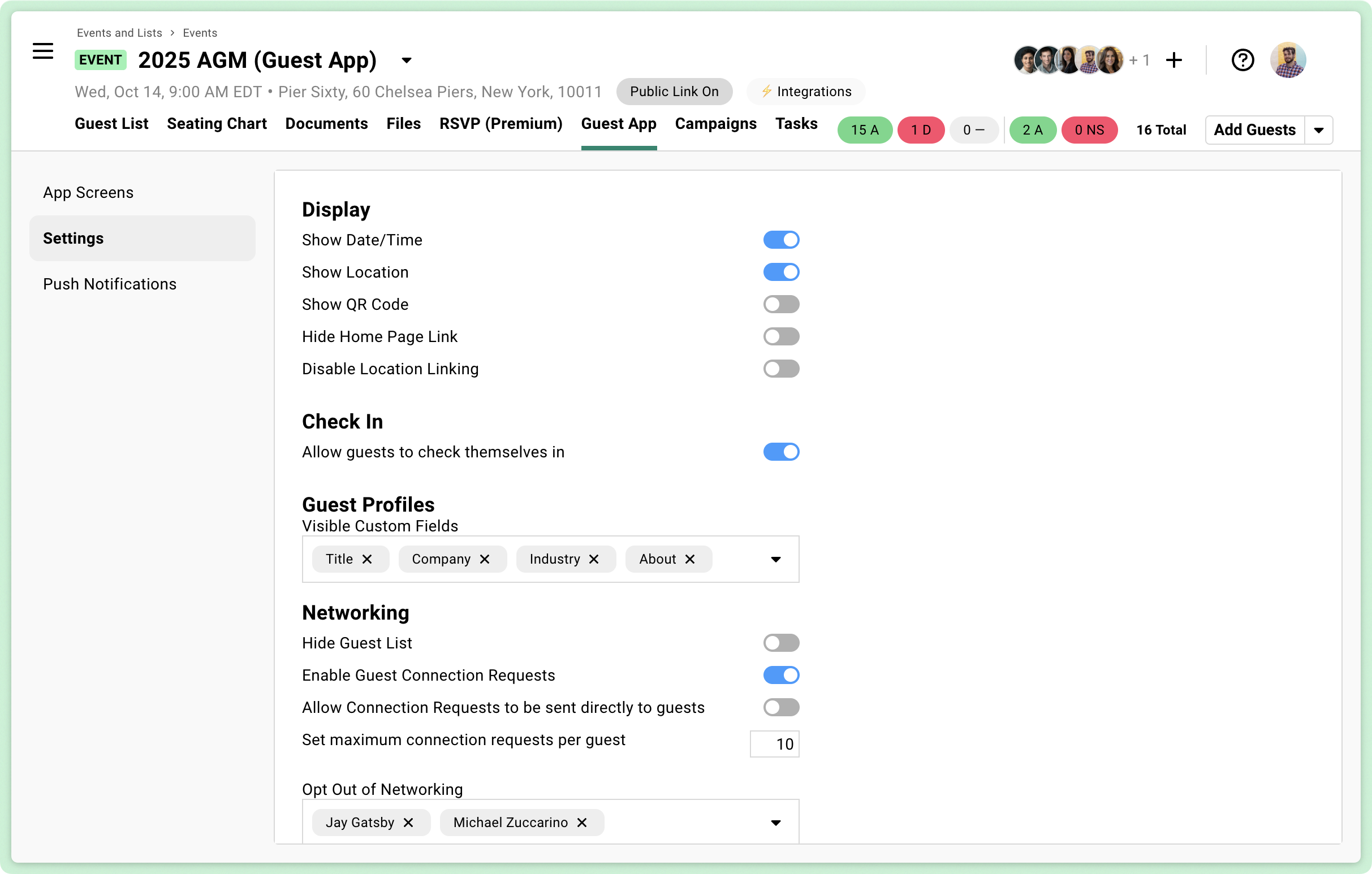
Section titled “App Settings”Toggle features on or off depending on what your event needs. Display settings, check-in options, and networking controls.
Display Settings
- Date and time: Show or hide the event schedule.
- Location: Display venue address.
- Open in maps: Let guests open venue location in their maps app.
- QR code for check-in: Guests show their QR code to check in.
- Event website link: Guest’s unique link to your RSVP page.
Self Check-In
Allow guests to check themselves in through the app.
No line. No staff required. Useful for casual arrivals or events without a formal check-in desk.
Guest Profiles
Show attendee information you have collected. Name, company, bio, custom fields.
Choose which fields display. Guests can update their own profile via a survey form you create.
Guest List Visibility
Turn the attendee directory on or off entirely.
When on, guests can see who else is coming. Essential for networking events. Optional for private gatherings.
Connection Requests
Let guests request introductions to other attendees. Two modes.
Through organizer
You act as middleman. The request email comes to you. You decide whether to make the introduction.
Direct to guest
Request goes straight to the other attendee. They decide whether to respond.
Track all requests in the Guest Connection Requests column on your guest list.
Request Limits
Cap how many connection requests each guest can send.
Prevents one person from spamming the entire list.
Opt-Out Option
Let specific guests stay off the networking list entirely.
Useful for VIPs who prefer privacy. They remain in the event. They just do not appear in the directory.
QR Code Sharing
Beyond connection requests, guests generate personal QR codes other attendees can scan.
Instant access to their LinkedIn profile, email address, or company website.
The business card replacement. Perfect for those “let me get your card” moments when nobody carries business cards anymore.
Push Notifications
Section titled “Push Notifications”Send instant updates to attendees during your event. Title, message, target audience. Track who viewed it.
Creating a Notification
-
Add a title.
-
Write your message. Keep it short. Push notifications are glances, not essays.
-
Choose your audience. All attendees by default, or exclude specific guests.
-
Send.
Targeting Specific Guests
Send to all attendees by default.
Exclude specific guests if the message does not apply to them. VIP dinner instructions? Exclude everyone not on the VIP list.
Tracking Engagement
See who has viewed each notification.
Know whether your message landed.
When to Use Push Notifications
Time-sensitive, actionable information.
- “Dinner service starting in Ballroom B.”
- “Keynote delayed 15 minutes.”
- “Silent auction closing in 10 minutes.”
- “Valet line is long, consider rideshare.”
- “New poll available.”
How Many Is Too Many
3-5 notifications during an event is reasonable.
More than that and guests start ignoring them. Save push for what matters.
Who Uses the Guest App (And How)
Section titled “Who Uses the Guest App (And How)”Different events need different app configurations. A B2B conference wants data on attendee behavior. A private dinner wants discrete attendee information. A logistics-heavy event needs real-time broadcast capability.
Same app. Different priorities.
The guest app adapts to your event type. Here is how different teams use it.
Data-Driven Event Teams
Use the app to track engagement.
Which breakout sessions are attendees adding to their schedules? That is buying signal data. Push notifications drive traffic to key moments.
The app closes the visibility gap once attendees walk in the door.
Relationship-Focused Firms
Use the app as a digital briefing book.
The guest directory with photos and bios lets partners refresh their memory before conversations. No more “who is that?” moments.
Minimalist configuration. High-quality execution.
Curator and Membership Organizations
Use the app for the attendee directory and document storage.
Members see who else is in the room. Post-event, the app houses artifacts and documents from the gathering.
Privacy controls let high-net-worth members choose what contact info is visible.
Logistics-Heavy Events
Use push notifications as a broadcast system.
“The bus to the testing site is leaving in 5 minutes.” Real-time coordination for tight timelines.
Essential when you need to move people quickly.
Tips for Success
Section titled “Tips for Success”A few practices separate smooth app rollouts from frustrated guests and underutilized tools.
Test Everything Yourself
Add yourself as a guest. Download the app. Go through the full experience.
Find problems before your attendees do.
Start Early
Give guests 1-2 weeks to download and set up the app.
Last-minute instructions get ignored.
Train Your Team
Make sure staff knows how QR code check-in works from the guest side.
They will field questions.
Provide On-Site Support
Help desk station for guests who need app setup assistance at check-in.
Do not let app confusion slow down your entry flow.
Keep Content Current
The power is in real-time updates. If your agenda changes, update it.
Stale content defeats the purpose.
Common Questions
Section titled “Common Questions” Is the Guest App included in my subscription?
The Guest App is a premium add-on enabled per event. Contact Gatsby to learn more and activate it for your event.
What if guests use a different email than what is on my list?
Guests can add alternate email addresses to their account after initial setup. But they must start with the email you invited them with.
Can I test the guest app before my event?
Yes. Add yourself to the guest list, then download the app and create an account separate from your Gatsby organizer account.
What about guests without smartphones?
The guest app is optional. Provide critical event info through other means (printed materials, signage, staff) for those without smartphones or those who prefer not to use the app.
Can guests access multiple events?
Yes. Once logged in, guests see all events they are invited to across any organizers using Gatsby.
Is there an Android version?
Yes. The guest app is available on both iOS (App Store) and Android (Google Play).
What if someone does not want to appear in the guest directory?
Use the opt-out option in settings to remove specific guests from the networking list while keeping them in the event.