
Overview
Organizing Contacts
Three tools for structuring your contact database. Custom fields for attributes that matter over time. Tags for quick labels. Lists for stable groups. Choose the right one and your database stays useful.
Three ways to organize contacts.
Custom fields filter cleanly and persist across events. Lists are manual groups you reuse. Tags for quick classification.
Custom Fields
Structured attributes that filter in guest lists and drive survey logic. Can be renamed.
Lists
Stable groups like Board Members or newsletter subscribers. Add entire list to events in one click.
Custom Fields
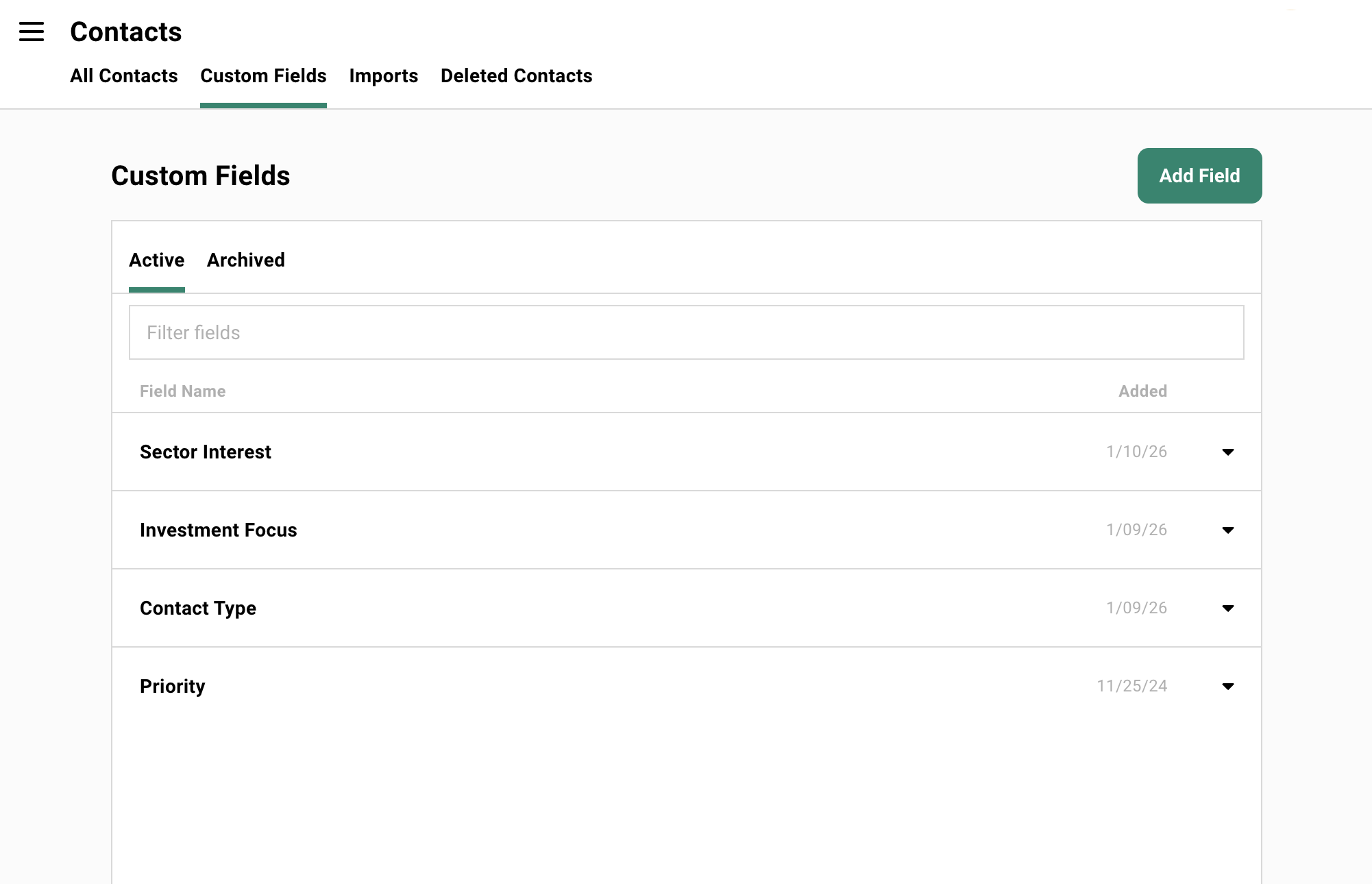
Section titled “Custom Fields”Structured attributes that persist on the contact across all events. They filter in guest lists, drive survey question logic, and can be renamed when your terminology changes.
Create them in the Contacts tool under Custom Fields.
Common examples:
- Guest Type: LP, Portfolio CEO, Service Provider, Board Member
- Relationship Owner: Which partner owns the relationship
- Region: SF, NYC, London, APAC
- Member Tier: Gold, Silver, Bronze
Creating a Custom Field
-
Go to Contacts in the main navigation.
-
Click Custom Fields in the toolbar.
-
Click Create New.
-
Choose the field type: Text, Number, or Multi-select.
-
Name your field and configure options.
Use Multi-select for filtering values later. You can’t filter by Text or Number fields.
Using Custom Fields in Guest Lists
Custom fields appear as available columns in any guest list.
Adding the column:
Open the Columns drawer. Click Add Fields. Find your custom field under Contact Fields.
Filtering by value:
Click Filter. Choose your custom field. Select the values you want to see.
Now you can build a guest list of “All Bay Area LPs” without manual selection. The filter does the work.
Using Custom Fields in Survey Logic
Survey questions can show or hide based on a contact’s custom field values.
Example: Ask LPs about fund performance. Ask portfolio CEOs about hiring needs. Same registration form, different questions.
See Forms & Surveys for setup details.
Quick labels you attach from anywhere: a contact profile, a guest list, or a bulk selection. They persist across events and work well for temporary, behavioral, or project-specific labels.
One constraint worth knowing upfront: tags cannot be renamed or merged. Once created, they stick as-is.
If you think you might rename it later, use a custom field instead.
Good tag examples:
- Good Speaker: Behavioral observation
- Attended March Dinner: Event-specific
- Special Handling: Temporary flag
- Needs Hotel Booking: Project-specific
Adding Tags
From a contact profile:
Open the contact. Click the Tags field. Type to add or select existing tags.
From a guest list (bulk):
Select multiple guests. Click Adjust Tags in the action bar. Add or remove tags for everyone at once.
Filtering by Tags
In guest lists: Click Filter. Choose Tags. Select the tags you want to see.
In the Contacts tool: Same approach. Filter by tags to find everyone with that label.
Tags are also available as a column “Tagged With”. Add them to see which guests have specific tags at a glance.
Why Tags Cannot Be Renamed
This is a technical constraint, not a design choice. Once a tag exists, it cannot be changed. So use tags for things you won’t need to rename.
Will work:
- “Attended March 2024 Dinner” (date is fixed)
- “Good Speaker” (observation, not category)
- “VIP” (stable meaning)
Will cause problems:
- “Q1 Prospects” (next quarter you’ll want “Q2 Prospects”)
- “SF Region” (what if you rename to “Bay Area”?)
- “Tier 1” (membership tiers should be custom fields)
Stable groups with ongoing value. Being on the list itself is meaningful. Think of them as events without dates.
You can send campaigns directly to a list or add the entire group to an event in one click. When you have a set of people you’ll communicate with repeatedly, a list is the right tool.
Common examples:
- Board Members: Governance communications
- Fund II LPs: Investor updates
- 2026 Active Members: Annual membership tracking
- Newsletter Subscribers: Ongoing content distribution
Creating a List
-
Go to Events & Lists in the main navigation.
-
Click Create and select List.
-
Name your list and add an optional description.
-
Add contacts using the same methods as events: search, from other events, by tag, or CSV upload.
Adding Contacts to a List
From the list itself:
Click Add Guests. Search for contacts, pull from events, or filter by tags.
From a guest list (bulk):
Select guests. Click Add to List in the action bar. Choose your destination list.
From a contact profile:
Open the contact. Their list memberships appear in the profile. Add them to additional lists from there.
Adding a List to an Event
You can pull an entire list into an event at once.
Click Add Guests. Select the From Lists tab. Choose your list. Everyone on that list becomes a guest at your event. “Bay Area LPs” becomes your San Francisco dinner guest list in one click.
Sending Campaigns to Lists
Lists work just like events for email campaigns. Create a campaign, select recipients, send.
This makes lists ideal for ongoing communications like newsletters, quarterly updates, or membership announcements.
See Campaigns for details.
Filtered Views in Contacts
Section titled “Filtered Views in Contacts”The Contacts tool has its own view system. Different from events and lists.
Each tab is a saved view. Configure columns and filters. The view updates automatically as contact data changes.
Good for:
- Reporting on contact segments
- Monitoring contacts with specific attributes
- Finding contacts that match dynamic criteria
The difference from lists:
- Views are reactive. Contacts appear and disappear based on filter criteria.
- Lists are curated. You add and remove contacts manually.
Use views when membership should update automatically. Use lists when you want control over exactly who’s included.
Creating a Contact View
-
Go to Contacts in the main navigation.
-
Click the + tab to add a new view.
-
Set your filters.
Region = SForGuest Type = LP. Whatever criteria matter. -
Configure columns to show the data you need.
-
Name your view. It saves automatically.
Now you have a persistent view that always shows contacts matching those criteria. New contacts that match? They appear. Existing contacts that no longer match? They disappear.
View vs List
| Scenario | Use This |
|---|---|
| ”Everyone tagged Board Member” | View (reactive) |
| “People we’re inviting to the board dinner” | List (curated) |
| “All SF-based contacts” | View (reactive) |
| “Our newsletter subscribers” | List (curated, opt-in) |
| “Contacts who attended 3+ events” | View (reactive) |
| “2026 Advisory Committee” | List (curated) |
The question: Should membership update automatically based on data? View. Should you control exactly who’s in? List.
Getting Started
Section titled “Getting Started”Start with one custom field that matters. Usually Guest Type or Relationship Owner. Create it and populate it during your next import.
Create one list for your most important ongoing group. Your board, your core LPs, whatever group you communicate with repeatedly.
Use tags sparingly. Reserve them for project-specific needs and behavioral observations.
You don’t need to organize everything perfectly upfront. Your structure grows as you host more events. A few intentional choices now save real time six months from now.
Common Questions
Section titled “Common Questions” How does contact organization in Gatsby differ from my CRM?
Your CRM tracks deals and company relationships. Gatsby tracks event engagement.
Custom fields in Gatsby are for event-relevant attributes: dietary restrictions, member tiers, relationship owners for invitation decisions. Your CRM fields are for pipeline stages and revenue.
They complement each other. Gatsby syncs attendance data to your CRM. Your CRM provides context Gatsby doesn’t need to duplicate.
Can I rename a tag after I've used it?
No. Tags cannot be renamed or merged. This is a technical constraint.
If you need to rename something, you have two options:
- Create a new tag. Manually re-tag contacts. Delete the old one.
- Use a custom field instead. Fields can be renamed.
For anything you might rename later, use a custom field from the start.
Can I convert tags to custom fields?
Not directly. You would need to:
- Create the custom field.
- Filter contacts by the tag.
- Bulk update the custom field value.
- Remove the tag if desired.
This is manual but straightforward. Filter by tag, select all, edit column values, set the custom field.
What happens to list membership when I delete a contact?
The contact is removed from all lists. If you restore the contact from the trash, you’ll need to re-add them to lists manually.
Can I see which lists a contact belongs to from their profile?
Yes. Open the contact profile. Their list memberships appear in the profile details. You can add them to additional lists from there.